


You point a VPN at a server in Toronto, reload Netflix, and the catalog quietly changes. That’s the short version. The longer version is where the useful detail lives: which method survives Netflix’s detection, which one fails on a Roku, and why the person with a Canadian account often has the harder problem.
- TL;DR / Quick Answer
- Is It Legal?
- Two Scenarios: Which One Is You?
- How Netflix Region Locking Actually Works
- Method 1: Using a VPN (the main method)
- Method 2: Smart DNS (for devices that don’t support a VPN)
- Method 3: Browser Extension / Proxy
- Method 4: No-VPN Options
- How to Set It Up on Every Device
- How to Verify You’re on Canadian Netflix
- Troubleshooting
- US Netflix vs Canadian Netflix: What’s Different
- FAQ
- Conclusion
This guide covers all of it. Whether you’re searching for how to watch Canadian Netflix in the US, trying to get Netflix Canada in the US on a TV that won’t cooperate, or just wondering can I watch Canadian Netflix in the US at all, the answer is yes, with a few honest caveats we’ll get to. We tested the methods below across browsers, apps, and streaming hardware, and we’ll tell you where each one breaks.
TL;DR / Quick Answer
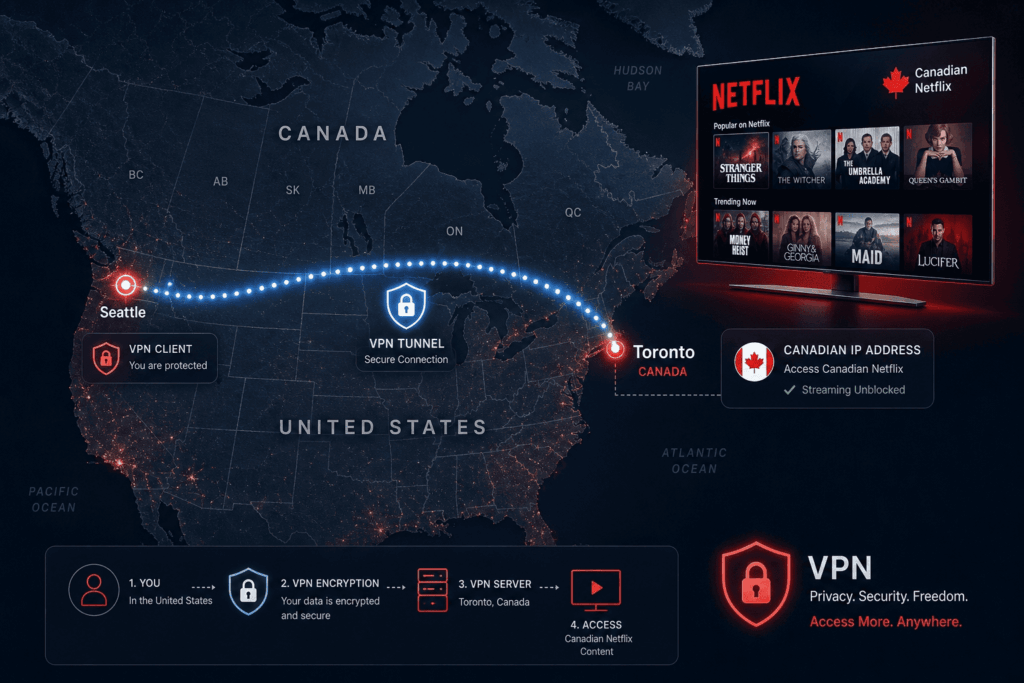
To watch Canadian Netflix in the US, connect a VPN to a server in Canada, then reload Netflix. Your catalog switches to Canada’s because Netflix reads your IP address, not your account. A VPN (virtual private network, a tool that routes your traffic through a server elsewhere and hides your real location) is the method that works most reliably.
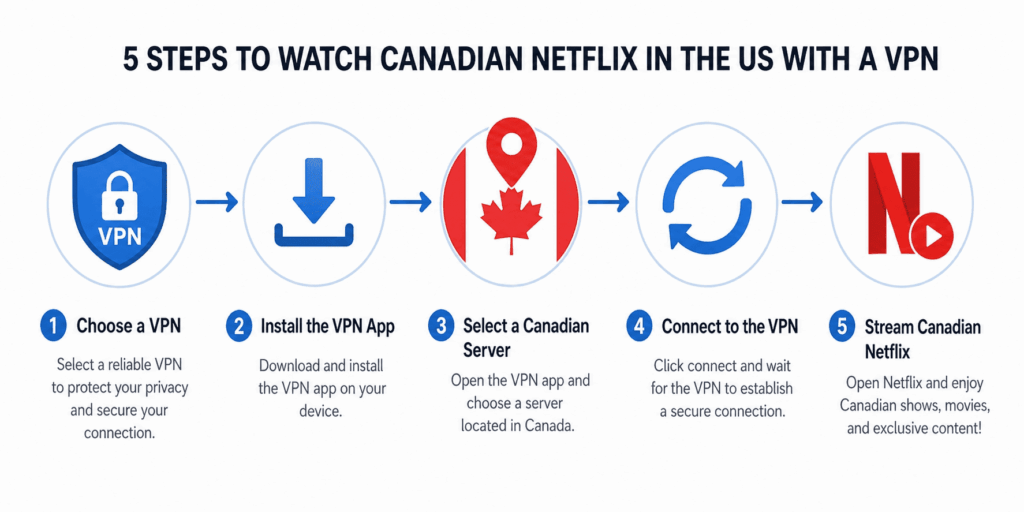
- Choose a VPN with Canadian servers and a track record of working with Netflix.
- Install it on your device and sign in.
- Connect to a Canadian server: Toronto, Montreal, or Vancouver.
- Reload Netflix (refresh the browser tab or fully restart the app).
- Press play. You’re now browsing the Canadian library.
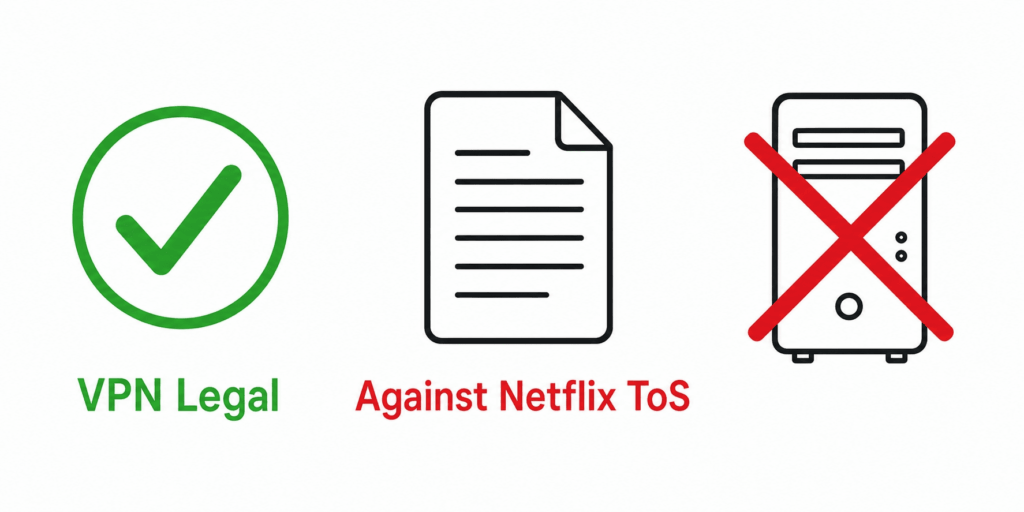
Is this legal? Yes. VPNs are legal in the US and Canada. Switching regions breaks Netflix’s Terms of Service, but it isn’t a crime, and Netflix blocks servers rather than banning accounts.
Do I need a separate Canadian account? No. The catalog you see depends on your IP address, not your account or your payment currency.
Is It Legal?
Yes, it’s legal. VPNs are legal to use in both the US and Canada. Using one to change your Netflix region violates Netflix’s Terms of Service, but violating a private company’s terms is not the same as breaking the law: it’s a contract issue, not a criminal one. This is not legal advice, and your situation may differ, but no US or Canadian user is committing a crime by streaming through a VPN.
What actually happens in practice matters more than the theory. Netflix enforces its terms by blocking the VPN server, not by banning your account. When detection kicks in, you get an error and a black screen, not a suspension. We’ve never seen a credible report of an account terminated purely for VPN use, and Netflix’s own help pages tell users to simply turn the VPN off to restore regional access. They don’t threaten the account.
Netflix’s official position is deliberately soft. Its support staff and community forums describe “no official stand” on individual VPN use, which is why coverage elsewhere ranges from alarmist to dismissive. The accurate read sits in the middle: legal, against the rules, enforced at the server level. Treat any catalog you unlock as a convenience that can disappear, not a right.
Two Scenarios: Which One Is You?
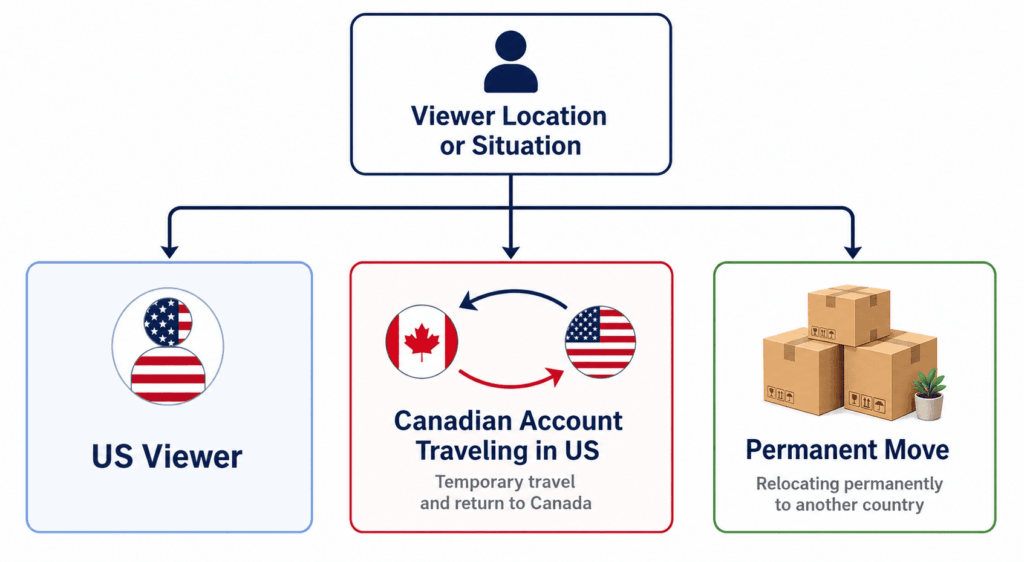
Most guides assume everyone is the same reader. They aren’t. Three very different people search for this, and the fix is different for each. Find yourself first.
Find Your Situation
Your situation What to do (A) You’re in the US (with a US or any account) and want the Canadian catalog Connect a VPN to a Canadian server. Reload Netflix. (B) You have a Canadian account and you’re visiting the US Netflix shows you the US catalog automatically while you’re here. To get your Canadian content back, connect a VPN to a Canadian server, even though you have a Canadian account. (C) You’ve genuinely moved from the US to Canada for good No VPN needed. You can legally change your account’s country: see Netflix’s “Moving with Netflix” process in the next section.
Scenario B is the one nobody explains, and it’s the most counterintuitive. People assume their Canadian account carries the Canadian catalog with them. It doesn’t. The moment your phone or laptop connects from a US IP, Netflix serves the US library: your account currency stays Canadian, but your catalog follows your location. So the traveler who wants their home shows back has to connect to Canada, which feels backwards but is exactly right.
Scenario C is the only one that’s permanent and fully sanctioned. If you’ve actually relocated, there’s a legitimate path that doesn’t involve a VPN at all.
Fact worth pinning: Your Netflix catalog is determined by your IP address, not your account, and not the currency you pay in. Change the IP, change the catalog.
How Netflix Region Locking Actually Works
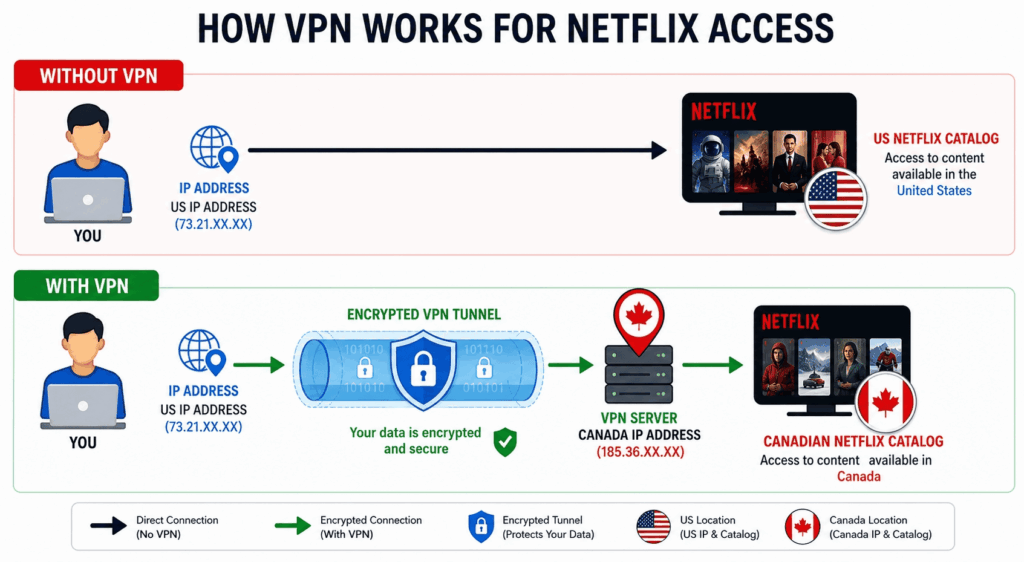
Netflix decides which catalog to show you by reading the IP address your device connects from. An IP address is the network identifier that reveals roughly where you are. A connection from Calgary sees Canada’s library, while a connection from Chicago sees the US one. The accounts are identical underneath; only the location differs.
The reason behind all this is licensing, not corporate whim. Netflix buys streaming rights country by country, and those rights rarely line up. A film might be licensed in Canada but locked in the US because another platform holds the American rights, or vice versa. The region wall is really a contract wall. A VPN gets you over it by masking your real IP and presenting a Canadian one, so Netflix believes you’re in Canada and serves that catalog.
Here’s the part the affiliate articles skip, and it’s the honest core of this section. Netflix states plainly that when you stream through a VPN, you “may only be shown TV shows and movies Netflix has worldwide licensing for, like Squid Game or Stranger Things.” In other words, a VPN reliably unlocks globally licensed content but does not guarantee the full local Canadian catalog. In our testing the regional library does usually appear, but Netflix’s own warning is real, and you should expect the occasional title that simply won’t surface no matter which Canadian server you pick.
One more rule straight from Netflix Help: you cannot change the country on your account unless you’ve actually moved. A VPN changes what you see. It does not change what your account is.
Method 1: Using a VPN (the main method)
A VPN is the method we recommend for most readers, and it’s the only one that works across the widest range of content and devices. Here’s the full setup.
- Pick a VPN that has Canadian servers and a real history of working with Netflix (more on choosing below).
- Install the app on your phone, computer, or streaming device and sign in.
- Choose a Canadian server. Major providers let you pick a city: Toronto, Montreal, Vancouver, or a general Ontario node. Any will do; pick one geographically closer to you for better speed.
- Connect, and wait for the app to confirm you’re online.
- Reload Netflix. Refresh the browser tab, or fully close and reopen the app. A background session can keep serving the old catalog until you restart it.
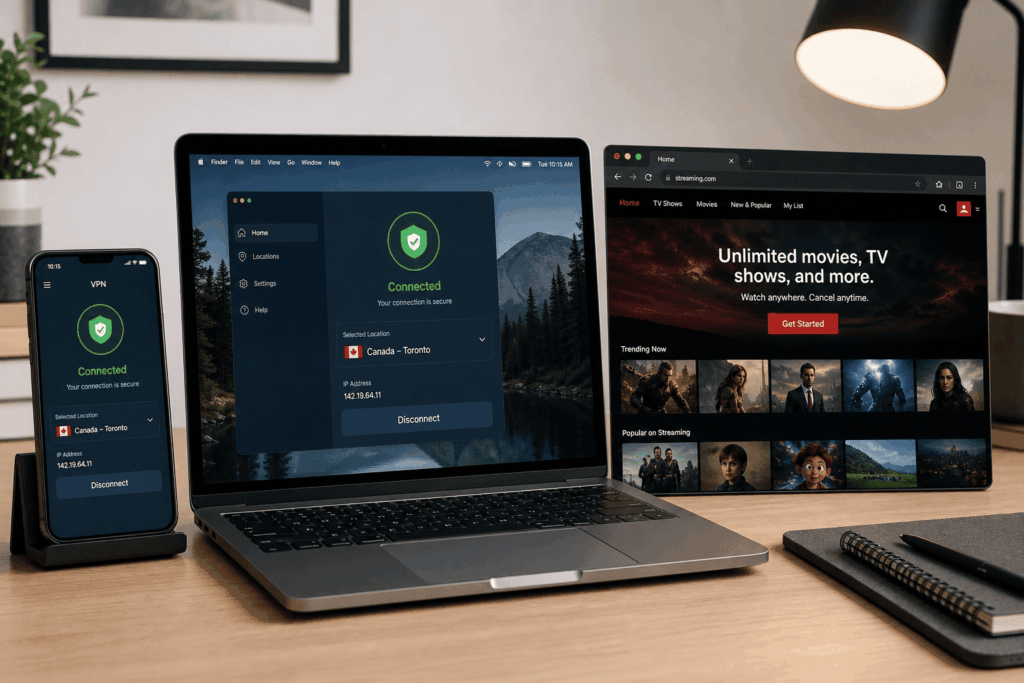
The trade-offs. On the plus side, a VPN encrypts your traffic, protects your privacy on shared or public networks, and works far more consistently against Netflix’s detection than the lighter methods further down. The main cost is speed: routing through a distant server can shave off throughput, which matters at 4K. A strong provider keeps that loss small (in our tests, Toronto servers from the major providers held up best from the US East Coast, while Vancouver nodes lost more from the same location) but a weak one will leave you buffering.
Two lessons from real-world use. First, streaming in a browser tends to slip past detection more reliably than the mobile or TV app, so if the app throws a proxy error, try the web player on the same connection. Second, most providers offer a 30-day money-back guarantee, so use it. Test two or three against the Canadian catalog before you commit, because Netflix compatibility shifts month to month.
How to choose a VPN for Netflix (this is the answer to “which VPN can trick Netflix?”): look for servers in your target country, fast and stable speeds, a current track record of actually loading Netflix, a 30-day money-back window so you can verify before paying, and ideally a dedicated or static IP option. A dedicated IP is a private address that fewer people share, which is far less likely to be on Netflix’s blocklist.
The well-known names (NordVPN, ExpressVPN, Surfshark, Private Internet Access, CyberGhost) all field large server networks and tend to keep working Netflix nodes online. We list them neutrally here; the right pick is whichever one clears the checklist above when you test it, not whichever sits highest on a ranking.
Method 2: Smart DNS (for devices that don’t support a VPN)
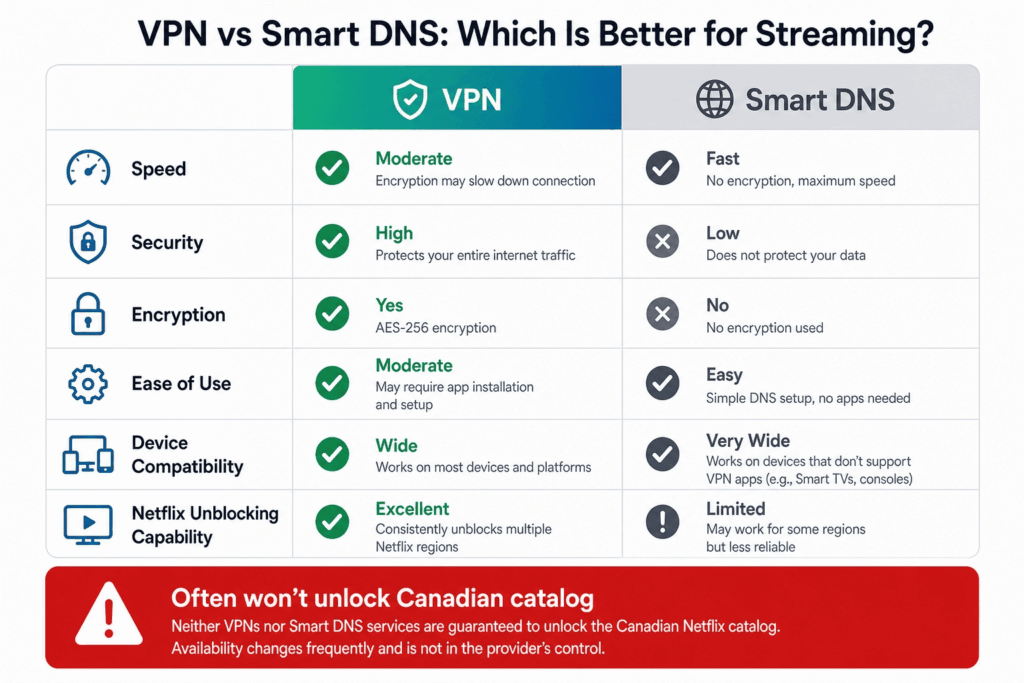
Smart DNS is a lighter alternative for hardware that can’t run a VPN app. Instead of encrypting and rerouting all your traffic, it only redirects the small part of your connection that signals your location. The result is faster than a VPN and doesn’t dent your speed, but it doesn’t hide your real IP or encrypt anything, so it offers no privacy benefit.
Setup is manual. You log into the Smart DNS service, copy the DNS addresses it gives you, and enter them in your TV’s or console’s network settings in place of the automatic ones. No app required, which is the whole appeal on a locked-down device.
Two warnings that most pages bury, and both matter here. First, Smart DNS services are usually tuned for US libraries and frequently do not unlock the Canadian catalog at all, so for the specific goal of getting Canadian Netflix, this method often won’t deliver. Check that your provider explicitly supports Canada before you rely on it. Second, almost every Smart DNS service requires you to whitelist your home IP address in your account dashboard, and you have to update that entry whenever your home IP changes (most residential IPs rotate periodically). Skip that step and the service silently stops working.
Method 3: Browser Extension / Proxy
A browser extension or web proxy is the fastest way to try region switching, and some are free, but it’s the least reliable option and the easiest for Netflix to catch. Many extensions are really lightweight proxies that route only your browser traffic, and Netflix flags them quickly, returning the familiar proxy error. They also offer weaker security than a full VPN. Use one for a quick, low-stakes test in a browser tab if you already have it installed. Don’t build your viewing around it, and don’t use it on a network where you actually care about privacy.
Method 4: No-VPN Options
Sometimes the simplest fix is to sidestep region switching entirely.
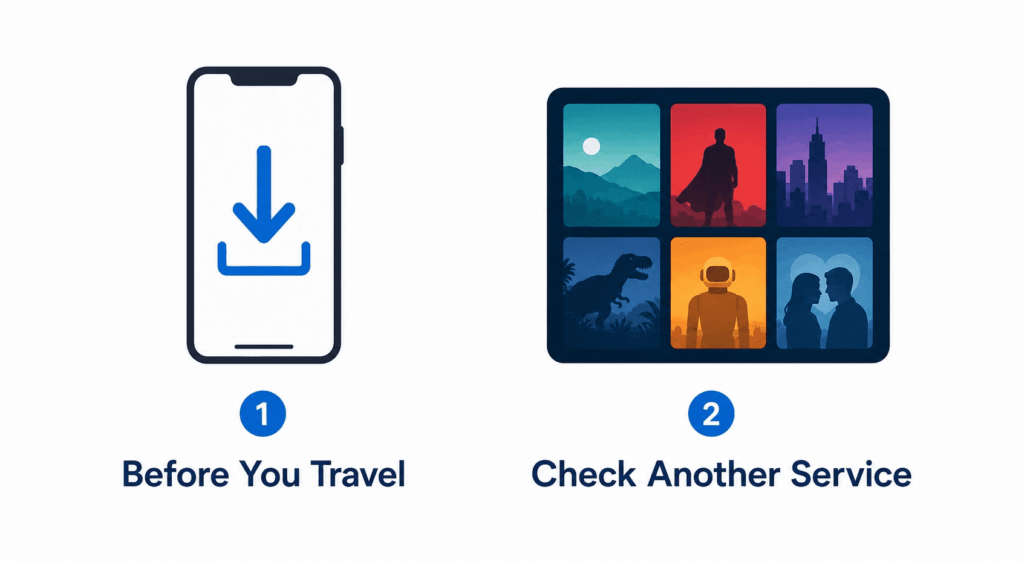
The first option is to download the content offline before you travel. If you’re leaving Canada and want specific Canadian titles on the trip, download them to your phone or tablet while you’re still on a Canadian connection. This is fully legitimate, no workaround involved. The catch, straight from Netflix: titles you’ve already downloaded may become unavailable while you’re in a different country. So it’s a useful hedge, not a guarantee.
The second option is to check whether the title lives on another service in your region. Licensing is fragmented, and a film that’s missing from US Netflix often turns up on a different streamer you may already pay for. We’ve hit exactly this: a title locked on Netflix US sitting quietly on another platform’s catalog. A two-minute search across your existing subscriptions can save you the entire VPN exercise.
How to Set It Up on Every Device
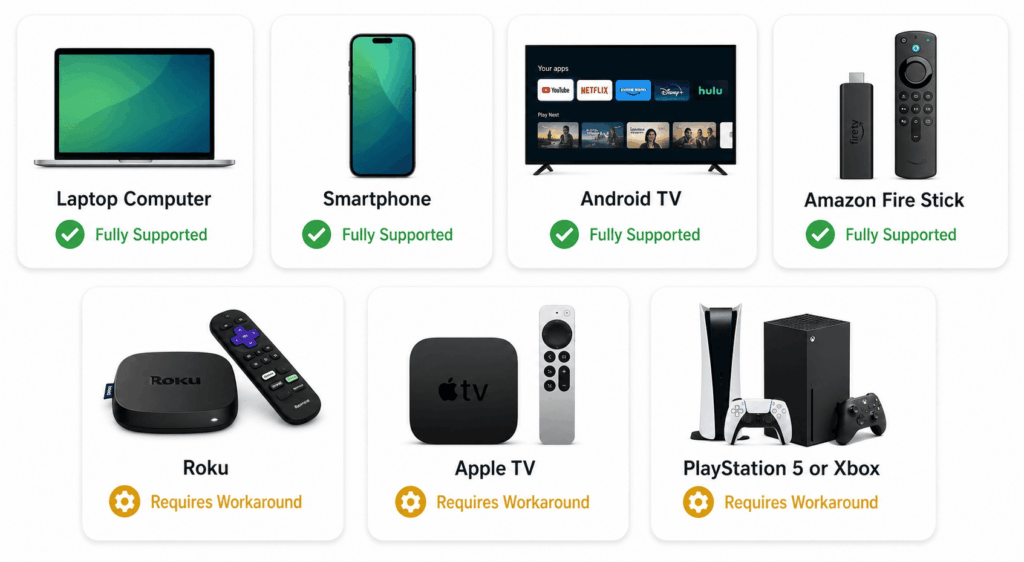
Some devices run a VPN natively. Others fight you. Start with the table, then jump to your hardware.
| Device | VPN app natively? | Recommended method |
|---|---|---|
| Desktop / laptop | Yes | VPN app or browser extension |
| iOS / Android | Yes | VPN app |
| Android TV / Fire TV Stick | Yes (from the store) | VPN app |
| Roku | No | VPN on router, Smart DNS, or casting |
| Apple TV | No (limited) | VPN on router or AirPlay |
| Game consoles (PS / Xbox) | No | VPN on router or Smart DNS |
Desktop and laptop. The easiest setup. Run the VPN app for full-system coverage, or use a browser extension if you only stream in a tab, and remember the browser player often slips past detection when the desktop app stumbles.
iOS and Android. Nearly identical to desktop: install the app, connect to Canada, reload Netflix. Two habits help. Glance at the status bar to confirm the VPN icon is showing before you assume you’re connected. And turn off location permissions for the Netflix app, so it can’t cross-check your GPS against your VPN’s claimed location.
Android TV and Fire TV Stick. Both run full Android underneath, so you install the VPN app straight from the device’s store, connect to Canada, and launch Netflix. No workaround needed; these are the friendliest TV devices for this job.
Roku, Apple TV, and game consoles. These don’t support VPN apps natively, which is the single most common wall people hit. You have several routes around it:
- VPN on your router. Install the VPN at the router level so every device on your network inherits the Canadian connection, consoles included. This requires a router with compatible firmware such as DD-WRT (custom router software that adds VPN support), so check compatibility first.
- Casting or AirPlay from your phone. Connect the VPN on your phone, then cast or AirPlay to the TV.
- Smart DNS on the device: workable, but recall the Canadian-catalog limitation from the Smart DNS section.
- HDMI cable from laptop to TV. Low-tech and dependable: run the VPN on your laptop and mirror to the big screen. Nothing on the TV needs to switch regions, so there’s nothing for Netflix to detect.
- Raspberry Pi as a VPN gateway. For the technically inclined, a Pi can act as a dedicated VPN bridge for devices that can’t run one themselves.
Casting warning: in an apartment building or anywhere with neighbors on overlapping networks, it’s surprisingly easy to cast to the wrong TV, including someone else’s. Confirm which device you’re casting to before you hit play.
This section answers the common “how to trick Netflix location on TV?” question and the very real frustration of a Roku or TCL set that simply won’t switch regions. The short version: do the region switch upstream, on the router, the phone, or the laptop, and feed the result to the TV.
How to Verify You’re on Canadian Netflix
Connecting isn’t the same as switching. Run through this checklist to confirm the catalog actually changed before you settle in.
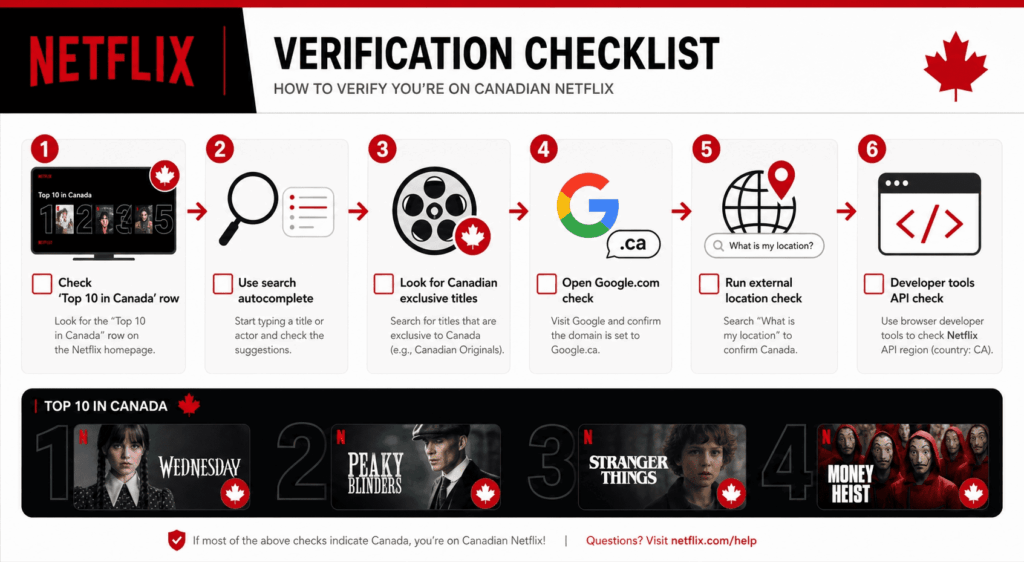
- Check the “Top 10 in Canada” row on the Netflix home screen. The country name in that row is the fastest tell.
- Use the search autocomplete. If you type a show’s name and Netflix completes it but says it’s unavailable, that title exists in another region, a sign your switch hasn’t fully taken or that title isn’t in Canada.
- Look for Canadian marker titles: known Canada-exclusive shows or films that shouldn’t appear on US Netflix.
- Open google.com. If it redirects you to google.ca, your virtual location has moved to Canada.
- Run an external location check. Search “what is my location” or visit an IP-lookup site and confirm it reports Canada.
- For the technically inclined: Netflix’s own API responses expose a
geolocation.countryfield you can inspect in your browser’s developer tools to confirm the region Netflix thinks you’re in.
If two or three of these agree on Canada, you’re set. If they disagree, your VPN connection didn’t fully take, so head to troubleshooting.
Troubleshooting
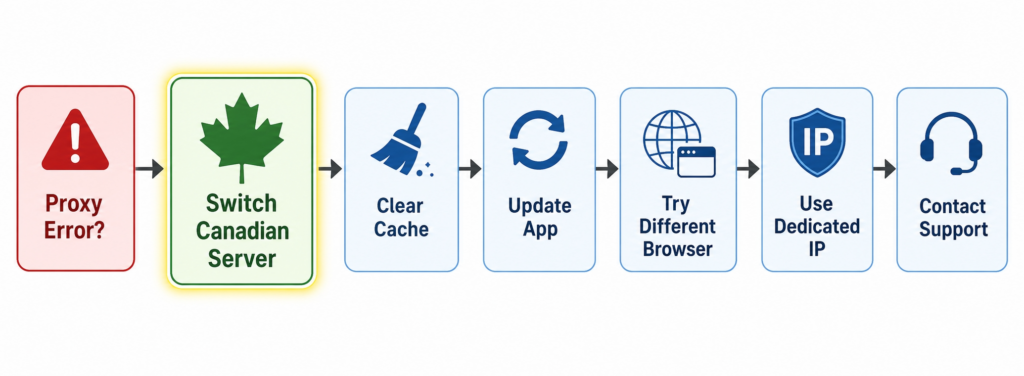
The error you’ll meet most is “You seem to be using a VPN or proxy” (Netflix error code M7111 or similar). It means Netflix recognized your VPN server. Work through these in order; the first fix solves it most of the time. For a more detailed troubleshooting guide, read here.
- Switch to a different server in the same country. Netflix blocks individual servers, not whole countries. Hop to another Canadian node and reload. This is the single most effective fix.
- Clear your cache and cookies. Old location data stored in your browser or app can override the new connection. Clear it, then reconnect.
- Update your VPN app. Providers push new working server lists; an outdated app may be routing you through a blocked one.
- Try the browser instead of the app. The web player detects less aggressively than the dedicated app.
- Use a dedicated or static IP. This paid add-on gives you a private address that fewer users share, making it far less likely to be blocklisted.
- Ask your VPN’s support. They know which of their servers are currently clearing Netflix and will point you straight to a working one.
If you hit slow speeds or buffering, switch to a Canadian server closer to you, and set your protocol to WireGuard or NordLynx. These are modern VPN protocols (WireGuard is a fast, lightweight one; NordLynx is NordVPN’s build of it) designed for speed over older options.
Going back to US Netflix is simple: disconnect the VPN and reload. Your US catalog returns immediately.
US Netflix vs Canadian Netflix: What’s Different
The US catalog leans toward American blockbusters and long-running US series, while the Canadian catalog carries more local Canadian and international titles, including some films and shows licensed in Canada but not stateside. Neither is strictly “bigger” in a way that settles the question; they’re curated to different licensing maps.
Beyond the broad strokes, the specifics shift constantly. Title counts, the exact list of regional exclusives, and even the price of a plan differ between the two countries and change throughout the year. That volatility is exactly why a VPN, not a permanent account change, is the right tool for sampling the other side.
The travel catch nobody mentions (straight from Netflix Help)
When you watch outside the country you signed up in, even without a VPN, Netflix changes a few things you won’t see warned about in video reviews:
- Maturity ratings switch to the local system. A US “TV-MA” may display under a different classification, and if you have parental controls set to one country’s rating system, some titles can become available, or vanish, purely because the rating systems don’t line up.
- My List and Continue Watching may not appear. Netflix states these can be unavailable while you’re in another country.
- Previously downloaded titles can stop working. Offline downloads you saved at home “may not be available while in a different country.”
These are quirks of traveling, not of VPNs, and they explain a lot of “where did my stuff go?” confusion that competitor pages never address.
This is the layer that separates an honest guide from marketing copy. The catalog difference is the headline, but the travel behavior above is what actually trips people up in practice.
FAQ
Is it illegal to use a VPN for Netflix in Canada?
Will I get banned if I use a VPN on Netflix?
Which VPN can trick Netflix?
How do I change my Netflix from the US to Canada?
How do I change my Netflix country region?
Can I watch Canadian Netflix in the US?
Can I use my Netflix account in two countries?
Is Netflix Canada different from the US?
How to trick Netflix location on TV?
Can I watch Canadian Netflix for free?
Conclusion
For nearly everyone, the best route to Canadian Netflix in the US is a reliable VPN connected to a Canadian server. It works across the most devices and the most content, where Smart DNS and proxies fall short. Confirm the switch with the “Top 10 in Canada” row, and when a stream gets blocked, change to another Canadian server first; that one move fixes most proxy errors.
Two honest reminders before you start. Region switching breaks Netflix’s Terms of Service even though it isn’t illegal, and Netflix has said a VPN may only reliably surface globally licensed titles. And if you’re traveling rather than at home, expect the quirks from the comparison section: shifting maturity ratings, a missing My List, and offline downloads that may stop working abroad.
Pick a Canadian server. Reload Netflix. Press play.