


Casting is convenient right up until your setup gets in the way. A Chromecast doesn’t run like a typical streaming box, and that changes how a VPN fits into the picture. Instead of installing an app directly on older Chromecast hardware, you usually protect the network, the casting device, or a Google TV variant that supports native apps. This guide explains those options clearly, so you can pick a setup that matches your device, your streaming services, and your patience level.
Our Picks for Chromecast VPNs
NordVPN
Why it made the list
- Fast, broad server coverage, and strong Google TV support.
- Wide server network with servers in countries popular for streaming
- Native Android TV app works well on Google TV hardware

ExpressVPN
Why it made the list
- MediaStreamer and router tools simplify Chromecast use.
- Excellent router support with a dedicated router app on supported models
- MediaStreamer offers DNS-based access for devices with no VPN app

Surfshark
Why it made the list
- Low long-term price with generous device flexibility.
- Lower long-term price than most premium rivals
- Unlimited simultaneous connections are useful for larger households
Introduction
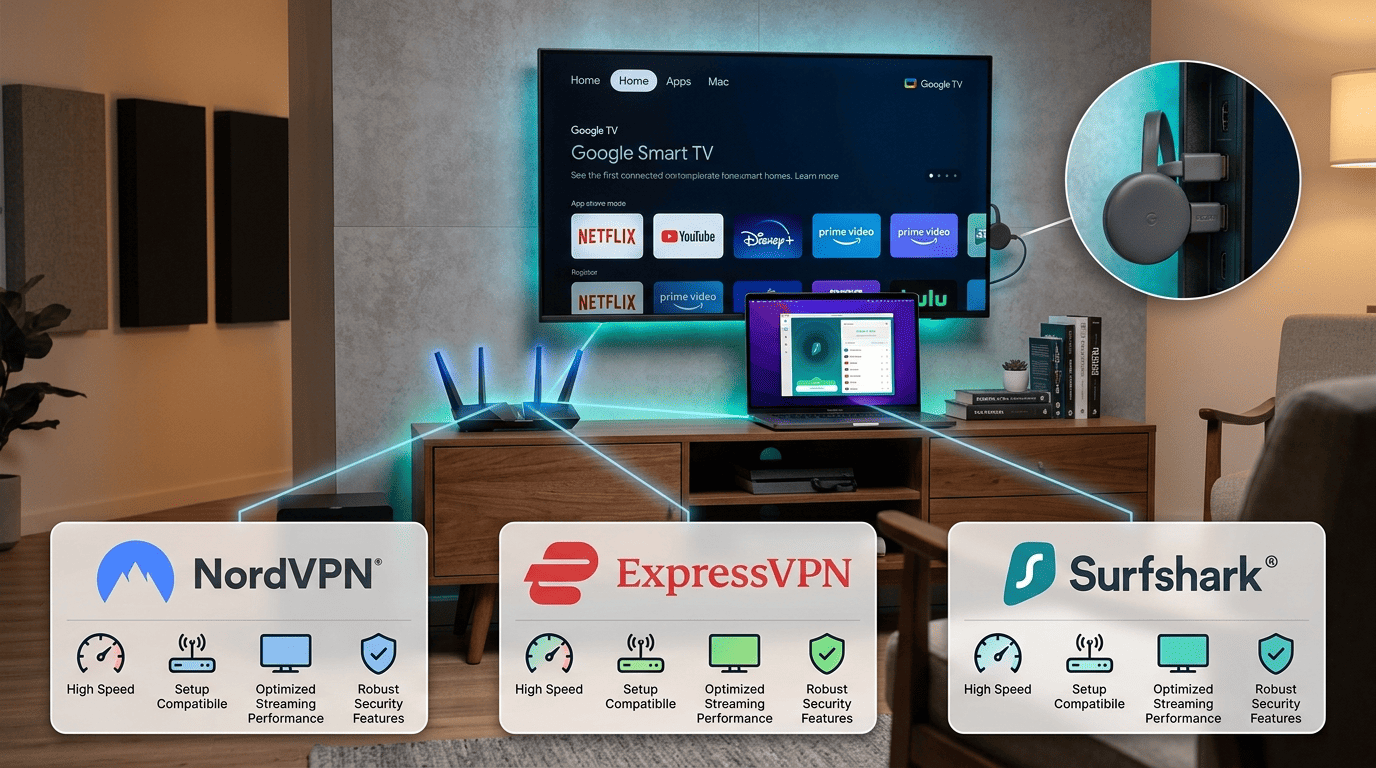
If you want the best VPN for Chromecast, the first thing to know is that setup matters as much as provider quality. A fast VPN is useful, but only if your Chromecast, phone, router, or Google TV device is actually using that protected connection.
We’ll walk through where a VPN helps, where it doesn’t, and which options make the least fuss. Privacy is also part of the picture — a VPN encrypts your connection, hides your IP address from your ISP and local network, and limits how much of your video traffic is exposed. Chromecast can handle both streaming access and privacy goals, but the route you take depends on the model and the network around it.
What Chromecast Users Need from a VPN
A Chromecast user needs more than a long feature list. For casting, speed and stability are the real test, because buffering ruins video faster than any missing extra tool. When a 4K stream requires a sustained 25 Mbps and a VPN cuts throughput by 30%, even a well-configured setup can stall during peak evening use or when the network is already crowded.
Setup is the other half of the equation. A standard Chromecast usually doesn’t run a VPN app on the device itself, so your VPN for chromecast often has to work through a router, a shared hotspot, or the phone or laptop doing the casting. That makes network behavior more important than it is on a simple smart TV app install.
In this guide, you’ll learn which VPN options are easiest, which ones are better for privacy, and which providers give you the best odds of stable access without turning setup into a weekend project.
How This Guide Helps You Choose
We built this shortlist around real-world Chromecast use, not just headline claims from VPN providers. That means focusing on whether a service is reliable for casting, whether its app is available where it matters, and whether its servers are consistent enough for regular streaming services instead of one-off success.
You’ll also see the main setup paths laid out side by side. Some readers can use Google TV and install from the Play Store. Others need a router-based method. Some will share a connection from a laptop for a temporary month of travel. Those are very different options, even if the goal is the same.
Why Use a VPN with Chromecast
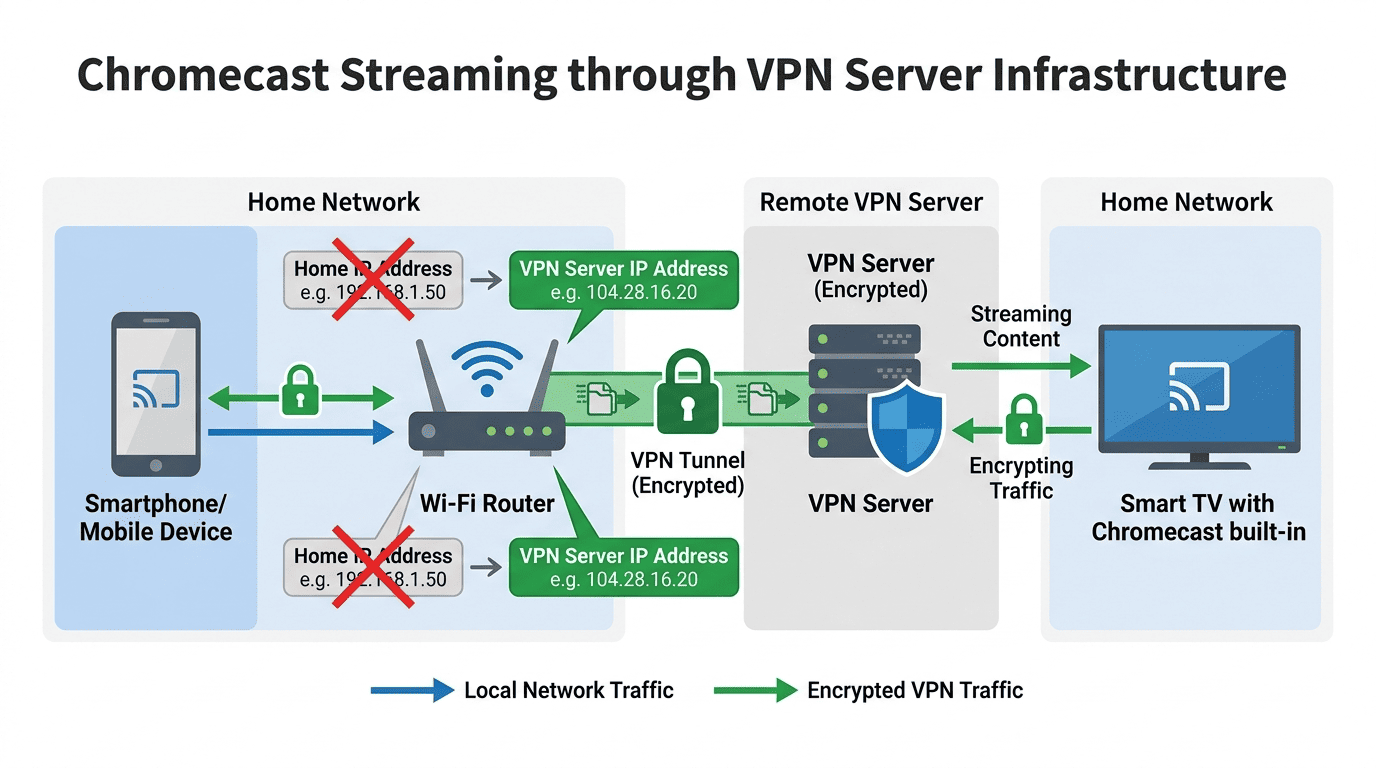
A Chromecast VPN can solve two separate problems at once. First, it changes how your connection looks online by routing traffic through a VPN server in another location. That can help with geo-based access issues when you’re traveling or when local network rules get in the way. Second, it improves privacy by masking your home or public IP address and encrypting traffic between your device and the VPN provider.
That matters more than it may seem. Casting often involves several moving parts: your phone or laptop, the Chromecast, your router, and the streaming site or app you’re trying to use. If one of those pieces is on an open or poorly managed network, your information is easier to observe. A VPN adds a layer of security that is especially useful on public Wi‑Fi, hotel internet, and shared apartment network setups.
How VPN Protection Changes Your Casting Experience
A VPN hides your IP address from the services and networks you use. Instead of seeing your direct address, a site sees the address of the VPN server you’re connected to. Your geolocation is masked entirely; your ISP can see that you’re connected to a VPN but cannot read the content of your traffic.
The second change is encryption, which scrambles data between your device and the VPN provider so outsiders on the same network have a harder time reading it. On public Wi‑Fi, that’s a meaningful security improvement.
A chromecast VPN may also reduce geo restrictions by letting you connect through servers in countries where your usual service catalog differs. BBC iPlayer, for example, checks for UK IP addresses before serving content. Travelers from the US, Australia, or Canada can hit that check when a UK-based server would clear it. That said, streaming platforms enforce their own rules, and access is never guaranteed. Terms of service may discourage location circumvention, so it’s smart to use a VPN for lawful access to subscriptions you already pay for.
Use Cases for Streaming and Travel
Travel is where many Chromecast users first notice the value. Hotel networks, airport Wi‑Fi, and temporary apartment internet can be inconsistent, restrictive, or just nosy. A VPN can route your traffic through a VPN server in your home country, restoring access to the streaming libraries and services you normally use.
That matters for streaming services that change libraries by region. A traveler trying to open BBC iPlayer, for example, may run into geo checks that behave differently from Netflix or other platforms. The same is true across countries and services, especially if the local network filters traffic or blocks device discovery.
A VPN can also stabilize casting on corporate, university, or hotel networks where both devices need to share the same routed connection to discover each other. If your phone, laptop, and Chromecast are all routed through one protected network, setup tends to be more predictable. Not perfect, but more predictable.
Be aware that some countries impose regulatory restrictions on VPN use, including China, Russia, the UAE, Iran, and Belarus. Research local rules before relying on a VPN abroad.
Limits to Understand Before You Start
Here’s the catch: Chromecast itself usually doesn’t run VPN apps. That means you can’t always tap install and be done. For many users, the VPN has to be applied through the router or through the device doing the casting. Skip that detail, and the setup can look correct while the Chromecast is still using the wrong network path.
Not every method works with every service, either. Some streaming services are stricter than others, and some router or DNS setups only affect part of the traffic. Smart DNS can help in certain cases, but it doesn’t provide the same privacy or encryption as a full VPN connection.
So yes, a VPN for chromecast can improve privacy, security, and access. But it works best when the network is configured correctly and your expectations are realistic.
Our Picks for Chromecast VPNs
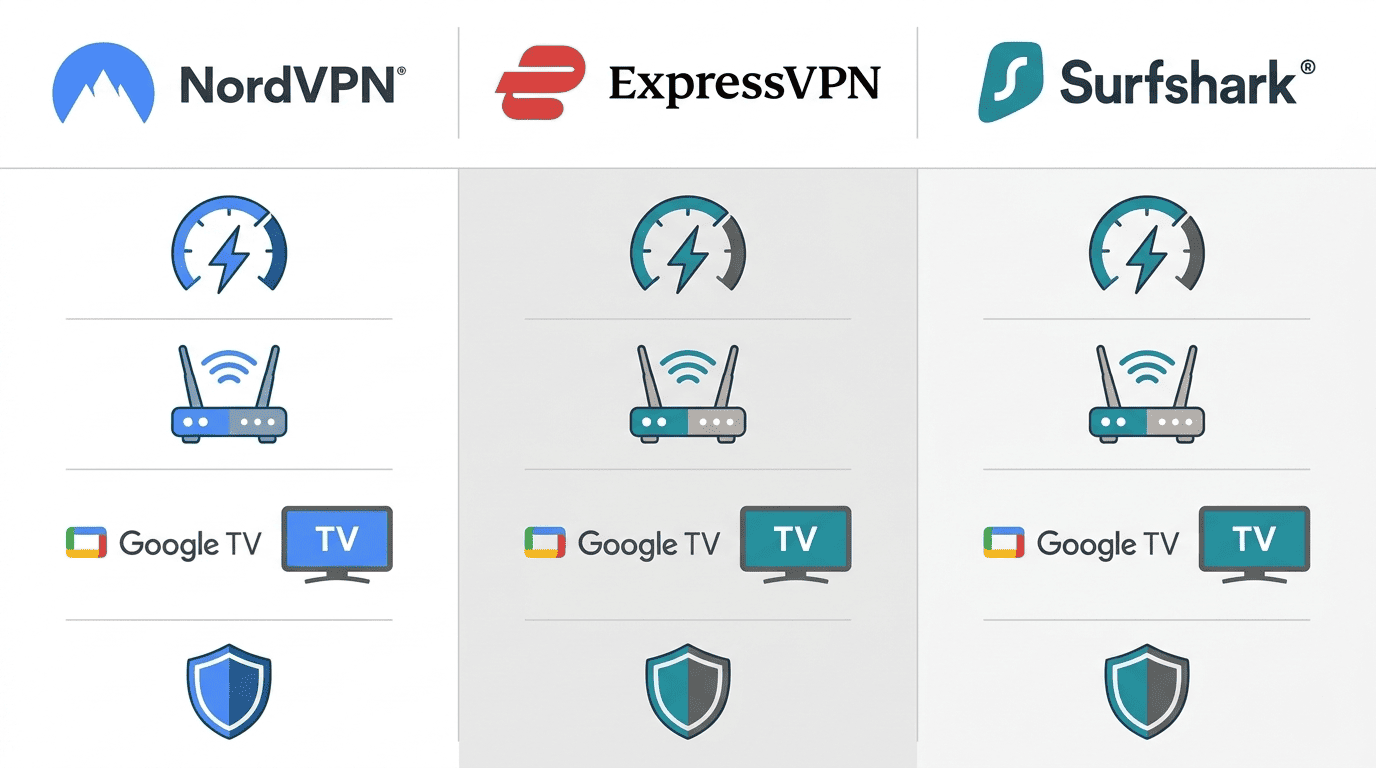
The best VPNs for Chromecast balance speed, setup flexibility, and reliability across common streaming services. That means more than just having an Android app. A strong VPN for chromecast should be easy to run on Google TV, reliable on a router, and stable enough for HD or 4K casting without random drops. Providers with fast speeds and broad server reach generally do better here, especially if they maintain servers in countries users actually need.
Some people only need a VPN for one month of travel, while others want long-term whole-home coverage for a smart tv, phones, tablets, and laptops. In both cases, router compatibility, app quality, and a usable money back guarantee matter more than flashy feature pages.
Setup support counts too. Chromecast is less forgiving than a standard phone or desktop install, so the best VPN providers are the ones that explain router configuration well, maintain helpful apps, and don’t make server switching harder than it needs to be.
How to Set Up a VPN on Chromecast
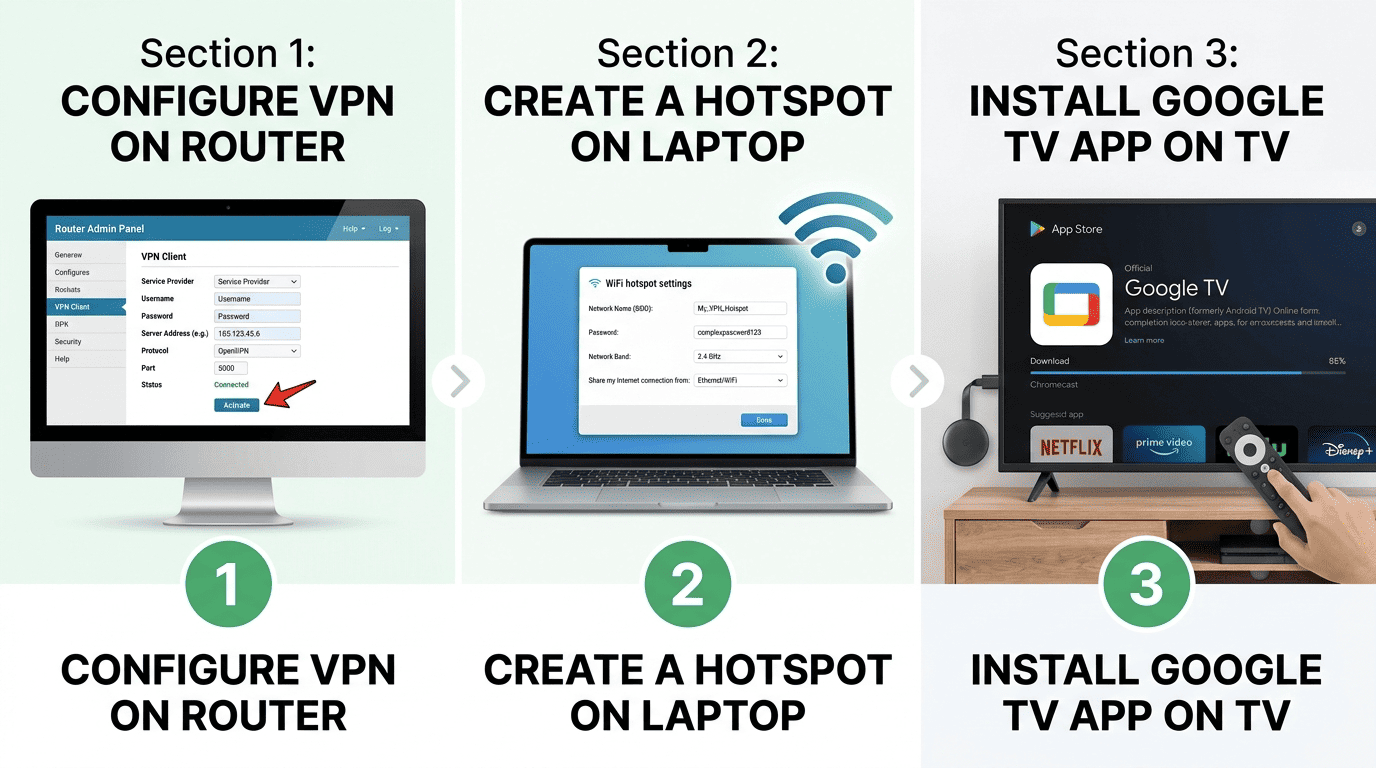
There are three realistic ways to set up VPN on a Chromecast. The first is through your router, which protects the whole network and sends Chromecast traffic through the VPN automatically. The second is a shared connection from a laptop, often called a virtual router or hotspot setup. The third applies only to Chromecast with Google TV, where you can install the app directly and connect to server locations from the screen itself.
The right method depends on your hardware. If you have a cast-only device, router or hotspot methods matter most. If you have Google TV, setup is much easier. Either way, the logic stays the same: the Chromecast has to be on the protected connection, not just the phone in your hand.
How to Use VPN with a Router-Based Setup
A router-based setup is the most reliable long-term option for most homes. You install the VPN on a compatible router, choose a VPN server, and then connect the Chromecast to that Wi‑Fi network as usual. Once that’s done, every device on that network uses the protected connection unless you split traffic some other way.
This is the best answer if you want consistent coverage for a living room setup. It also helps with multiple devices: a phone, tablet, laptop, or smart tv can share the same protected network without separate app installs. That simplicity is why router setups remain popular even though the initial work takes longer.
To set up, log in to the router admin page, enter the VPN configuration from your provider, save it, and restart the router. After that, reconnect the Chromecast and the casting device to the same Wi‑Fi. Verify that both are actually using the updated network before you test playback. Skipping that verification step is the most common reason troubleshooting gets messy.
How to Use VPN on a Shared Connection
When your router doesn’t support VPN connections, sharing from a laptop is the next best route. This method uses your computer as a virtual router or hotspot. You connect the laptop to the VPN, then share that protected internet connection so the Chromecast can join it.
On Windows, that usually means enabling a mobile hotspot after the VPN connects. On macOS, you’ll use internet sharing with the active adapter. In both cases, the goal is the same: your computer becomes the bridge between the Chromecast and the VPN server.
This approach is useful for travel, rentals, dorms, or temporary setups where changing router settings isn’t possible. It also gives you more flexibility to switch locations quickly. The downside is that the host laptop has to stay on and connected to VPN the whole time. If it sleeps, updates, or changes network state, the cast can fail without much warning.
How to use VPN on Chromecast with Google TV
Chromecast with Google TV is the easy version of this whole subject. Because it runs apps, you can open the Play Store, install your VPN app, sign in, and connect to server locations directly on the device. That removes the router requirement and cuts setup time considerably.
The best results usually come from choosing a nearby server first, especially for high-bitrate video. Once connected to VPN, open your streaming app and test playback. When a service doesn’t load correctly, switch servers and try again.
This method is simpler than older Chromecast workflows. It still helps to make sure the app has the right permissions and that your account is signed in fully. Google TV removes the router configuration step — that’s the one that trips most people up.
Step-by-Step Connection Checklist
No matter which method you use, the order matters. First, choose the region you need and connect to server using your VPN app or router controls. Second, verify the public ip address on the device or network you’re using. Third, open the app or site you want and test video playback before settling in.
When casting from a phone or laptop, make sure the casting device and the Chromecast are on the same network. With a router, restart the Chromecast after major configuration changes. With a virtual router, confirm the hotspot is still active and the host computer is connected to VPN.
When something still fails, clear the app cache, reconnect to a different VPN server, and test again. Some services react badly to old DNS information, so changing DNS or rebooting the router can help. Follow the sequence, verify each step, and Chromecast setup stays manageable.
Using a Virtual Router for Chromecast VPN
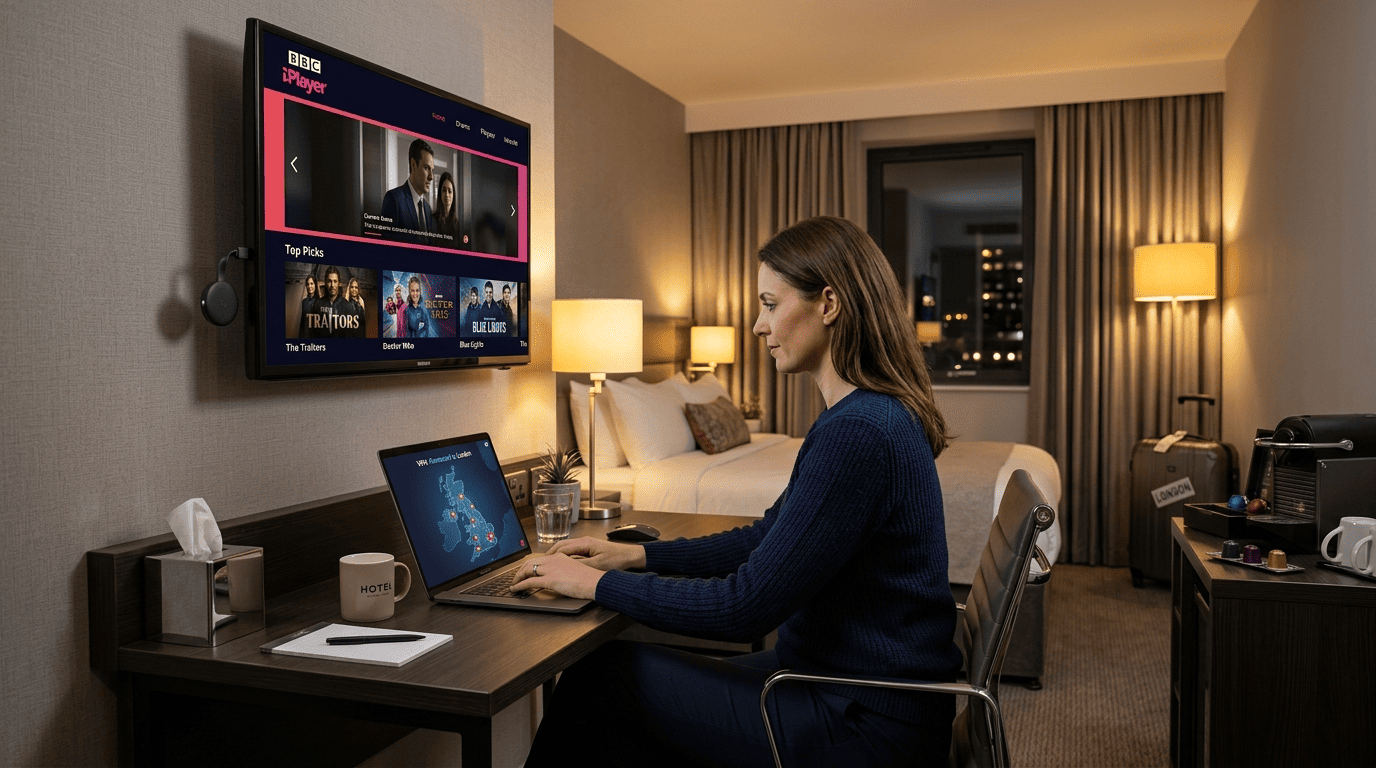
A virtual router is a practical fallback when your home router can’t run VPN software. Instead of protecting the network at the router level, you protect a laptop connection and then share it with the Chromecast. It works well enough for travel, temporary apartments, and short-term use.
The big advantage is flexibility. You can set up VPN settings on your computer, switch regions quickly, and keep the rest of the home network unchanged. The trade-off is dependence on the host machine. If the laptop disconnects, sleeps, or loses Wi‑Fi, the Chromecast loses the protected path too.
How It Works on Windows and macOS
On Windows, you usually connect the VPN first, then create a mobile hotspot and share the protected connection. On macOS, the process is similar, though the menus differ. In both cases, the computer acts as a virtual router, and the Chromecast joins that shared hotspot instead of your normal Wi‑Fi.
This setup lets the Chromecast appear as connected to VPN even though it has no native VPN app. That makes it useful when you need a quick workaround and don’t want to reconfigure a physical router. It’s a solid option for testing, short trips, or streaming sessions where you don’t want to touch the main network.
Pros and Cons of Sharing a VPN Hotspot
The main pro is convenience. You can use hardware you already own, set up VPN quickly, and move between servers without touching your router. It also helps when hotel or campus internet policies make normal casting awkward.
The cons are just as real. Shared hotspot throughput can drop 20–40% compared to a direct router connection, especially when the host device is handling both Wi‑Fi reception and rebroadcasting. It also depends on the host device staying awake, stable, and connected to VPN. For temporary streaming sessions, that’s fine. For a permanent living-room solution, a router is usually better.
Installing a VPN on a Physical Router
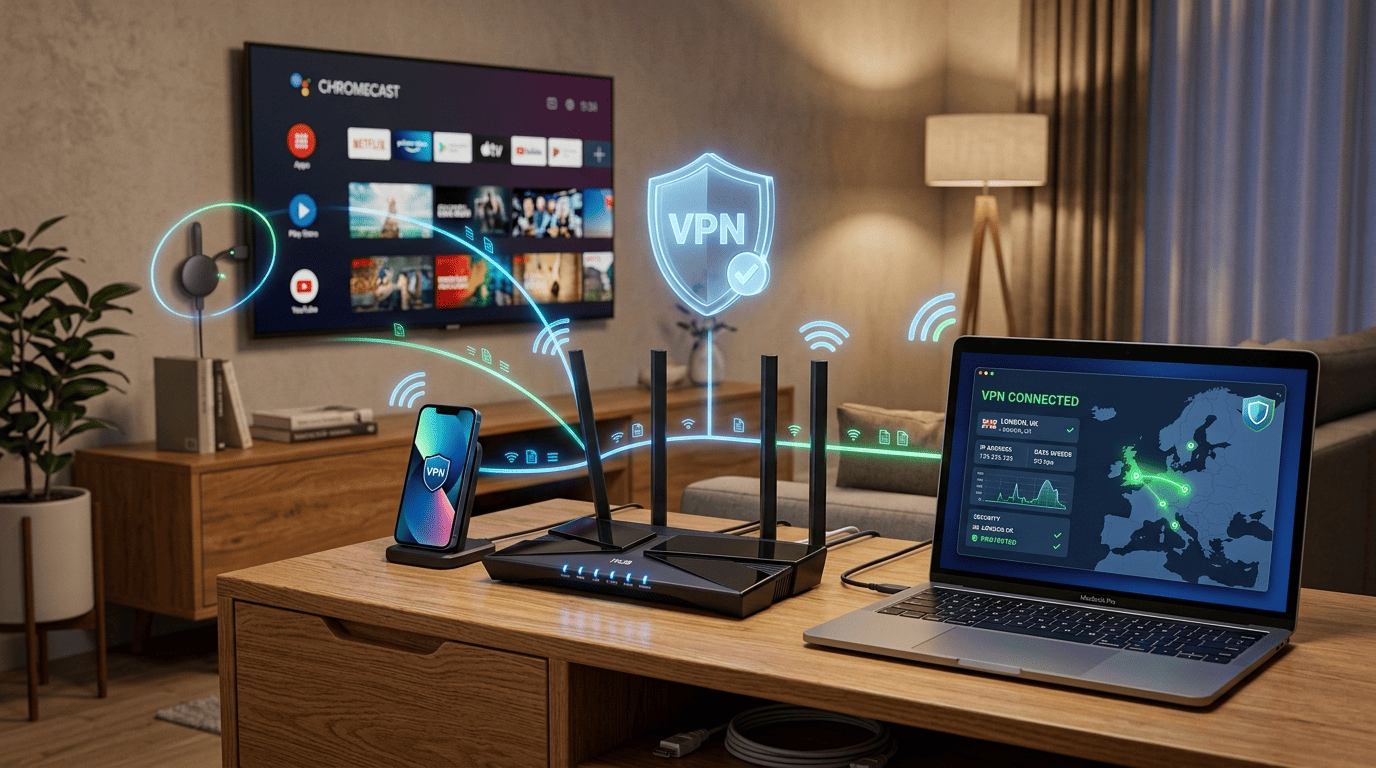
Installing a VPN on a physical router is the most reliable way to protect an entire home network for Chromecast use. Once the router is configured, every connected device benefits from the same VPN server connection, including cast-only hardware that cannot run apps. It also centralizes security, which is helpful if you want consistent encryption across TVs, phones, and laptops.
The main limitation is compatibility. Not every router supports VPN client mode, and not every model has enough processing power to handle encrypted traffic efficiently. Checking hardware before you start matters more than most guides acknowledge.
Check Router Compatibility First
Before you change anything, confirm that your router supports VPN client connections. Check the model, firmware, and whether the admin panel includes OpenVPN or WireGuard support. Some consumer routers can connect only as servers, not clients, which won’t help with Chromecast use.
Think about performance too. Encryption adds work for the router CPU, and weaker hardware can bottleneck the whole network. Routers with single-core processors under 800 MHz often struggle with full-tunnel VPN at speeds above 50 Mbps. If you stream often or use servers in countries far from home, that overhead matters more.
Basic Router Setup Flow
Start by signing in to the router admin panel from a browser. Download the configuration files or credentials from your VPN provider, then import them into the router settings. Select a VPN server location, save the profile, and restart the router so the new connection applies cleanly.
After the reboot, reconnect your Chromecast and casting device to that Wi‑Fi network. Then verify the external address on a browser-enabled device to make sure traffic is leaving through the VPN, not your local internet provider. If your provider offers multiple servers in countries you care about, test a few before settling on one for daily use.
This approach gives the broadest whole-home security and is often the easiest to live with once it’s configured. The setup takes longer, but daily use becomes much simpler.
VPN on Google TV
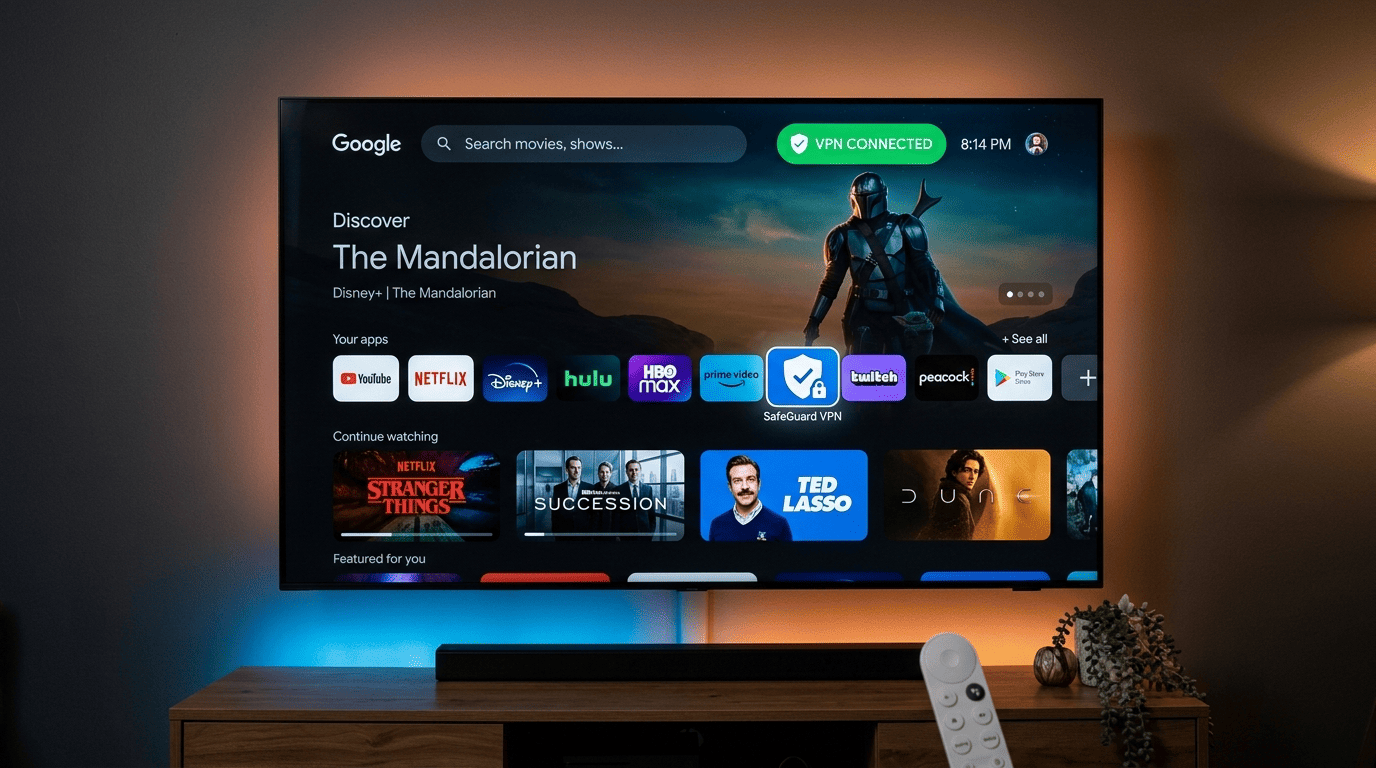
Google TV changes the Chromecast equation because it can run a native app. That means no router workaround is required for many users. If your device supports the Play Store and your provider has an Android TV app, you can set up the VPN directly on the screen and control the connection without another device in the loop.
Native App Installation from the Play Store
Open the Play Store on your Google TV device, search for your provider, and install the app. After you sign in, choose a server and connect. Once the device shows as connected to VPN, open your streaming app and test playback.
This is the simplest version of VPN on chromecast because the app handles the connection locally. There’s no shared hotspot to maintain and no router panel to navigate. For users who want speed and fewer moving parts, it’s the clear first option.
When Google TV Is Better than a Cast-Only Device
Google TV is better when you want to switch locations quickly or test different servers without touching your network. Because the app runs on the device itself, you can move from one region to another in seconds and see how a service responds.
It’s also more efficient for travel. A user staying in a hotel for a week can set up faster than with a router and avoid the hassle of bridging connections from a laptop. Between a cast-only dongle and Google TV, the latter gives you more control with less effort.
Can I Use a Free VPN with Chromecast?
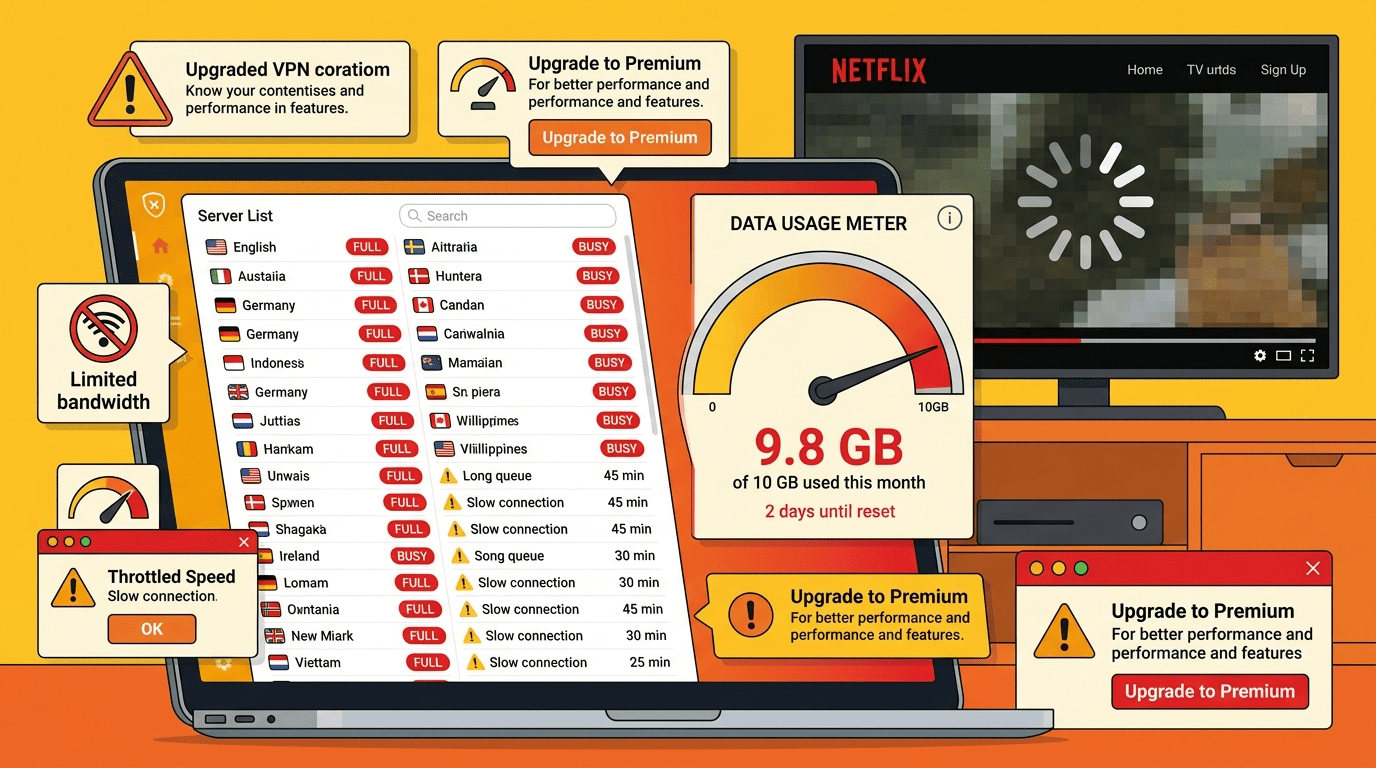
You can use a free VPN with Chromecast in theory, but in practice it’s usually a poor fit. Streaming is demanding: it needs stable bandwidth, enough server choice, and sessions long enough to finish a movie without interruption. Free plans often struggle on all three counts.
Privacy can also be a concern if the provider’s policy around data collection is vague or if the service relies heavily on ads or usage analytics to cover costs.
Why Free Plans Often Fall Short
Speed is the first problem. Free servers typically serve more concurrent users than paid tiers, which reduces available bandwidth per user — and congestion shows up quickly in quality drops and buffering. A 1080p stream needs roughly 5 Mbps sustained; free servers in crowded regions often can’t guarantee it.
Data caps are the second constraint. A single HD movie runs about 4–7 GB, while most free VPN plans cap usage at 500 MB to 2 GB per month. A few episodes will exhaust the allowance before the weekend is over.
Server choice is the third problem. Free plans often limit access to a handful of locations, which shrinks your options for region-specific services like BBC iPlayer. A free VPN may look appealing on price, but the practical limits make it frustrating for Chromecast streaming.
Better Low-Cost Alternatives
A better route is a low-cost paid plan from one of the best VPNs in this guide. Paid options usually offer better privacy, more servers, and stronger app support for routers or Google TV. A short-term monthly plan may be enough if you only need the service for a month.
You can also look for a money back guarantee instead of relying on a permanently free tier. That gives you time to test the service with your device, your home network, and your preferred platforms without committing long term. For Chromecast, that flexibility is worth more than saving a small amount upfront.
Troubleshooting and FAQ
Why Chromecast Says the Content Is Unavailable
Why the Cast Fails After You Turn On the VPN
How Can I Make Streaming More Stable?
Does a Router VPN Affect Other Devices?
Can I Use the Same VPN on Multiple Screens?
Conclusion
Choosing the best VPN for Chromecast comes down to one practical question: where can you apply the VPN most effectively? If you have Google TV, the answer is usually the app. If you have a cast-only device, the answer is often the router or a shared hotspot. Once that part is clear, the provider choice gets much easier.
Across the services here, NordVPN stands out as the strongest all-around option, ExpressVPN is the easiest for router-focused homes, and Surfshark offers the best balance of price and day-to-day usability. Those are not the only workable options, but they’re the ones I’d put first for most users trying to set up reliable streaming with less fuss.
Best Overall Choice for Most Users
NordVPN is the top recommendation for most readers because it combines speed, broad server coverage, and flexible setup paths without too many compromises. It works well as a VPN for chromecast whether you use Google TV, a protected router, or another device to cast. ExpressVPN remains a close contender if setup simplicity matters more than anything else, especially in homes where router support is the deciding factor.
Surfshark deserves its place too. For users who want lower long-term cost without giving up core features, it’s the sensible value pick. Among the best VPNs here, those three cover the widest range of needs.
Best Setup Path by Skill Level
If you’re using Google TV, start with the native app route. It’s the easiest way to learn how to use VPN features on a TV-style interface, and it avoids most network complexity. For whole-home coverage, set up the VPN on a compatible router and let Chromecast use that protected Wi‑Fi automatically.
When your router won’t cooperate, use a virtual router on a laptop as a temporary bridge. It’s not the cleanest long-term answer, but it fills the gap for travel or short stays. Whatever path you choose, make sure the Chromecast and the casting device share the same protected connection before you test access to content.