

If you want the best VPN for ESPN+, the real question is not which provider has the biggest ad budget. It is which one keeps loading the stream when tipoff starts, the app checks your location, and the first server you try gets flagged. We tested the main contenders with ESPN+ in mind, focusing on US server access, live sports stability, app quality, and the privacy and security basics that matter during longer streaming sessions.
This guide is for subscribers who want a VPN for ESPN without turning setup into a weekend project. Some readers need a quick pick for a phone or laptop. Others want a service that works across a whole house of devices, from a Fire TV Stick to a tablet and Smart TV. We looked at both. Our rankings weigh streaming reliability first, then speeds, server network quality, ease of use, and value over a month or year plan.
A few providers pulled ahead. NordVPN was the most consistent in our test cycle for unblocking ESPN and keeping streams stable during live sports. Surfshark offered the best value for households with lots of connections. ExpressVPN remained the easiest premium option to install, understand, and use without much tweaking.
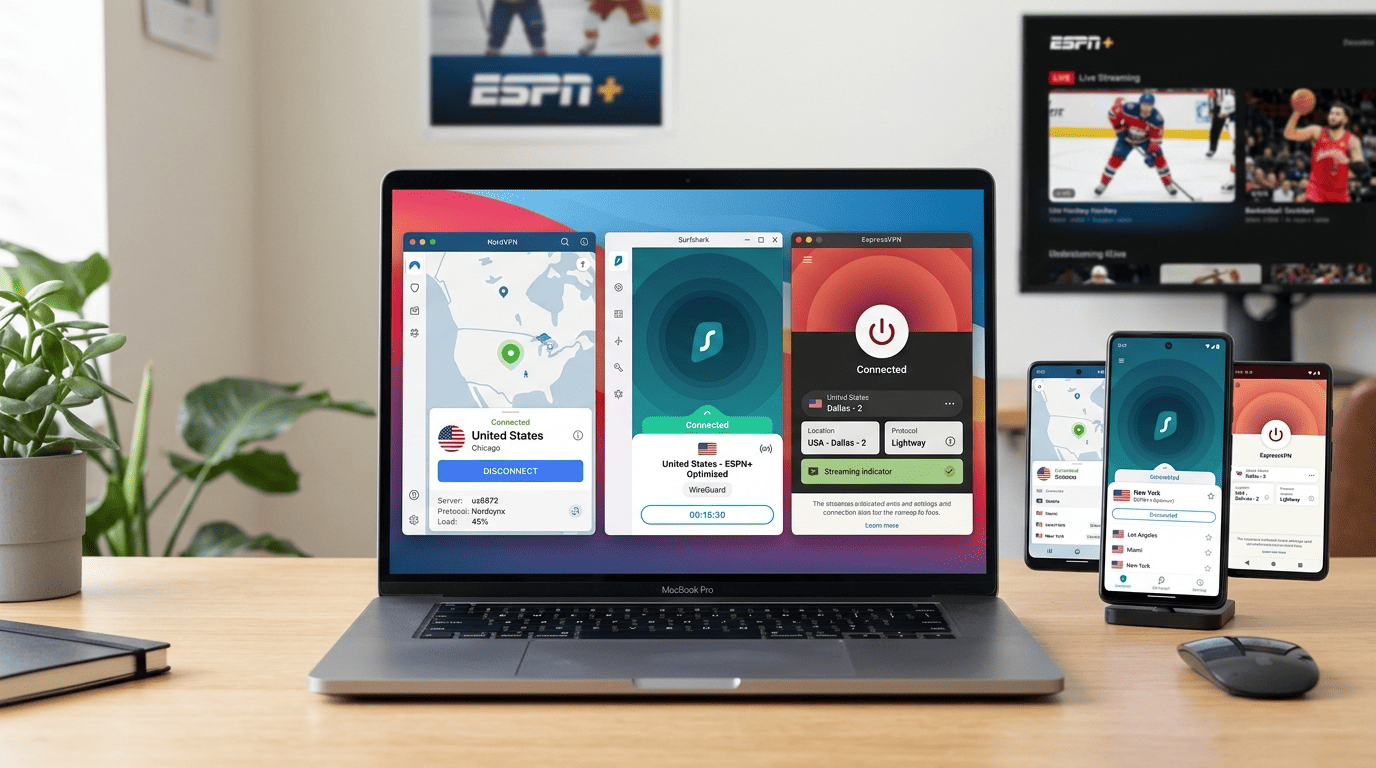
2026 Shortlist and Test Results

NordVPN
Why it made the list
- Most consistent US sports access.
- Large US server coverage reduced failed retries in our ESPN+ test
- SmartPlay helps with streaming routing without extra manual setup

Surfshark
Why it made the list
- Unlimited devices for one low-cost plan.
- Unlimited simultaneous connections on one account
- Lower long-term month-to-month cost on extended plans than many rivals

ExpressVPN
Why it made the list
- Simple apps and fast US server switching.
- Simple app design makes setup fast on desktop, phone, and TV
- US server switching is straightforward and quick
Finding the best VPNs for ESPN+ is less about raw headline speeds and more about reliability under pressure. A provider can look great in a generic VPN review, then stumble once ESPN+ starts checking IP address patterns, browser data, app location signals, and overloaded VPN servers during a busy sports night. That gap matters. A lot.
We focused on one outcome above all: could each VPN keep streaming ESPN+ with minimal fuss across common devices and repeated attempts? That meant testing server network depth in the US, checking how fast it was to switch server locations, and watching whether playback stayed steady through live sports rather than just opening the site once. We also weighed kill switch protection, split tunneling, simultaneous connections, and general privacy and security because a good VPN for streaming should not force you to trade usability for basic protections.
The three leaders were clear. NordVPN offered the strongest balance of stability, speeds, and unblocking ESPN. Surfshark came close on streaming performance while standing out on price and unlimited simultaneous connections. ExpressVPN remained the simplest premium option, especially for readers who want a polished app and quick setup without much server hunting.



How We Ranked the Providers
We ranked providers by testing what actually matters for ESPN+: stable US access, repeatable loading success, and stream quality during live sports. A VPN that opens the website once but struggles in later attempts did not score highly. We also looked at how quickly each app could switch servers, whether performance held up over longer sessions, and how often a user needed manual troubleshooting.
Secondary factors mattered too. Device support affected rankings because ESPN+ viewing happens across phones, laptops, TVs, and tablets. Security features such as a kill switch, which cuts internet traffic if the VPN drops, and split tunneling, which lets you route only some apps through the VPN, improved usability scores where implemented well. We also considered privacy, refund terms, and overall value per month and year. That broader mix is why these best VPNs rose to the top instead of just posting one good speed test.
VPN Comparison and Features
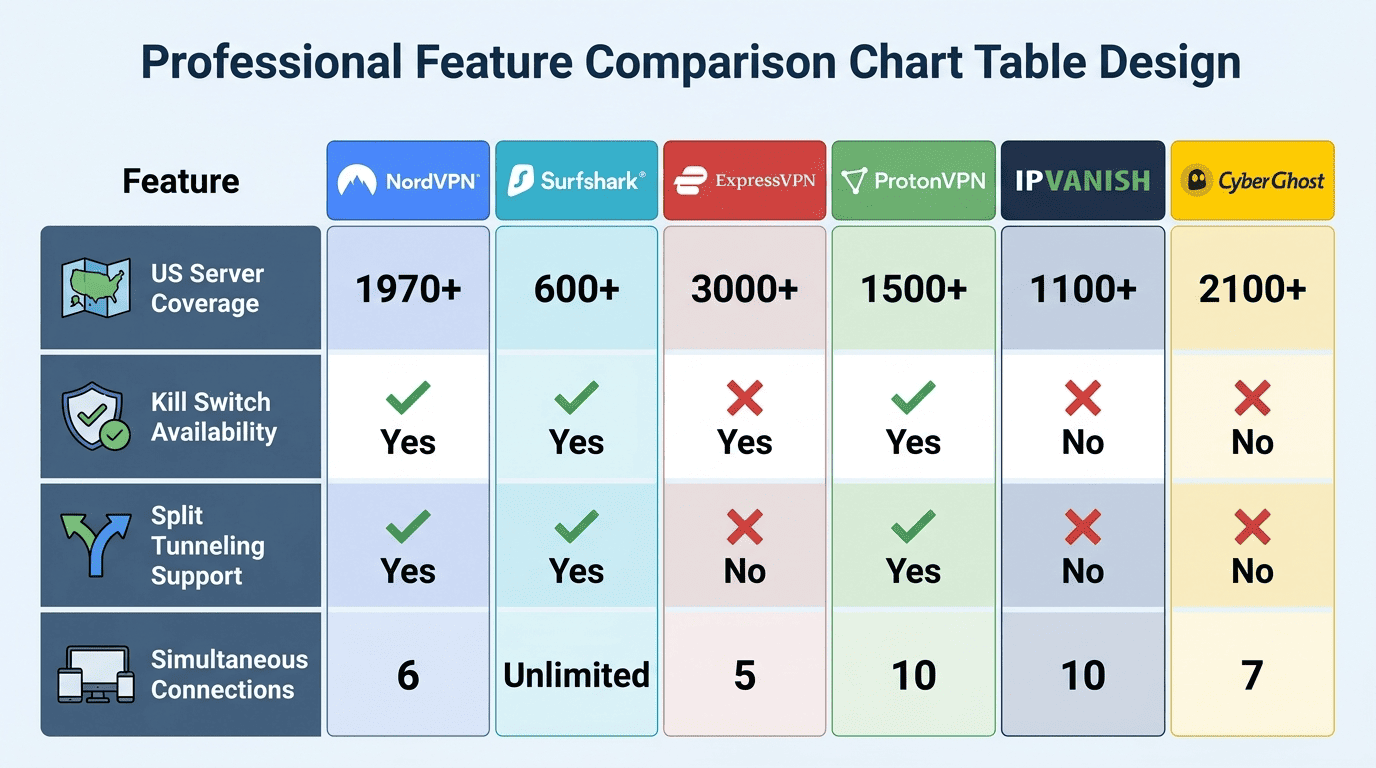
A strong VPN for streaming ESPN+ needs more than one working server. It needs enough server locations, stable speeds, and sensible app design so a user can recover quickly if a stream stops loading. On top of that, security features still matter, because sports sessions can run for hours and many people switch between public Wi‑Fi, home broadband, and mobile data in the same month.
Providers diverge on specifics that matter in practice: how many VPN servers are available in the US, whether you can change an ip address quickly, whether there is a free trial or only a money back guarantee, and whether the service offers a dedicated ip address for edge cases. Those details shape the day-to-day experience more than glossy marketing pages do.
Server Coverage and US Location Options
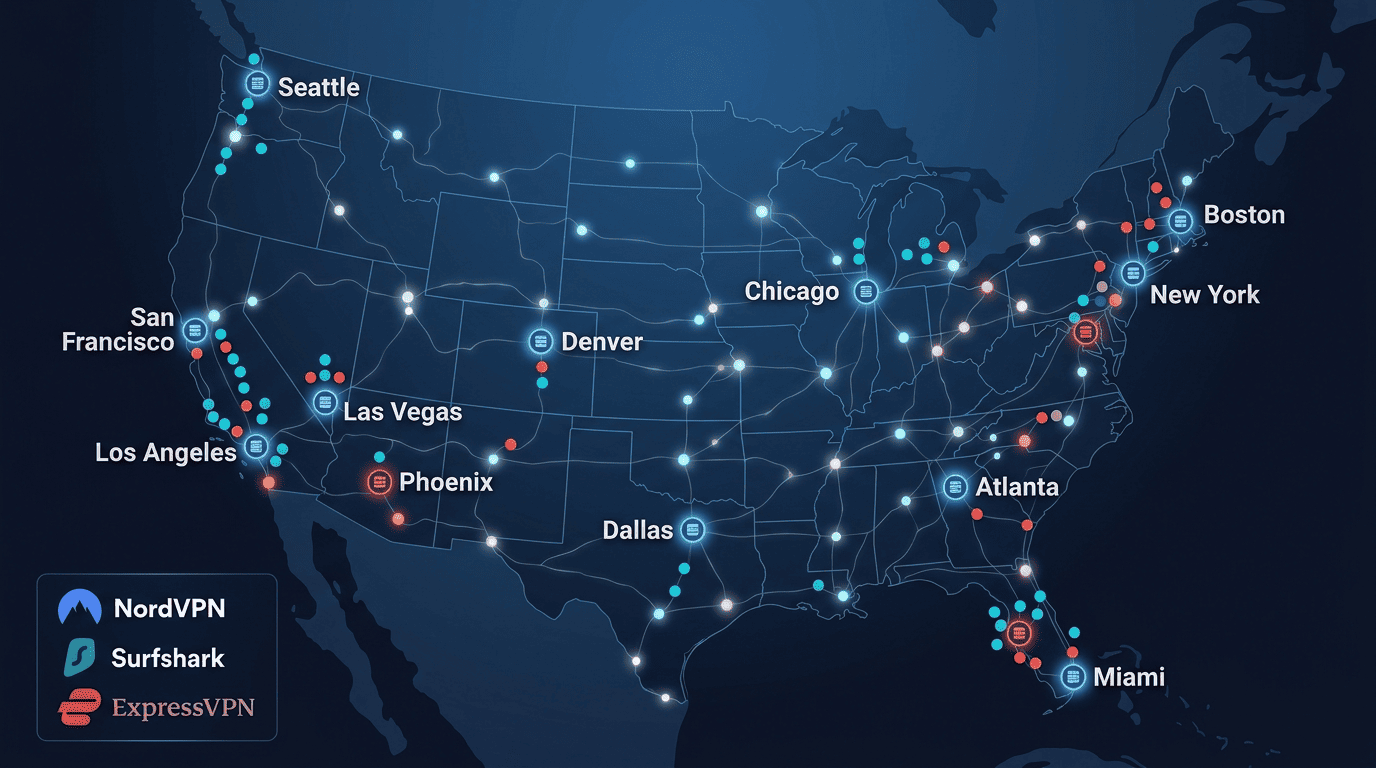
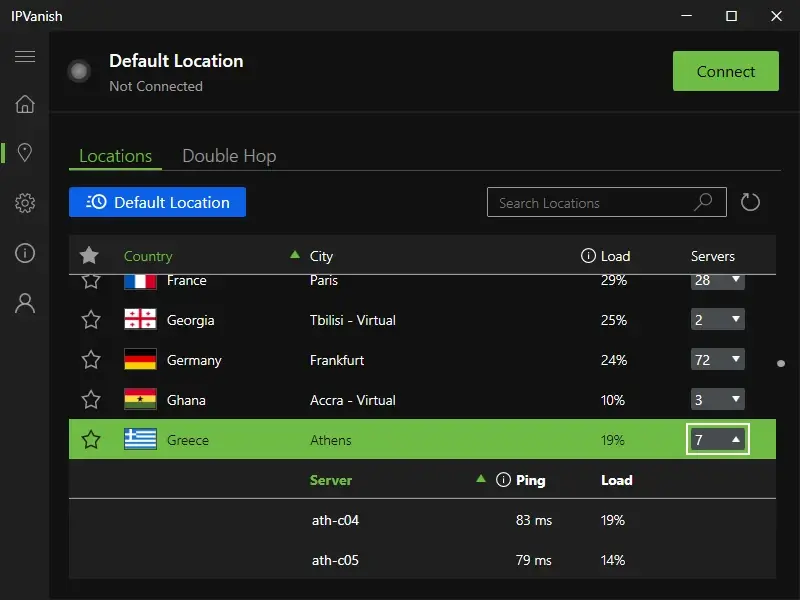
For ESPN+, US coverage is the first thing to check. The service relies on your location, so your VPN needs enough US VPN servers and useful server locations to avoid overcrowded nodes or flagged ranges. More choice usually means faster recovery if one ip address gets blocked. It also means less time spent clicking through cities at random.
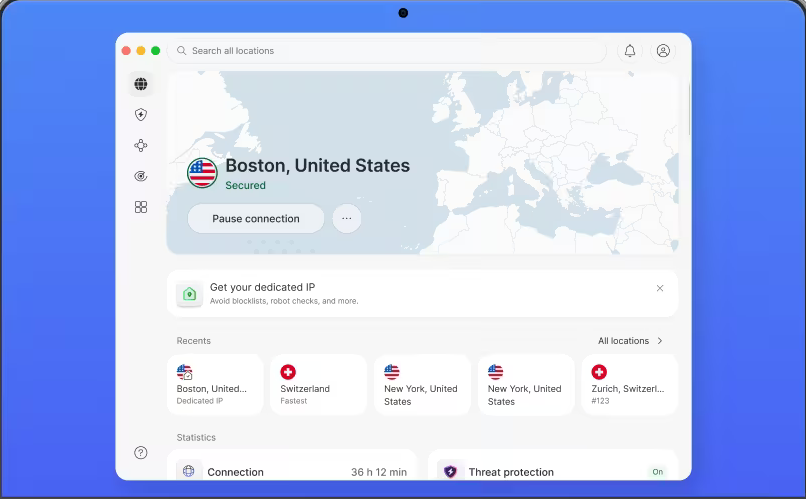
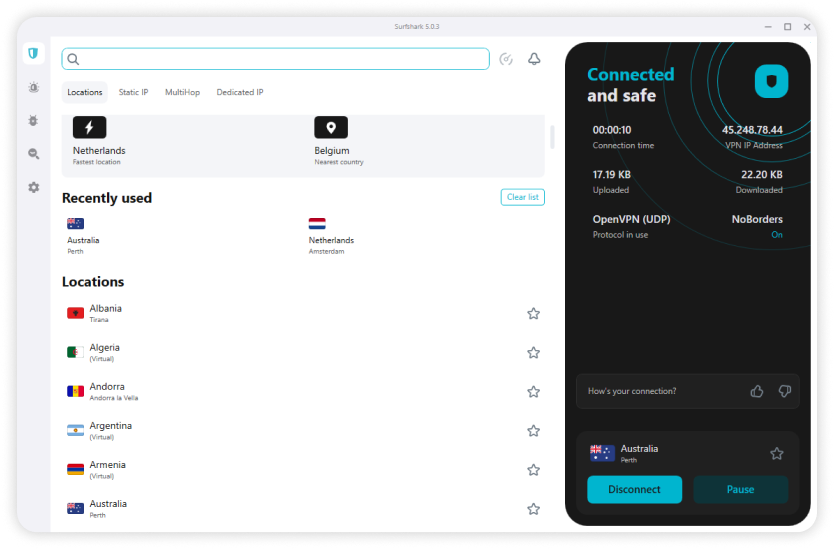
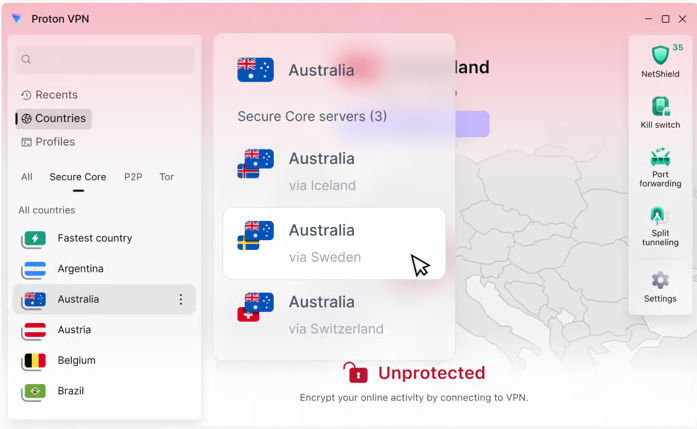
NordVPN, Surfshark, and ExpressVPN all performed well here because they made it easy to switch between US endpoints without leaving the app or losing your session for long. ProtonVPN and IPVanish also offered respectable flexibility. The weaker performers tended to have fewer practical fallback options, even if their website advertised a broad global footprint across many countries.
A dedicated ip address can help in some streaming scenarios because it gives one user a more stable identity instead of a heavily shared address, but it is not essential for most ESPN+ viewers. For this use case, broad US coverage and fast server rotation matter more than niche add-ons.
Speed, Stability, and Live Sports Playback
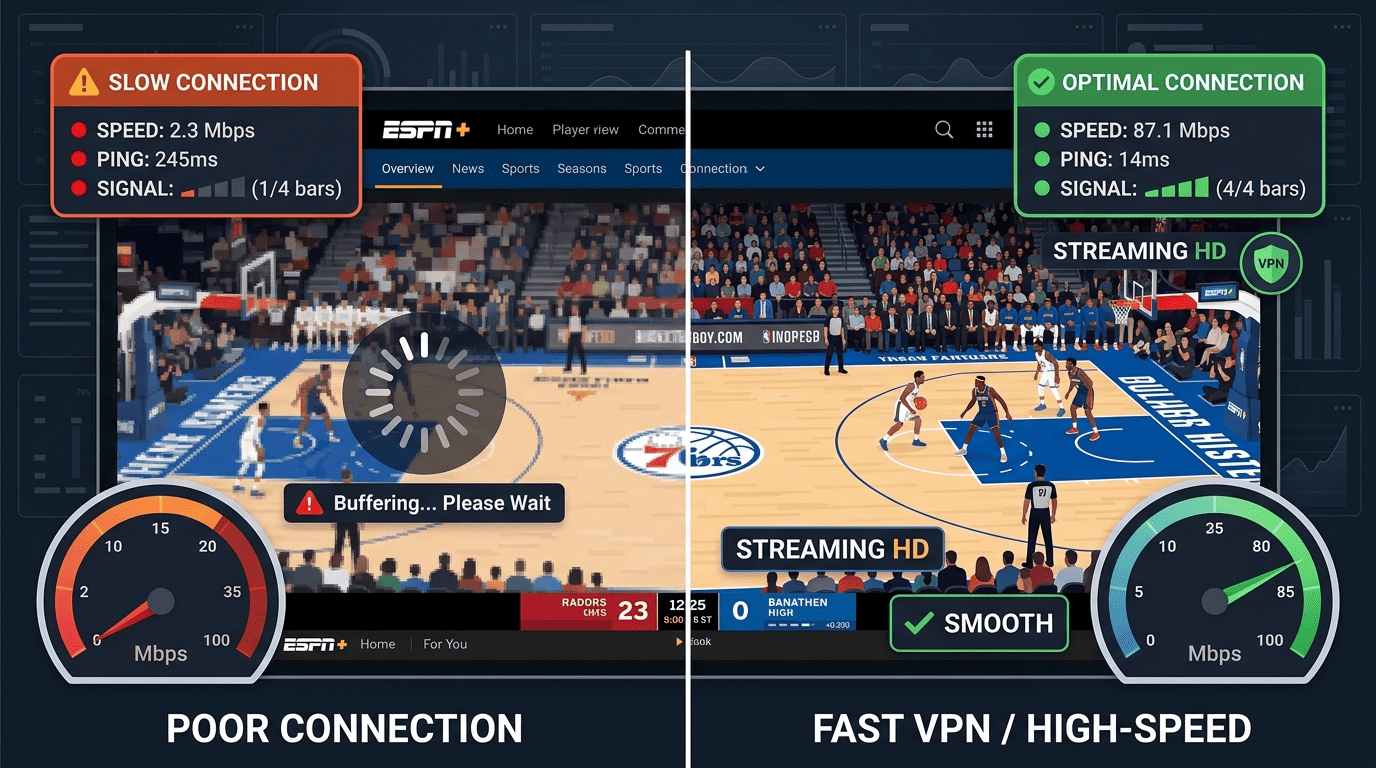
Speed matters, but not in isolation. Strong benchmark numbers don’t guarantee smooth streaming ESPN+ when latency spikes or server congestion hits during peak hours. Live sports are less forgiving than on-demand video because buffering shows up at the worst time. If the stream freezes during a close fourth quarter, headline speeds stop looking very impressive.
The top providers held up because their speeds stayed consistent enough for live playback, not just because they looked good in a single test. NordVPN led the pack, Surfshark stayed close for the price, and ExpressVPN remained smooth under regular use. Those three gave the fewest interruptions across repeated sessions.
This is where a hands-on VPN review matters. We care less about a tiny difference in speed test charts and more about whether the service keeps the app loading and the video stable on game night. For sports fans, that is the metric that counts.
Privacy Tools and Security Features
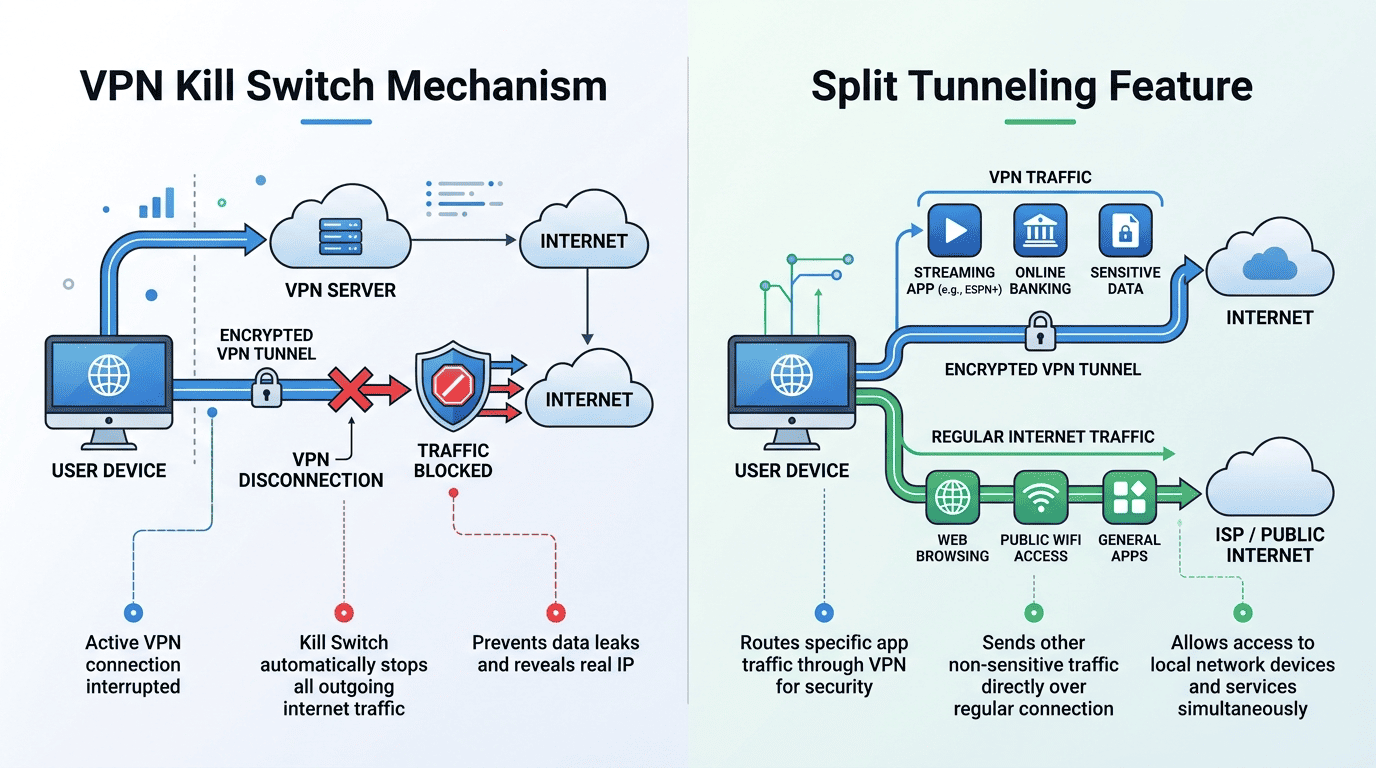
A VPN for streaming should not ignore privacy just because the main goal is access. Good security features reduce the risk of exposure if the connection drops, and they help keep your data and browsing information from leaking during a session. A kill switch is the big one: it cuts your internet traffic if the VPN disconnects unexpectedly. Split tunneling can also help by routing only ESPN+ through the tunnel while leaving other apps on your regular connection.
NordVPN, Surfshark, ExpressVPN, and ProtonVPN all offer well-rounded security without making the apps hard to use. That balance matters. If settings are too obscure, many readers simply leave them off. Private Internet Access offers even more controls, but it asks more from the user in return.
For most people, the practical checklist is simple: look for a kill switch, leak protection, audited privacy claims where possible, and clean app behavior across devices. Those features do not directly unblock a stream, but they make the overall experience safer and more predictable.
Pricing, Trials, and Refund Windows
Price differences can look dramatic on the website, especially when providers push long plans. The cheaper month headline usually appears on a two-year or year deal, while the actual one-month plan is much higher. That is standard across the category, so compare like for like. A low monthly figure on a long plan can be a good value, but only if the service actually works for ESPN+ on your device.
Most readers are best served by a provider with a money back guarantee rather than chasing a free VPN or a tiny free trial. A money back guarantee gives you real time to test server locations, playback quality, and app behavior during live sports. Many leading services offer a 30 day money back guarantee, and some market that in slightly different wording such as a 30 day money promise. Either way, the useful part is the refund window.
If you only need access for a short month, a premium monthly plan may make sense. If you expect to use the service through the year for sports and other streaming services, longer plans usually offer better value. Just keep an eye on renewal pricing, free trial limitations, and whether extras like a dedicated ip address change the total cost.
How to Watch ESPN+ With a VPN
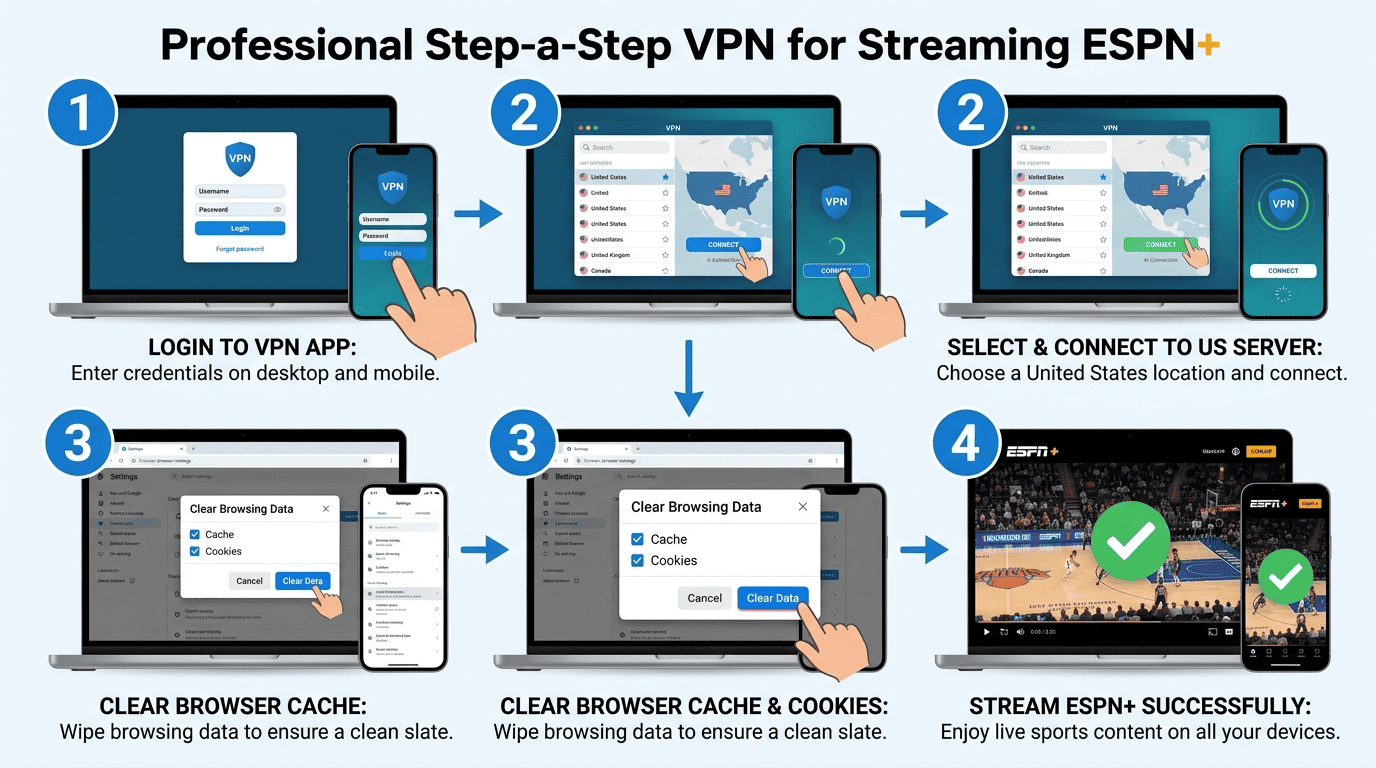
Using a VPN for ESPN is straightforward once you know the order that works. Most failed attempts come from small setup mistakes rather than anything especially technical: choosing the wrong server, leaving old site data in place, or trying a weak free service that cannot keep up with modern streaming checks. ESPN+ is not impossible, but it does reward a cleaner setup.
The process below is designed for practical use on common devices. It works whether you are trying to watch ESPN+ on a laptop browser, mobile app, or streaming hardware that supports a VPN app directly. The key is to start with one of the VPNs for ESPN that has reliable US coverage, then keep your setup simple until playback starts.
Step 1: Choose a VPN That Works With ESPN+
Start with a provider that has proven results for access ESPN+ and enough US servers to give you fallback options. That sounds obvious, but this is where many people get stuck. They pick the cheapest service they see, install it, and assume any US server will do. With streaming ESPN+, that is rarely how it works. A provider needs a decent server network, quick IP rotation, and stable speeds under load.
From our test results, NordVPN is the safest first choice for most readers. Surfshark is the best value if you need lots of device connections, and ExpressVPN is the easiest premium app to get running quickly. ProtonVPN is a good fit if privacy and transparency rank high on your list. All four are workable VPNs for ESPN because they offer practical US coverage rather than token presence.
I would avoid relying on a free VPN here. Free services usually have fewer servers, slower speeds, and higher block rates. They also tend to crowd too many users onto the same address ranges, which makes them easier for streaming platforms to spot. If you want a VPN for streaming live sports, paid options are the realistic starting point.
Step 2: Install the App on Your Device
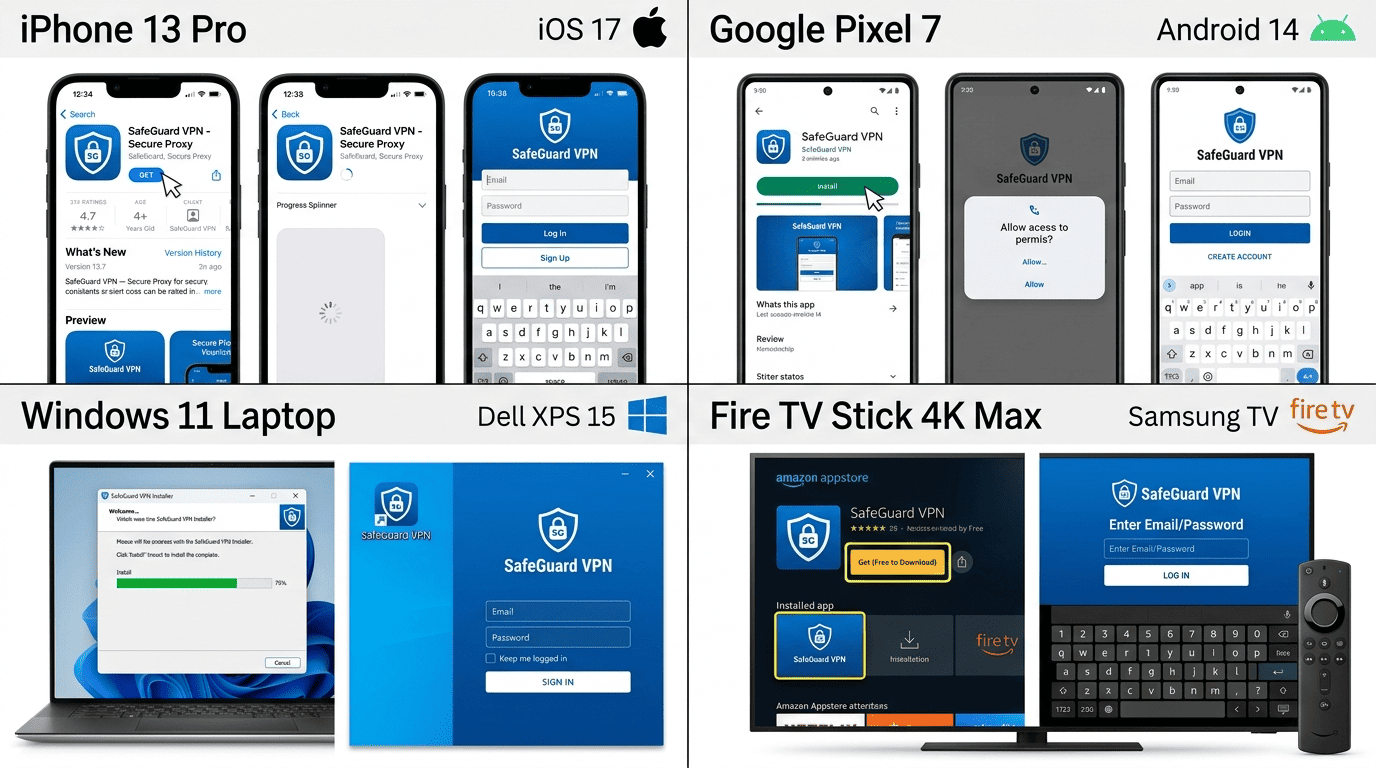
Once you pick a provider, install the official app on the device you plan to use for ESPN+. On desktop, that usually means Windows or macOS. On mobile, it is iPhone or Android. Many top services also support streaming boxes, smart TVs, and devices like Fire TV Stick, though exact setup steps vary by platform.
Log in with your account details and allow the normal permissions the app requests. On phones, that includes permission to create a VPN connection. On some devices, you may also see prompts tied to notifications or local network access. Those are standard. The important part is to use the provider’s official app rather than a third-party client unless you already know what you are doing.
Before you move on, check a few basics in settings. Make sure the kill switch is available and enabled if you want connection-drop protection. If the app offers WireGuard, a modern VPN protocol designed for better speeds, or a branded equivalent like NordLynx or Lightway, that is usually the best first option for streaming. Keep everything else simple for now.
Step 3: Connect to a US Server
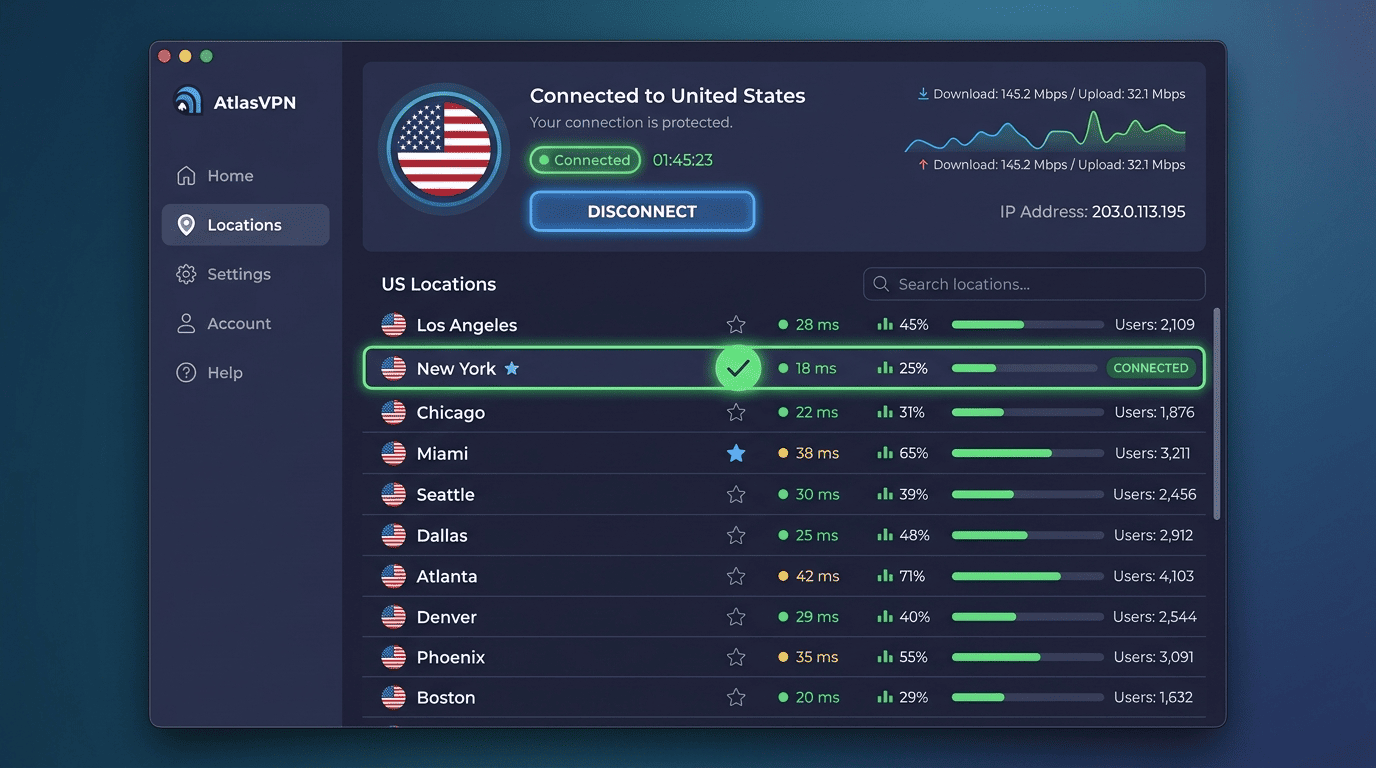
Open the app and connect to server options in the US. If your provider lists city-level choices, start with a nearby major location or the provider’s recommended fastest US server. ESPN+ cares about location, so this step is what gives you a US ip address instead of your home one. If the first server does not work, switch to another US endpoint. Do not keep refreshing the same one endlessly.
This is where larger VPNs for ESPN usually pull ahead. A broad pool of VPN servers lets you move to a fresh address without much delay. NordVPN and Surfshark were especially easy to rotate in our tests, while ExpressVPN made the process almost frictionless. That matters because unblocking ESPN is often about having several clean alternatives ready.
If you are trying to reduce blackouts or incorrect location detection, stick to the same country first and only then change city. In practice, most readers only need a stable US location and enough patience to try two or three servers. Once the app shows you are connected, leave it alone for a minute so the connection settles before opening ESPN+.
Step 4: Clear Cache and Launch ESPN+
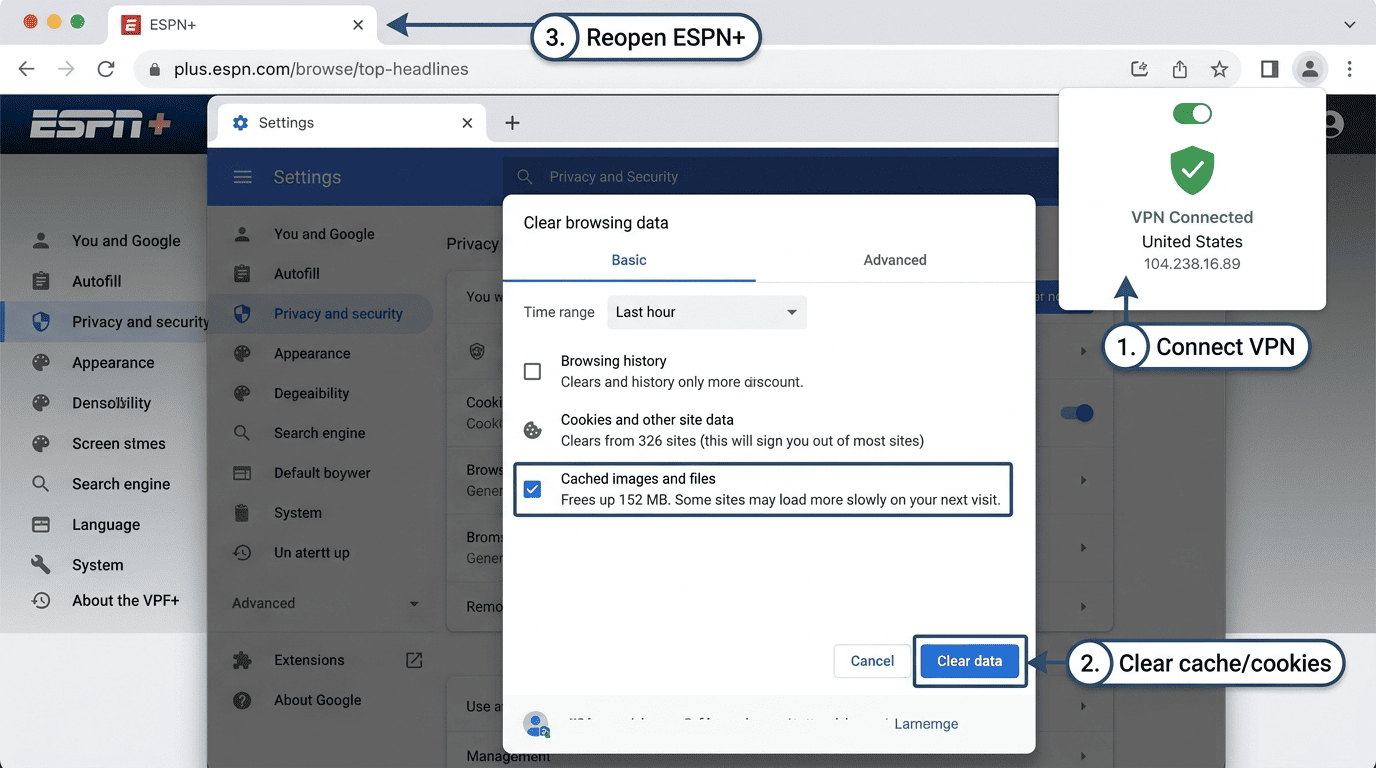
Before you open ESPN+, clear your browser cache and cookies or restart the app on your streaming device. Old location data can confuse the service, especially if the website or app has already stored your previous address information. This is one of the most common reasons a good VPN appears not to work when the actual problem is stale data left behind by the browser or app.
On desktop, clearing cookies for the ESPN site is usually enough. On mobile, force-closing the app and reopening it may solve the issue, though sometimes you need to clear app data in settings. Then visit the website or launch the ESPN+ app again and sign in normally. At that point, the service should read your current VPN location instead of cached information from an earlier session.
This step feels minor, but it often makes the difference between instant access and repeated error loops. Streaming services are very good at remembering previous location signals. Reset those signals first, and your odds improve.
Step 5: Troubleshoot Playback Problems
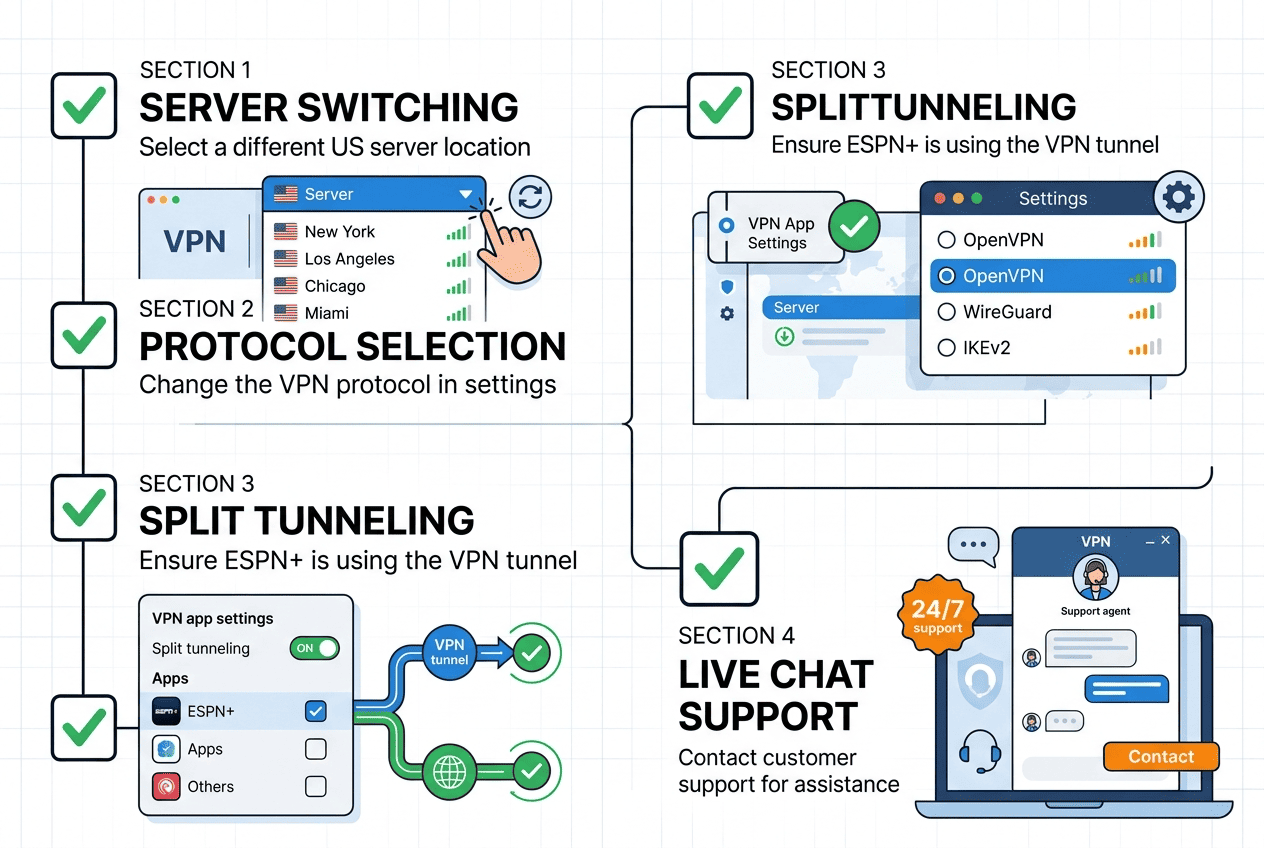
If ESPN+ still does not load, work through the common fixes in order instead of changing everything at once. First, disconnect and reconnect to a different US server. A fresh ip address is often enough. Next, try a different protocol inside the app if your provider gives you the option. WireGuard-based modes usually deliver the best speeds, but OpenVPN or another protocol can sometimes slip past a temporary block more cleanly.
Then look at your settings. If split tunneling is enabled, make sure ESPN+ is actually routed through the VPN and not bypassing it. If the kill switch is active and you lose your connection during switching, wait for the tunnel to reconnect fully before relaunching the app. Small timing issues can leave the service seeing mixed location data.
It is also worth checking for local problems that have nothing to do with the VPN itself. Restart the app, reboot the device, and confirm the internet connection is stable without the VPN. If you are on a crowded public network, throughput can drop enough to mimic a streaming problem even when the service technically has access. Live sports are demanding because they expose every weak link at once.
Support can help more than many readers expect. The better providers know which servers are currently working best for ESPN+, and they can often suggest specific US locations or protocol settings. If you have tried several servers, cleared cache, and changed protocols without success, contact support through live chat and ask directly which servers are recommended for ESPN+ right now. That is often the fastest route back to the game.
Why ESPN+ Blocks VPNs
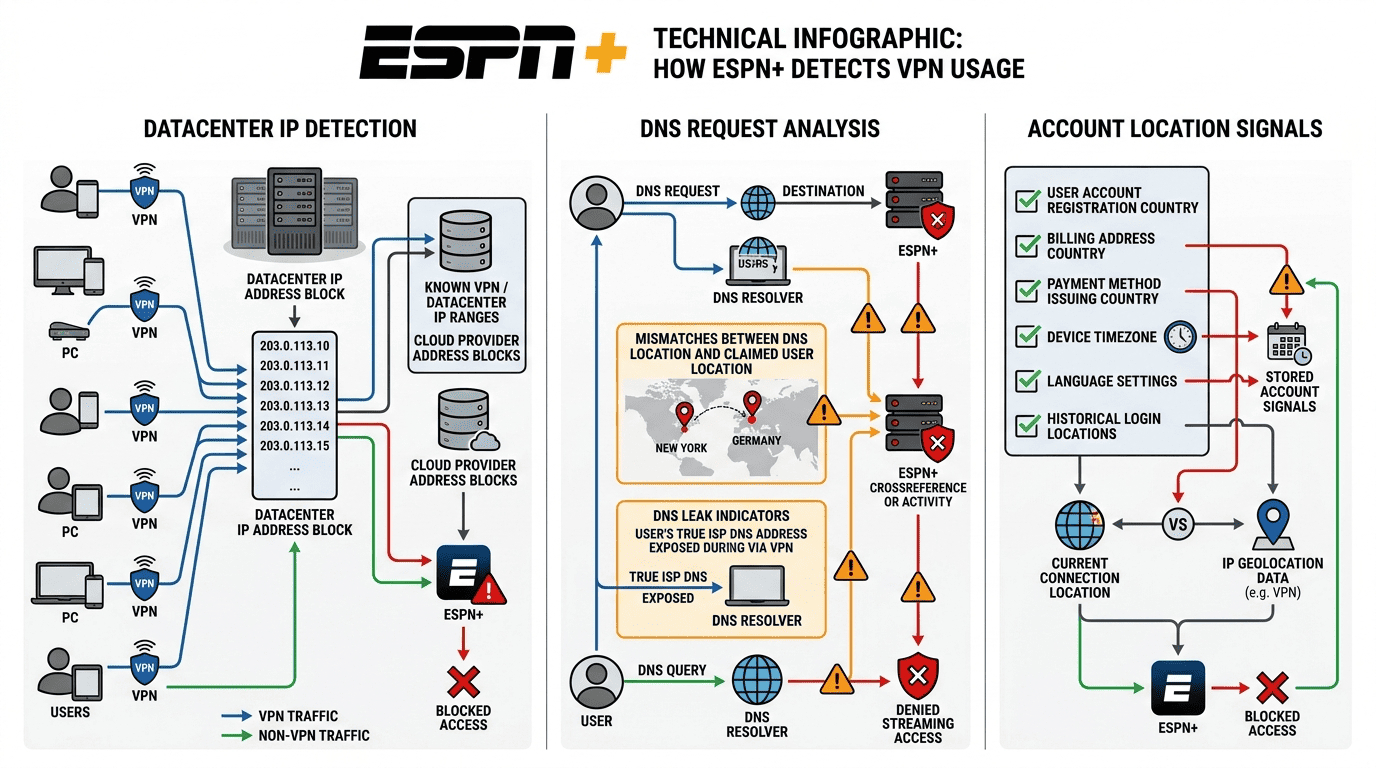
ESPN+ does not block VPN traffic at random. It is trying to enforce content licensing, local availability rules, and sports blackout arrangements tied to your location. That creates a constant tug-of-war between streaming access and platform enforcement. The service wants confidence that the ip address reaching its website reflects where the user is actually supposed to be.
From ESPN+’s side, this is partly about contracts and partly about security. If the platform sees traffic patterns that suggest a shared proxy or a commercial VPN endpoint, it has an incentive to block that address to protect licensing agreements and reduce suspicious activity. That is why some servers work one day and hit a wall the next.
Geo-Restrictions and Broadcasting Rights
Sports rights are sold by market, not as one universal package. A league may license certain content to one broadcaster in one country and a different service somewhere else. That means the same ESPN+ content is not necessarily cleared for every location. The website has to check where a user appears to be connecting from, and the ip address is one of the main signals used for that decision.
This gets even more complicated with local sports blackouts and regional rights splits. A match or game may be available nationally in one context but restricted in another. So when ESPN+ checks your location, it is not just deciding whether you are in the US. It may also be evaluating whether a specific event is supposed to be available in that part of the country.
A VPN changes the apparent address and location of the connection, which is why it becomes part of the enforcement picture. If ESPN+ thinks that traffic is masking the real location, it may block playback to stay within its content agreements.
How ESPN+ Detects Suspicious Traffic
Streaming services look for patterns. If hundreds of users appear to come from the same ip address, especially one linked to a datacenter rather than a normal home ISP, that can look suspicious. The same applies when a known VPN range repeatedly hits the site with login attempts, account activity, or playback requests across short time windows. At that point, the address may get flagged and blocked.
The website can also compare other pieces of information. DNS requests, app behavior, and browser data can all help confirm whether the connection looks consistent. If the user appears to be in one location according to the VPN but something else suggests another region, that mismatch can trigger a block. Security systems are built to notice those seams.
That is why better providers rotate addresses, expand their server pools, and try to avoid putting too many users on one endpoint. Smaller services often cannot keep up.
Why Some VPNs Fail More Often
Not all VPN infrastructure is equal. Premium providers generally have larger pools of servers, better rotation practices, and more US server locations, which gives them more room to work around a block. Smaller services or weak free options often rely on a limited set of heavily used addresses. Once those are identified, access can disappear quickly.
That difference shows up in practice. A top service may recover by shifting you to a cleaner address with minimal hassle. A weaker one may leave you bouncing between the same few flagged endpoints. The user sees that as inconsistency, but the underlying issue is usually infrastructure depth.
Security and app quality play a role too. If a provider leaks location information, handles DNS poorly, or makes server switching awkward, the odds of failure go up. In other words, the VPN is not just fighting ESPN+ detection. It is trying not to trip over its own design at the same time.
What to Do if VPN Is Not Working With ESPN+
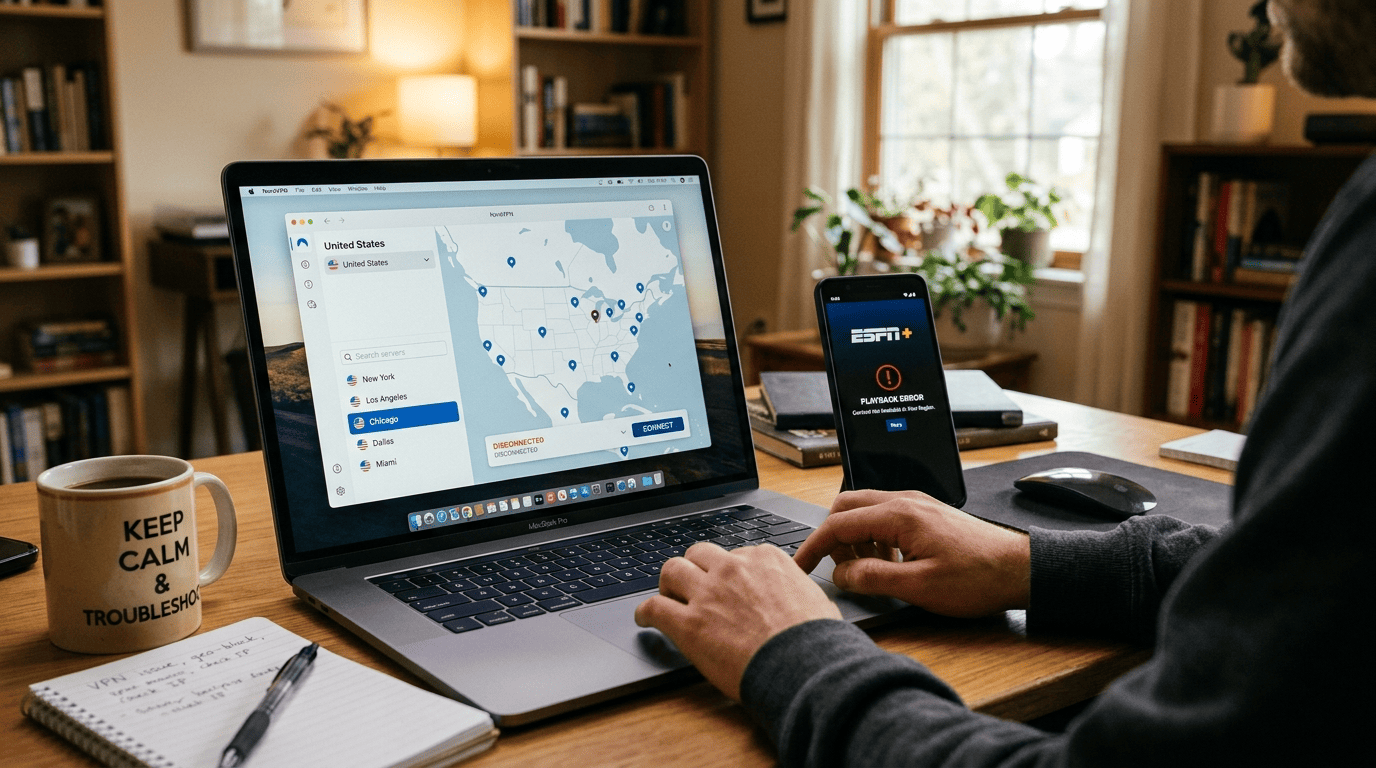
If your VPN suddenly stops working with ESPN+, do not assume the service is finished. In most cases, the fix is routine: switch servers, clear stored data, or change a protocol. Streaming services and VPN servers are in a constant cycle of detection and replacement, so a working setup can fail temporarily without meaning the provider is unusable.
The goal is to remove bad signals one by one. Start with the server itself, then clean up local app data, then adjust settings like kill switch or split tunneling if needed. If that still does not restore access ESPN+, support should be your next stop.
Switch to a Different US Server
The fastest fix is usually the simplest one: change to a different US server. Many streaming services block at the address level, not across the whole provider. So if one endpoint fails, another may work immediately. This is where deeper server locations and larger pools of VPN servers matter, because they give you real fallback options instead of the same address range in different packaging.
Try another city, or try the same city again if the service rotates addresses behind the scenes. Less crowded servers can also help, especially during major sports events when demand spikes. We saw this often while unblocking ESPN. One server would stall, the next would load the site cleanly.
If your provider offers a dedicated ip address, it may be worth testing as a backup, though this is usually not necessary. For most users, standard US endpoints from a top provider are enough.
Refresh DNS, Cache, and App Data
If server switching does not work, clear out old location traces. Start with browser cookies, cache, and DNS entries if you are using the website. On mobile or TV apps, force-close the app and clear app data where possible. Streaming services store plenty of clues, and stale records can keep feeding the service your previous location even after you connect to a new VPN server.
This is especially important after multiple failed attempts. Repeated checks can leave behind conflicting information, which makes future loads less reliable. Resetting the app gives you a cleaner start. Then reconnect to the VPN, launch ESPN+ again, and sign in fresh.
It is a small step, but one of the most effective. A lot of apparent VPN failures are really leftovers from earlier sessions.
Change Protocols or Contact Support
If the problem persists, open your app settings and try a different tunneling protocol. WireGuard-based modes are often fastest, but OpenVPN or IKEv2 may behave differently on a given network. Changing protocols also changes how traffic looks in transit, and that can help with stubborn streaming services.
Review a couple of settings while you are there. A kill switch can protect your connection, but if it is interrupting traffic during server changes, wait until the VPN reconnects fully before opening ESPN+. Split tunneling can help if configured correctly, but it can also cause trouble if ESPN+ is accidentally set to bypass the VPN. Make sure the app or browser is routed through the tunnel.
If none of that works, contact support and be specific. Tell them which server locations you tried, whether you used the app or website, and what the error looked like. The better services track which streaming services are working on which VPN servers, and they can often point you to a current workaround much faster than trial and error.
Is It Legal to Use a VPN for ESPN+?
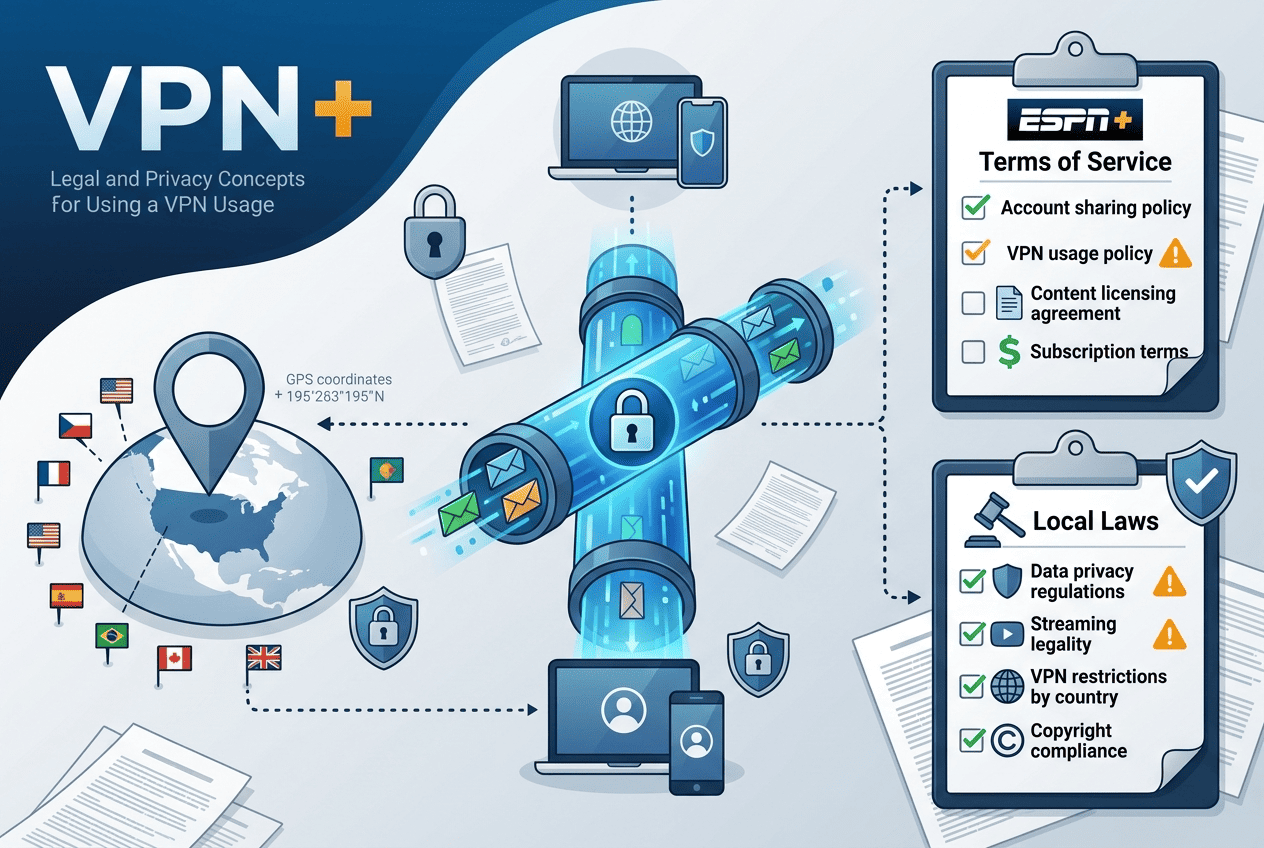
Questions about legality come up often with a VPN for ESPN, and the answer is usually more straightforward than people expect. In most places, using a VPN is legal. The harder questions involve platform rules, local regulations, and how you use the service rather than the software itself.
That said, legal context varies by country. It is smart to separate general VPN legality from the terms attached to a streaming service and from broader privacy and security issues around online viewing.
VPN Use Is Generally Legal in Most Places
In most countries, using a VPN is legal. People use these services every day for privacy, security, work access, and safer browsing on public networks. A normal user connecting through a VPN is not doing something unlawful just because the tool changes their ip address or encrypts their data.
The main exception is that some countries impose restrictions or licensing requirements around VPN use. Rules can differ in places such as China, Russia, the UAE, Iran, and Belarus. If you travel often, check local law before relying on a VPN abroad. That is the practical part.
For readers in the US and much of Europe, the basic point is simple: the software itself is generally lawful to use.
Terms of Service Can Still Apply
Legality and terms of service are not the same thing. A platform can set contractual rules for how its service is accessed even if the tool you are using is legal. So while a VPN may be lawful, ESPN+ can still have policies related to account use, location verification, and access methods.
That does not mean every user faces dramatic consequences. More often, the practical result is that the service may block playback if it detects VPN traffic or location inconsistencies. The issue is usually access, not criminal liability.
So yes, you should keep the distinction clear: legal software, but potentially restricted service terms.
How to Use a VPN Responsibly
Use a VPN responsibly by following local rules, keeping your account in good standing, and avoiding claims that any provider can guarantee access ESPN+ in every situation. No service can promise that. Streaming platforms update their detection systems, and results can vary by server, app, and location.
From a privacy and security standpoint, choose a reputable provider, use official apps, and enable sensible protections such as a kill switch where appropriate. That helps keep your information and connection safer without making the setup needlessly complex.
Responsible use is mostly about restraint. Pick a trustworthy service, understand the rules that apply where you are, and treat a VPN as a practical tool rather than a magic pass.
Free vs Paid VPNs for ESPN+
A free VPN sounds appealing for ESPN+, especially if you only need one game or one month of access. In practice, though, free services usually hit the same wall for the same reasons: too few servers, too many users on each address, and limited ability to recover once a streaming platform starts blocking known ranges.
Paid services are not flawless, but they have the infrastructure to keep up. For sports streaming, that gap shows fast.
Why Free VPNs Usually Struggle
Free VPNs usually struggle because they lack scale. Their server network is smaller, their US options are limited, and their speeds are often dragged down by heavy demand. A crowded free VPN might technically connect, but streaming ESPN+ is much harder when the same small pool of servers is shared across large numbers of users.
That leads to more blocks. Shared addresses become easier for platforms to identify, and once a block lands, there may be few alternatives. Free services also tend to offer weaker security features, fewer app options, and less responsive support. Some have strict data caps that make live sports a poor fit from the start.
For ESPN+, the pattern is familiar: the stream fails to load, buffers too often, or works once and not again.
What Paid VPNs Add for Sports Streaming
Paid providers bring the things sports viewers actually need: better speeds, more stable servers, more US endpoints, and apps that are easier to troubleshoot. A good VPN for streaming also gives you a larger server network, which improves the odds of finding a working address quickly during busy games.
They also tend to include stronger security features. That means a kill switch, cleaner DNS handling, better privacy policies, and more reliable app support across each device you use in a year. For a user who watches regularly, that consistency is worth paying for.
This is why the best VPN options in our rankings are paid services. They cost more than zero, obviously, but they are built for repeated access rather than occasional luck.
Best Value Strategy for Most Users
For most readers, the best value strategy is simple: choose a paid provider with a free trial if available, or more commonly a money back guarantee, and test it during real ESPN+ use. A 30 day money back window gives you enough days to check multiple servers, several devices, and a mix of weekday and weekend sports traffic.
That approach beats committing to a long year plan blindly, and it beats relying on a free VPN that probably will not hold up. If the service performs well, keep the longer plan for better monthly pricing. If it does not, use the refund window and move on.
In this category, value comes from reliability more than the lowest sticker price.
Testing Methodology
We do not rank a VPN for ESPN based on feature lists alone. We test providers against the actual service, on multiple devices, and with repeated attempts across US servers. The aim is to see which services keep working after the first success, not which ones happen to get lucky once.
Our VPN review process also looks beyond basic access. Speeds, app behavior, privacy protections, and support quality all affect how usable a provider is over a month or year of streaming.
Streaming Access Checks
For unblocking ESPN, we ran repeated checks across multiple US servers on desktop and mobile. We looked at whether ESPN+ loaded the website or app correctly, whether playback started without a location error, and whether the same provider could repeat that result across several connections rather than only once.
This matters because one successful load does not mean much on its own. Streaming services react quickly to flagged servers. A provider that worked in one test but failed in follow-up attempts scored lower than one that stayed steady across several rounds.
That repeatability is what separates marketing claims from useful results.
Performance and Speed Measurements
We measured speeds with streaming in mind rather than treating benchmark charts as the whole story. Live sports demand stable throughput and manageable latency, so we compared how providers behaved during actual ESPN+ playback as well as in standard speed tests. Buffering, reconnects, and sudden quality drops counted against a service even if the raw number looked fine.
The fastest services were not always the ones with the highest single test spike. The better performers were the ones that kept video stable over time and recovered quickly after server changes. For a VPN for streaming, that is the more honest measure.
Privacy, Apps, and Support Review
We also reviewed privacy, app design, and support because streaming usability does not exist in a vacuum. We checked whether the apps were available across common platforms, how easy they were to configure, and whether key tools such as a kill switch or split tunneling were clear to a normal user. We also considered public audit history and basic information around logging claims where relevant.
Support quality mattered too. If a provider offers live chat that can point users toward working servers or relevant settings, that improves the experience in a way spec sheets do not capture. Those softer factors did not outweigh streaming access, but they influenced the final rankings.
FAQ
Which VPN works best with ESPN+ right now?
Can I use a free VPN for ESPN+?
Why does ESPN+ say content is unavailable?
Will a VPN slow down live sports streaming?
Do I need a US account to watch ESPN+?
What should I do if ESPN+ still does not load?