

If you want to know how to change your YouTube TV location, the key is understanding that YouTube TV tracks two separate regions: your Home Area and your playback area. The first affects your primary local channels and account region, while the second reflects where you are currently watching. In most cases, you can update both from your account settings in a few minutes, provided your device, network, and location permissions all line up.
If you plan to try a VPN, download the app first, choose a US server, and make sure your VPN service supports streaming. After each update, open the live guide and confirm that the local channels and regional content match your current area.
How to Change Your Home Area
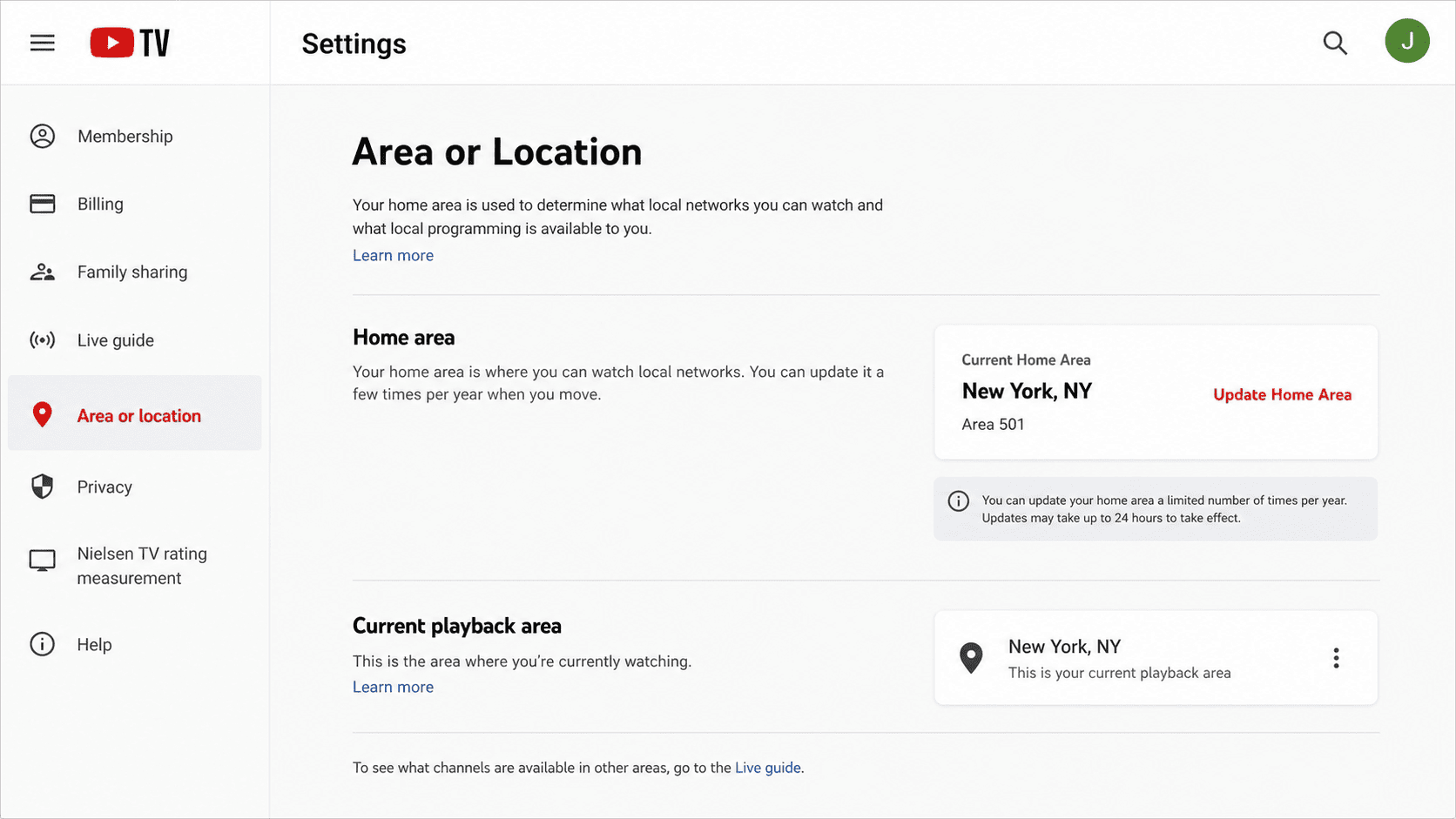
Your Home Area is the anchor point for your YouTube TV account. It tells the service which local affiliates, regional sports feeds, and some live content rights should apply to you on a long-term basis. If you recently moved, or if your current account region is wrong, this is the setting you need to update first.
Before changing anything, check that you are signed into the correct account and using a reliable network. A mismatch between your device signals, IP addresses, and app permissions can trigger blocks or keep the update from saving.
What Your Home Area Controls
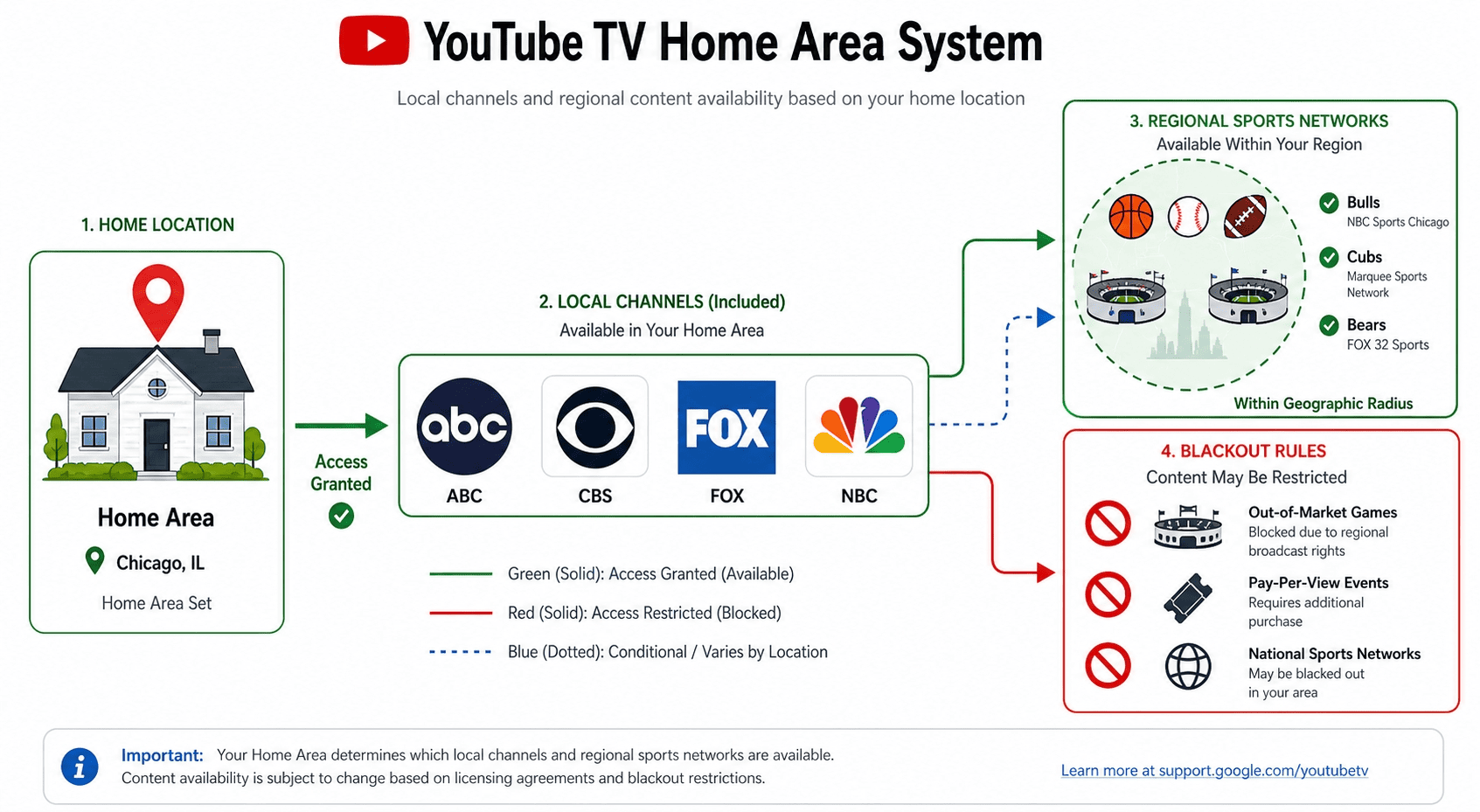
Your Home Area controls more than a pin on a map. In youtube TV, it determines which local channels you see, including regional ABC, CBS, FOX, and NBC affiliates where those channels are available. It can also affect local news, sports blackouts, and other region-bound content that changes by area. If you ever wondered why two users on the same plan can see different live feeds, this is usually the reason.
YouTube TV licenses content by location, not just by account. The service uses location data from your device, network details, and account history to connect your subscription to a real-world area. That means your local channels are tied to where YouTube TV believes you live, while your temporary viewing spot is handled separately through the playback area.
Changing only your current viewing spot will not permanently change your local lineup. To update the account-level area, you need to go through the Home Area settings — that is what actually changes your location for long-term access, and it is why the TV location shown in settings carries more weight than a one-off connection.
Update It From a Browser or TV Device
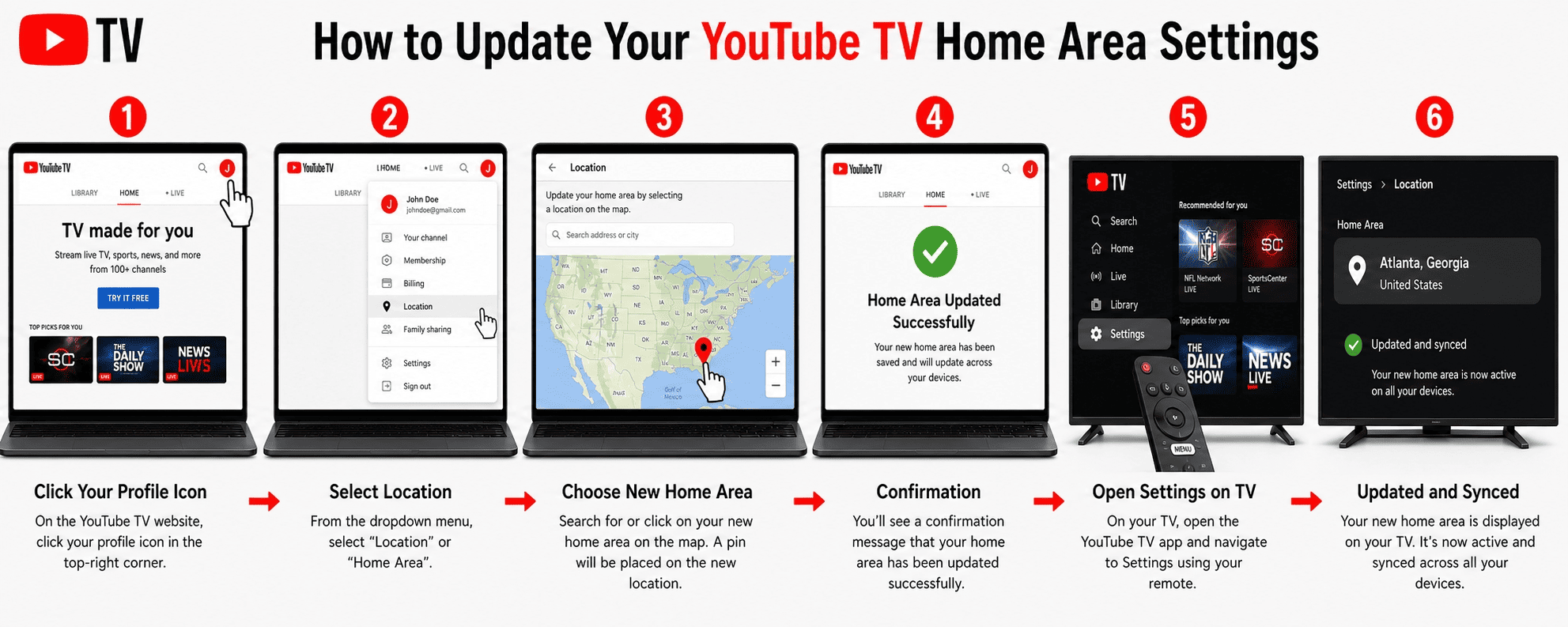
If you need to update your Home Area, use these steps:
- Open YouTube TV in a web browser or on your TV app and sign in to the correct account. You will see your profile image in the top-right area.
- Open Settings and find the Area or Location section. On the web, this is usually easier to spot than on some TV interfaces.
- Select the current Home Area and choose the option to update it. A prompt should appear with a message asking you to confirm or verify your location.
- Use your phone to complete location verification if prompted. The app may ask for permission to access precise location data.
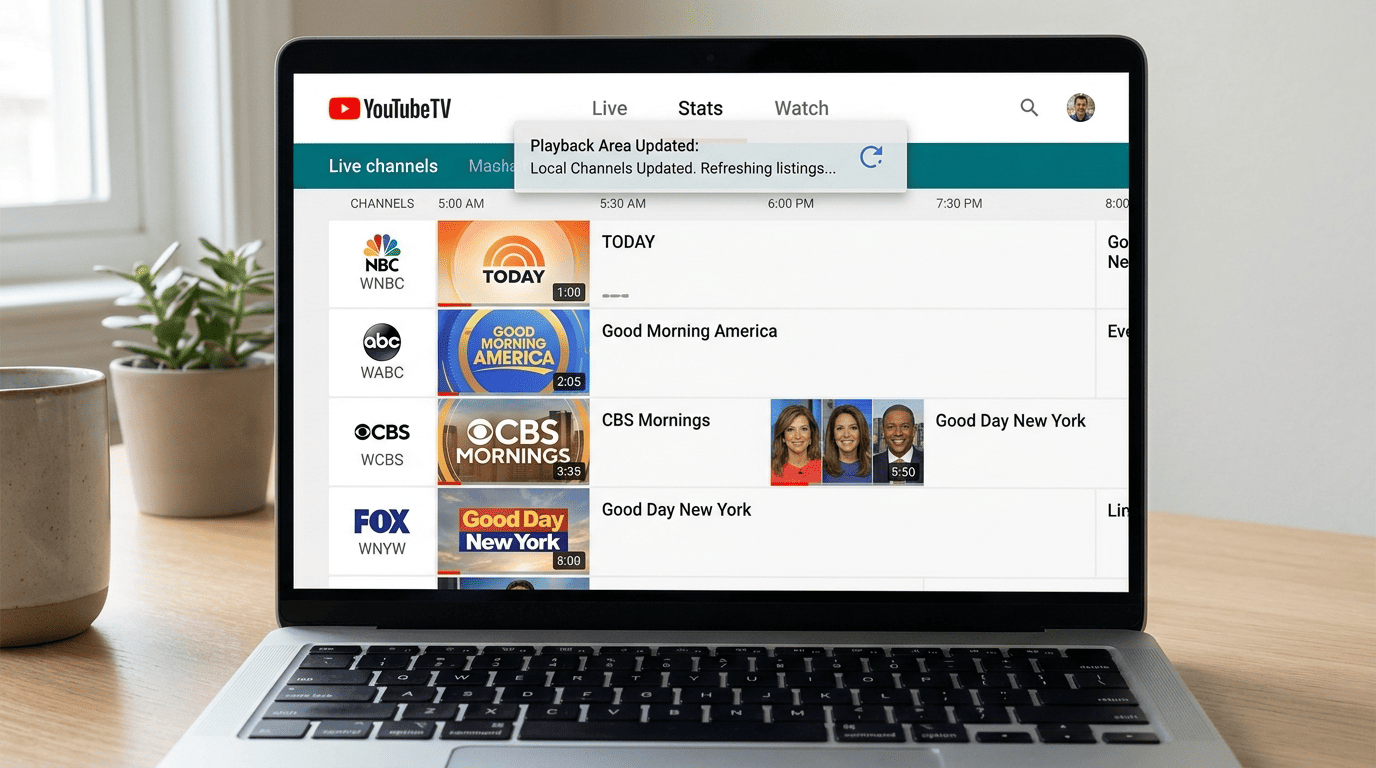
- Confirm the update and wait for the app to refresh. Success looks like a changed city or region name in the account area, and your local channels list should update after a short reload.
If the TV interface feels limited, switch to the web version. It is often the cleaner method for account changes, especially when you need to review addresses, settings, or account info. You can use a browser on a laptop, then return to the TV device once the update finishes.
Do not skip the verification prompt when learning how to change a youtube TV region after moving. The service requires real location evidence, not just a typed address. Simply editing billing details rarely changes your location on youtube in the way people expect.
Common Errors During the Change
The most common problem is that YouTube TV refuses to accept the new area, even when the city is correct. Usually, this happens because the service sees conflicting data — for example, your phone may report one location, while your home internet appears tied to a different region through its IP addresses. When those signals do not match, the update can stall.
Start with the basics. Check that the device you are using has location access enabled for the YouTube TV app or browser. On mobile, verify that GPS is active and that low-power mode is not limiting background location checks. On desktop, allow browser-level location permissions and refresh the page. Then restart the app — a clean restart often helps the service re-read network data.
Stale web data is another frequent culprit. Cached cookies, old login sessions, and remembered addresses can confuse the process. Sign out, clear browser data for YouTube TV, then sign back in and try again. On a TV device, force close the app or reboot the streaming hardware before retrying the update.
If the region still will not change your location, test a different connection. Switch from home Wi‑Fi to mobile data on your phone for verification, or reconnect your router so the network renews its public identity. Turn off any VPN service during Home Area updates unless you are intentionally using a supported VPN method discussed later — Home Area checks are stricter than casual playback checks.
Frequent changes can raise flags. The service balances access with security and fraud prevention, so repeated switches between distant areas may trigger extra review. Wait a bit, verify your account details, and then attempt the update from one verified device rather than several at once.
How to Update Your Playback Area
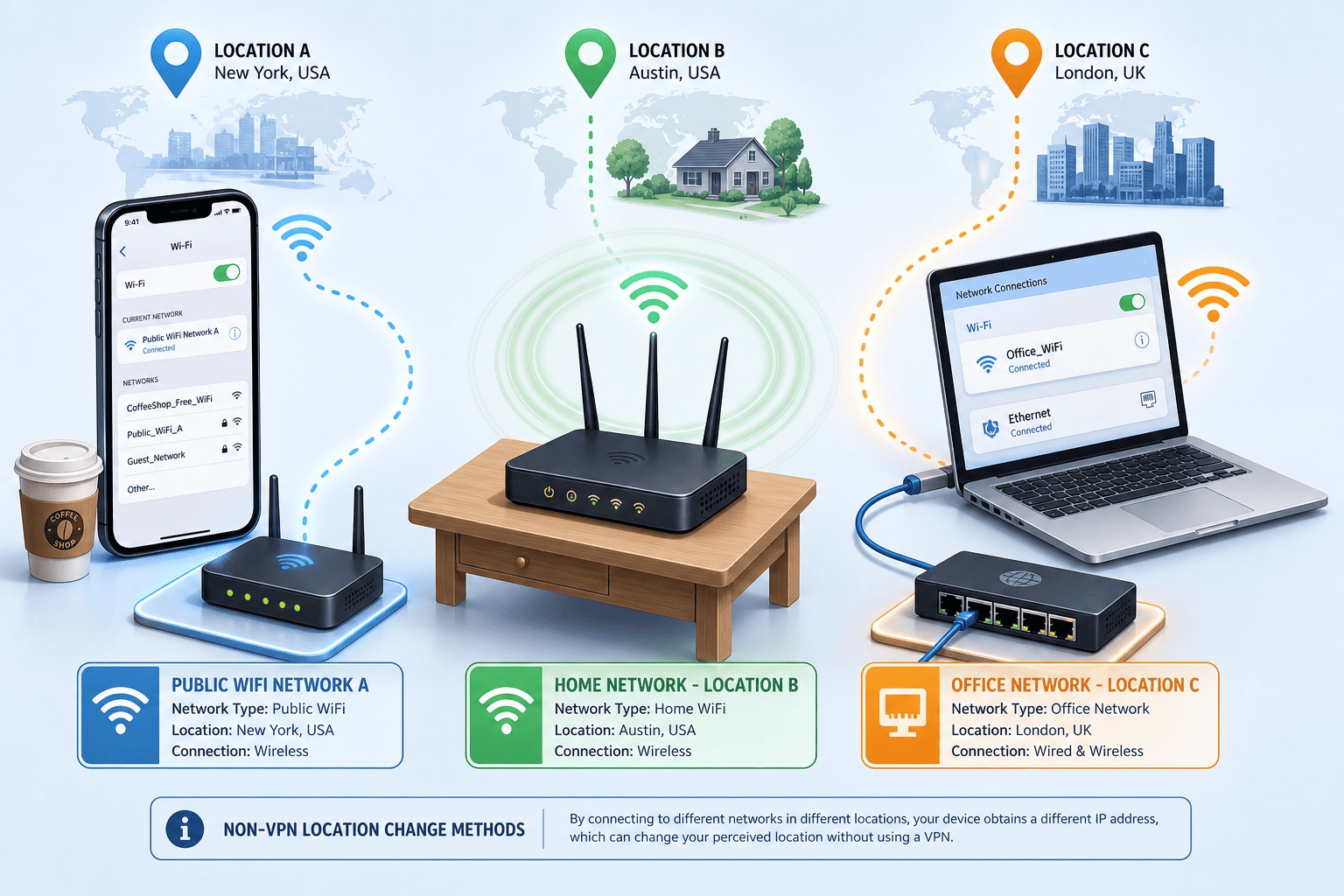
Your playback area is different from your Home Area. It is the temporary location YouTube TV uses to decide what you can watch right now, especially local live channels while you travel. That means you can keep your account based in one city while temporarily viewing from another, as long as the service can confirm your current device location.
This is the setting most travelers need. Away for work, visiting family, or checking a live game from another state — updating the playback area is usually enough. It is a lighter-touch update than changing the account’s main region, but it still depends on clean location signals from your app, phone, browser, and network.
Why the Playback Area Matters
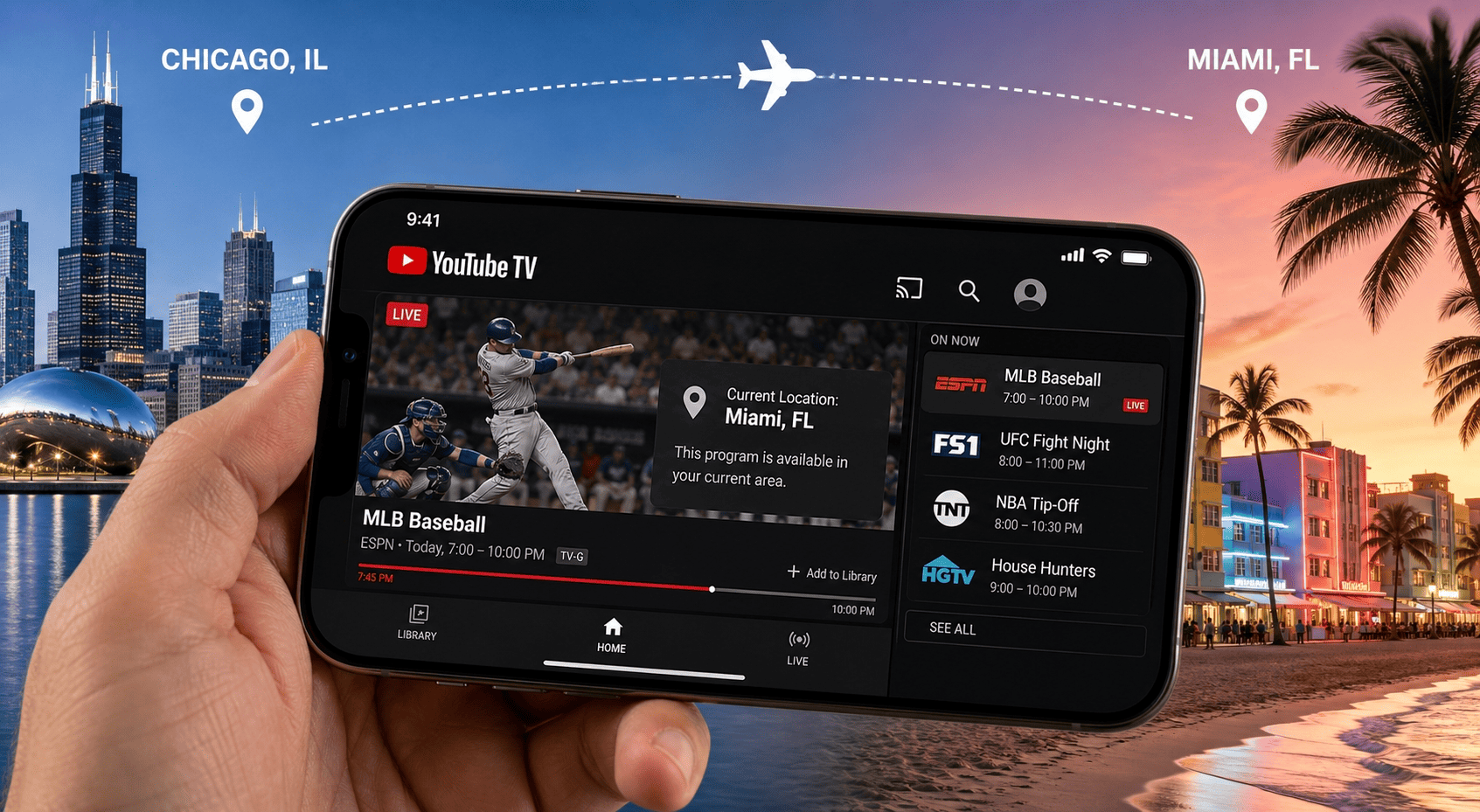
The playback area matters because it tells youtube TV where you are actually watching from at this moment. That affects local channels, nearby sports coverage, and sometimes which live content the service will allow. Traveling from Chicago to Miami, for example, your Home Area may stay in Illinois while your playback area shifts to Florida for temporary viewing.
Some readers think the service changed their lineup without warning — in most cases it simply updated the current location on youtube based on device checks. For travelers, that is useful. For anyone trying to watch youtube from a specific city, it can be confusing if the app keeps snapping back to the wrong place.
You can update the playback area more often than the Home Area, but not endlessly. The service expects temporary movement, not constant jumps between distant servers, cities, and networks. Unnatural patterns can limit access until your data is verified again.
Refresh Location on Mobile and Desktop
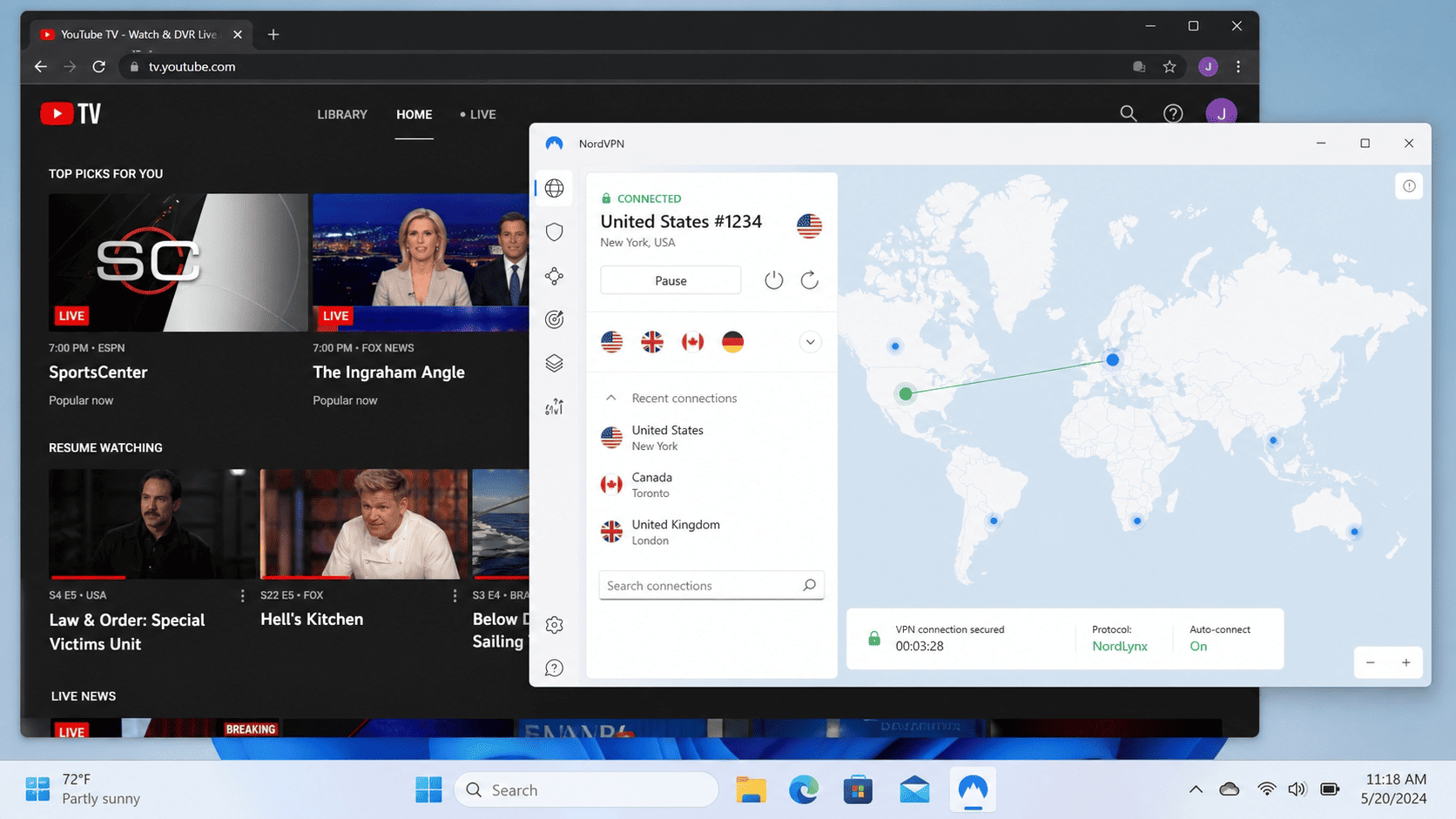
Use these steps to refresh your playback area:
- Open the YouTube TV app on your phone or open the web version on desktop. Stay signed in on both if possible.
- Go to Settings, then find Area or Location. Select the option related to the current playback area.
- Tap or click Update. A prompt may ask you to verify from a mobile device.
- Allow location services on your phone if the app requests them. Success looks like the city name changing to your current area.
- Restart the app if the old region still appears. Then reopen the live guide and confirm that local channels match the new city.
Complete the location check on mobile first if the desktop page does not refresh properly. The phone provides the strongest location data because GPS is more precise than browser-based detection alone — that makes mobile the better tool for this task, even if you plan to watch youtube on a TV or laptop later.
If the app still shows the old city, close it fully and relaunch it after a minute. That extra pause gives the service time to process the update.
Travel Scenarios and Temporary Access
Traveling within the US, YouTube TV usually allows temporary access based on your playback area. That means you can use the service from hotels, rental apartments, or another home connection and still watch youtube, though the local lineup may shift to the city you are visiting. For many users, that is exactly what they want.
Longer trips are different. Stay away from your Home Area for an extended period, and the service may prompt you to confirm where you live and where you are currently watching. This is where many readers confuse a playback update with a Home Area update. One is temporary; the other changes the account’s core region.
If live TV starts showing restrictions while you travel, compare connections. Hotel Wi‑Fi, public hotspots, and mobile data can all produce different results because each network reports different location clues. A hotel connection may route traffic through another city, while your phone’s mobile data gives a cleaner local reading. Use that stronger signal to refresh the playback area and restore access.
Keep it simple when you change your youtube setup while traveling: use one verified phone, one stable app session, and one network at a time. Fewer moving parts usually mean fewer blocks and a faster update.
Using a VPN to Change Location
A VPN can help when your visible internet location does not match the region you want YouTube TV to recognize, but it is not a magic switch. The service checks more than just one IP — it can compare app data, DNS behavior, browser signals, GPS input from a phone, and patterns tied to known VPN server ranges. That is why some people connect, refresh once, and still hit a wall.
A VPN service works best as a supporting tool, not a complete fix. It is most effective for correcting a wrong city reading during travel; for account-level Home Area changes, YouTube TV applies stricter checks where matching device signals and network behavior matter as much as the server itself.
The best vpns for streaming are ones with a large pool of US servers, reliable apps, and clear tools for leak protection. NordVPN appears on most short lists of recommended options, with a broad server network and solid privacy controls. A random free VPN or an overloaded proxy is unlikely to deliver consistent results.
Before connecting, make sure you understand the goal. To fix a bad city reading during travel, a nearby US VPN server may be enough. To change your location for account purposes, you will also need matching device signals and a believable network path. A VPN is one method, not the entire solution.
Quick Steps Before You Connect
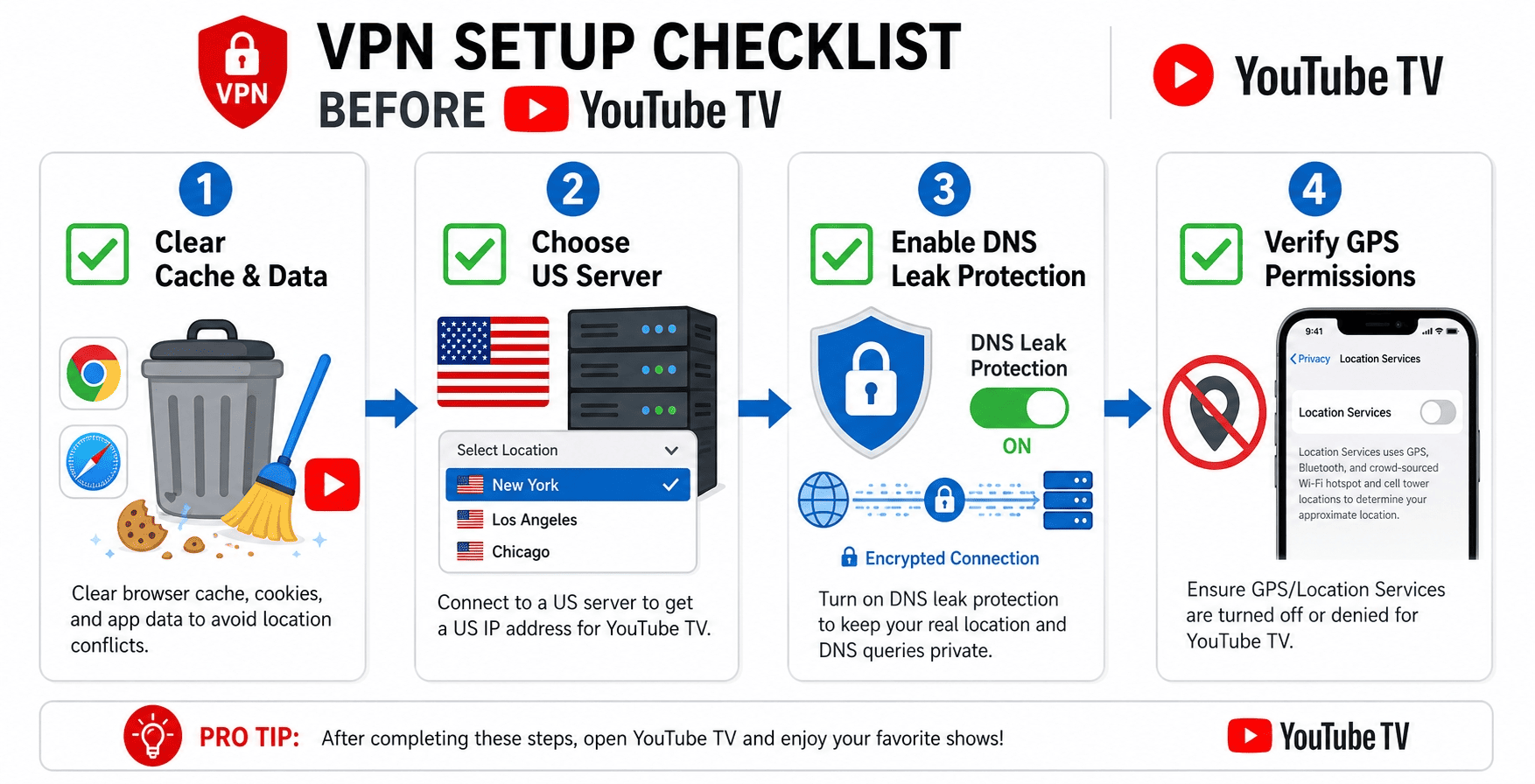
Use these steps before turning on any VPN service:
- Pick a US VPN server in the city or state closest to the TV location you want. Avoid hopping between multiple servers too quickly.
- Clear browser cookies or app cache for YouTube TV. Success looks like a fresh login screen or a reset session without old location data.
- Restart the device after clearing the cache. This helps remove stale network data and old DNS records.
- Check for DNS leaks in your VPN app settings and enable leak protection if available. DNS requests can reveal your real location even when the main tunnel is active.
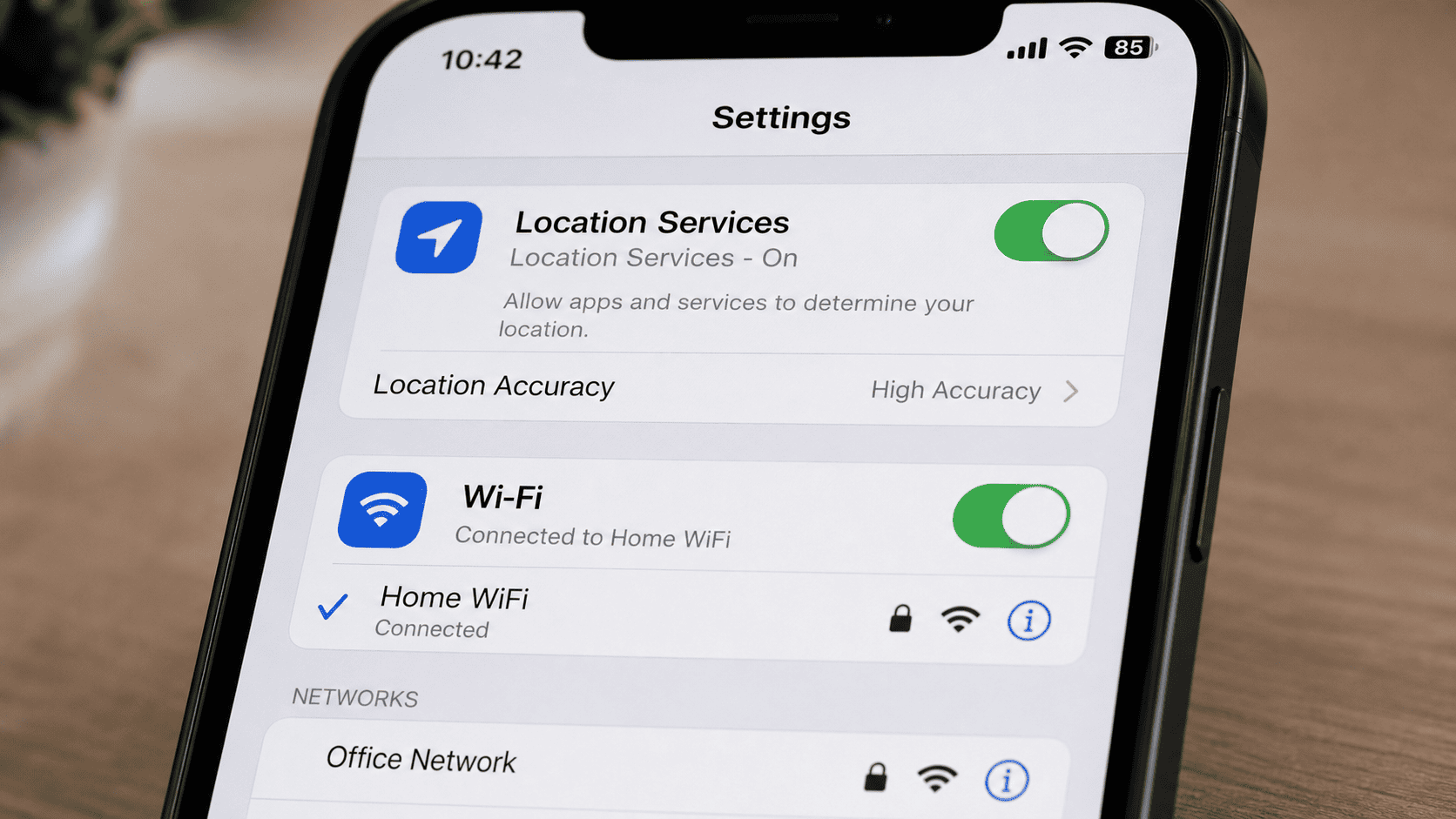
- Review phone GPS permissions. If your phone still reports a different place than your VPN server, YouTube TV may ignore the connection.
- Open YouTube TV only after the VPN connection is stable. Then try to update the playback area or reload the live channels list.
You can use these same steps on desktop, mobile, or a streaming box, though the exact settings menu will vary by device. Start with the official app, not a browser extension — full-device VPN apps generally provide better security and more consistent routing than lightweight web tools.
How VPN Detection Works
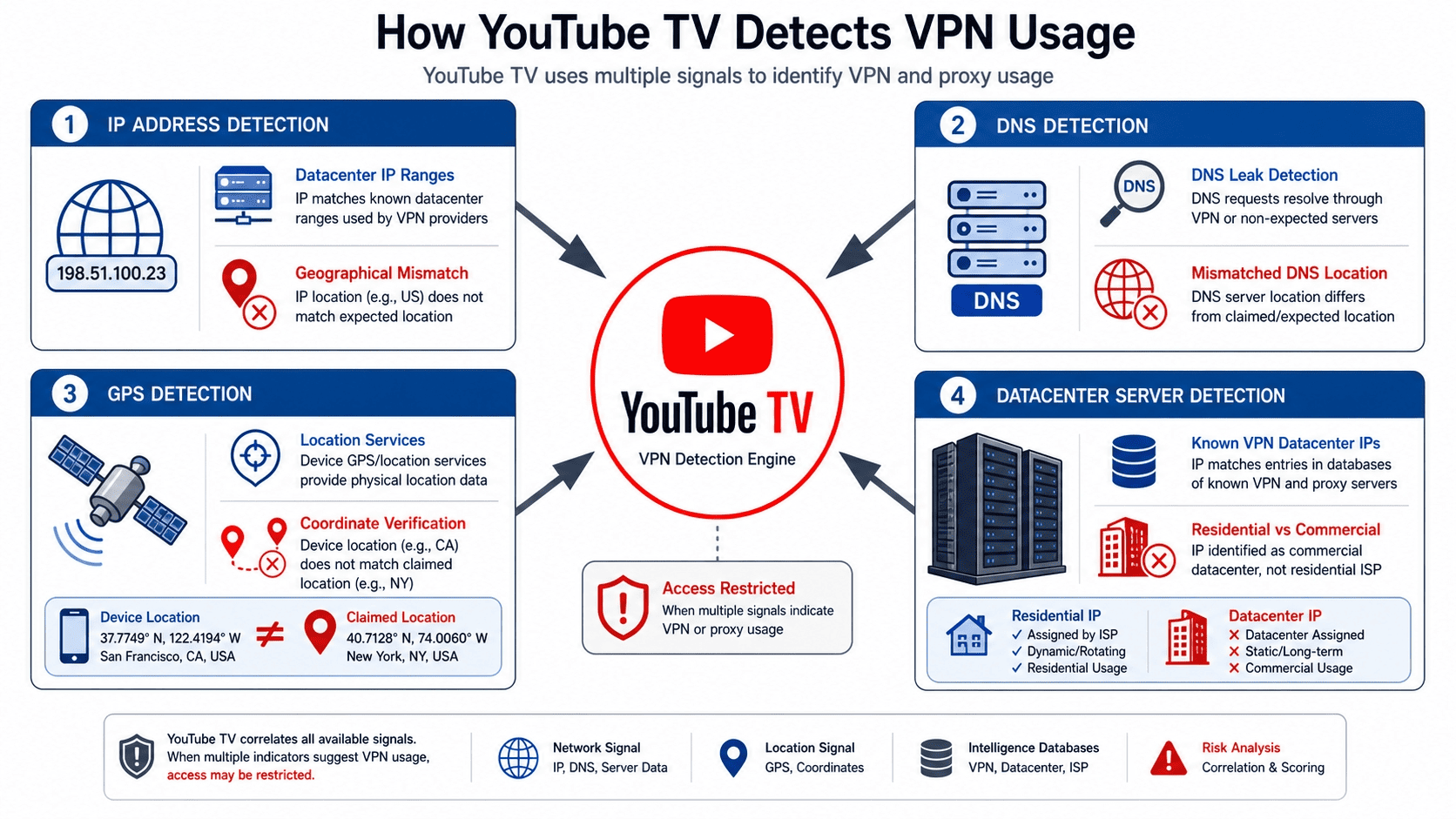
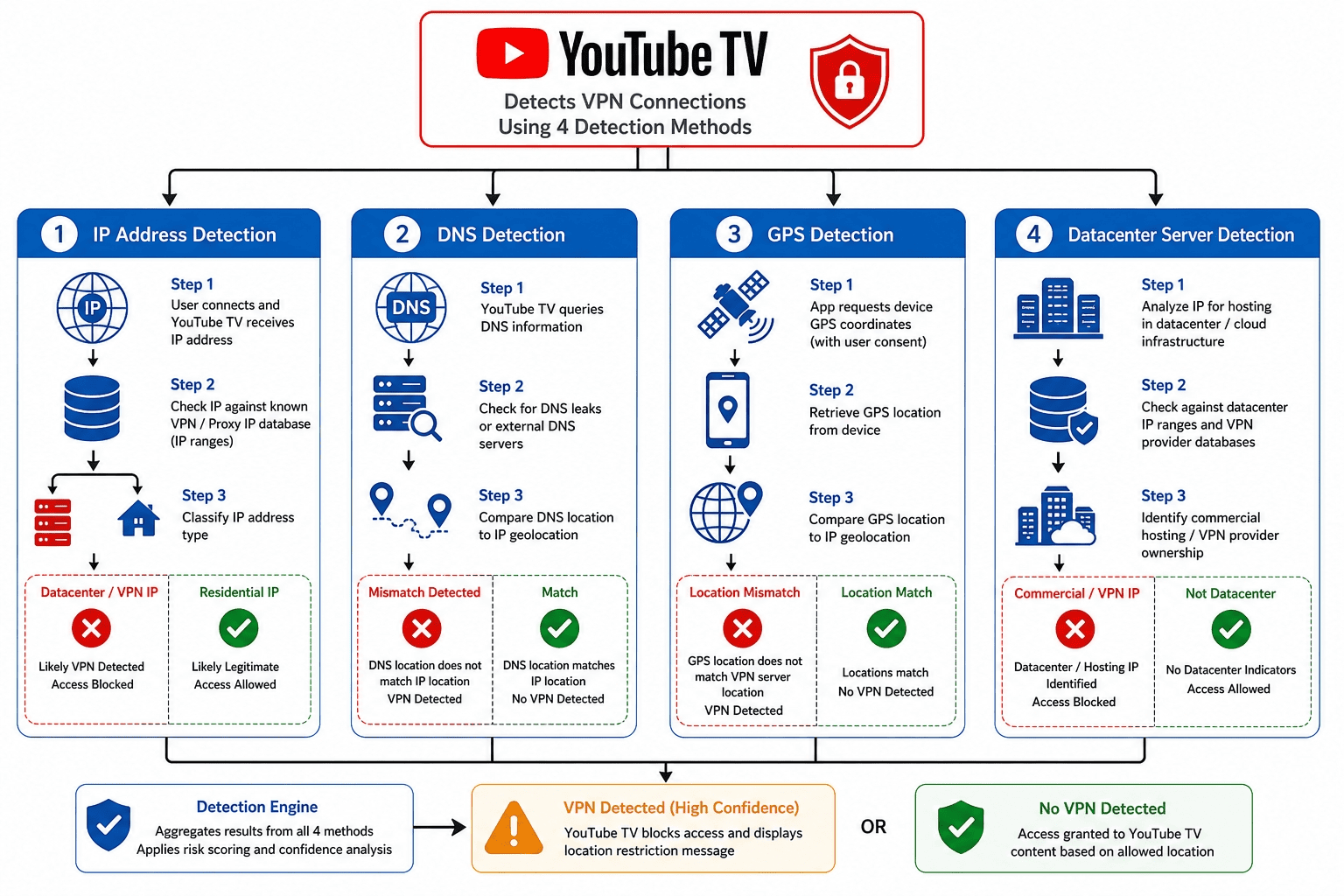
YouTube TV does not just look at one address and call it a day. It can compare IP addresses against known datacenter ranges, inspect DNS patterns, and flag suspicious traffic if too many users appear to share the same VPN server. That is one of the main blocks streaming services use.
To reduce the risk, choose reputable servers, avoid DNS leaks, and keep your app, browser, and phone location data as consistent as possible. The best vpns rotate addresses more carefully, which improves access, but the detection methods streaming services use continue to evolve.
Other Methods to Change Location
A VPN is the most common workaround, but it is not the only method people try. Some alternatives can help with wrong city detection, especially when the issue is really a bad network reading rather than a hard geo-block. Others are mostly dead ends.
The important thing is not to confuse “different result” with “reliable fix.” YouTube TV combines network, device, and account data, so any method that changes only one signal may help briefly or may do nothing at all.
Change Network Details on Your Device
If YouTube TV keeps showing the wrong city, start by changing network conditions on the device itself. Disconnect and reconnect to Wi‑Fi, reboot the router, and check whether your internet provider is assigning a location far from where you actually are. In some cases, the service maps internet access through regional hubs, which can produce inaccurate TV location results.
On mobile, switch between Wi‑Fi and cellular data to compare behavior. If one connection gives better location using results, that tells you the issue is probably with the network rather than your account. You can use that information to complete the update on the cleaner connection.
Also check device settings. Make sure the app has permission to access location, and confirm that date, time, and regional settings are correct. It is a basic method, but it often fixes false readings without any extra tools.
Use a Different Connection While Traveling
While traveling, one connection may work much better than another. A hotel network, for example, may route all traffic through another city, while your phone hotspot reports a more accurate local location. Test another connection before assuming the account is the problem.
A good way to set up this comparison is to try the app first on the hotel Wi‑Fi, then on mobile data, then on a hotspot shared from your phone. Watch for which connection allows the playback area to update correctly. Success looks like the live guide switching to local channels for the city you are in.
If internet access is unstable, wait until the signal is steady before you retry. A weak or bouncing connection can interrupt the verification message and leave the app stuck between regions.
What Usually Does Not Work
Some methods sound plausible but rarely help for long. Simply typing a new address into account details does not usually change your location unless YouTube TV also verifies it through device and network checks. Random browser proxies are another weak option — they may change visible web traffic, but they often leak data elsewhere.
A free VPN is also unreliable for this use case. Most free VPN services offer fewer servers, crowded IP addresses, weaker privacy protections, and a higher chance of detection. Even when they connect, the experience tends to be less stable for live channels and location-sensitive content.
The same goes for scattered “smart DNS” tricks that are not properly set up. They can use partial routing to spoof some requests, but YouTube TV often expects deeper consistency across the app, device, and network. That is why shortcut methods rarely beat a clean connection and a reputable VPN service.
Location Restrictions and Limitations
YouTube TV is flexible enough for normal travel, but it is not built for constant region hopping. The service uses several checks to decide whether your location looks legitimate, and those checks affect access to live channels, sports broadcasts, and account updates. If something does not match, the platform may refuse the request or show a warning instead of updating cleanly.
This is where many users get tripped up. They assume one successful playback session means every future location change will also work. In practice, the service looks for patterns — frequent changes, unusual device behavior, and repeated mismatches between network data and account history can all raise security concerns.
How Often You Can Update Areas
You can update the playback area more freely than the Home Area, but neither setting is unlimited. YouTube TV expects occasional travel and real moves, not a rapid sequence of location changes across multiple states and devices. Update too often, and the service may stop trusting the signals it receives.
Consistency is part of the platform’s security model. An account that appears in one city on Monday, another on Tuesday, and a third on Wednesday may trigger prompts to verify again before channels refresh.
Update from one trusted device on one stable network — that creates a cleaner record and lowers the odds of confusion.
IP Address and Account Mismatch
A mismatch between your account region and your visible IP addresses is one of the biggest reasons a location update fails. If your Home Area is tied to one city but your traffic suddenly appears from a distant datacenter, YouTube TV may restrict playback or refuse to refresh the account. The same can happen if your app reports one place while the network suggests another.
These mismatches can affect both channels and playback. You may still get partial access to on-demand content, but local live feeds often rely on tighter checks. That is why a VPN can help in some cases and hurt in others. If the VPN server fits your target region and your other signals agree, it may work. If not, it can make the discrepancy more obvious.
Avoid sudden jumps across many servers or addresses. Slow, consistent changes are less likely to trigger blocks than constant switching.
Device, GPS, and Network Checks
YouTube TV does not rely on one signal alone. It can review device permissions, phone GPS, browser-level location access, network behavior, and account history together. That layered approach helps the service verify that the request is coming from a real place rather than a loose collection of conflicting clues.
Phone GPS is especially important because it can offer a stronger location signal than desktop browsing. If your phone says one thing while your TV app says another, the platform may favor the phone during an update. Keeping permissions enabled reduces errors.
Sync the basics first to lower the risk of failure: use one device, confirm location services are on, avoid unusual server jumps, and reconnect the network if results look stale. That combination is enough to make the update process more predictable for the vast majority of cases.
YouTube TV FAQs
Can I Change My YouTube TV Region Without Moving?
Does a VPN Always Work With YouTube TV?
Why Is My Playback Area Not Updating?
Can I Use a Free VPN for YouTube TV?
What Is the Difference Between Home Area and Playback Area?
How Do I Fix a Detected VPN Error?