

This guide shows you how to install a VPN on an Amazon Fire TV Stick, sign in, connect to a server, and verify that streaming works. For most readers, the full set up takes about 5 to 10 minutes on a stable connection if your provider has a native Fire TV app in the Amazon Appstore.
Before you start, make sure you have these prerequisites ready: an active VPN subscription, your login credentials, an Amazon account connected to the device, a working internet connection, and your Fire TV Stick powered on and updated. We tested the general flow on current Fire TV app layouts, but menus can shift slightly by Fire OS version and by provider.
How to Install a VPN on Firestick
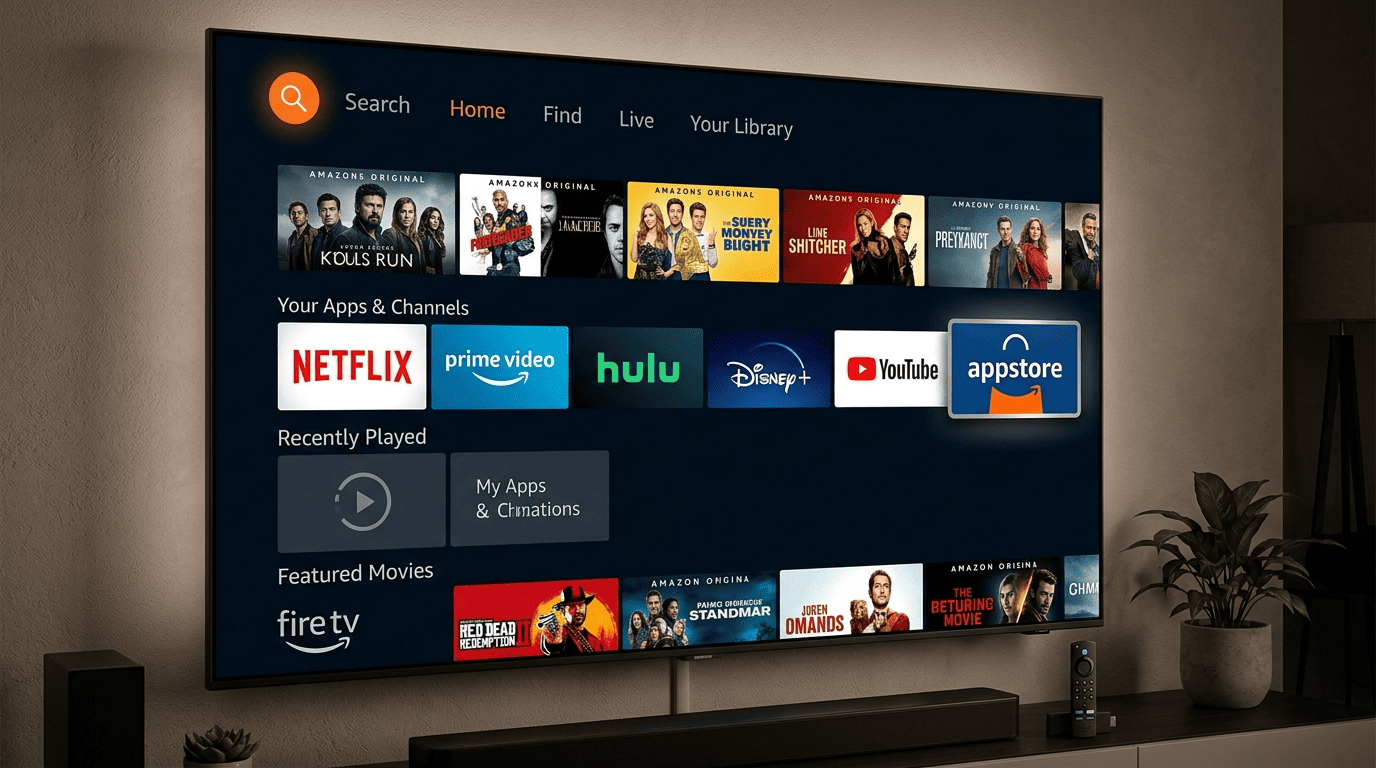
Installing a VPN on a Fire TV Stick is usually quick, but a complete setup with no skipped steps saves time later. The basic path is simple: confirm your Amazon Fire device is ready, open search in the store, download the official app, sign in, and connect to a server before you test streaming services. If something goes wrong, the fix is often small: a stale cache, old login details, or a permissions prompt you dismissed too quickly.
The most common mistake is rushing through the first minute. Check your Fire OS version, confirm your Amazon account works, and keep your provider login nearby before you touch the install button. That small prep step makes the rest of the process smoother.
Step 1: Check Your Fire TV Stick Setup
Start by confirming which Fire TV Stick model you have and whether it is fully updated. On your Fire TV home screen, open Settings, then go to My Fire TV or Device, depending on the software version. Open About and review the model details and Fire OS version. You do not need the newest stick to use a VPN, but the device should be current enough to run the provider app without odd behavior.
Next, confirm your Amazon account is active on the stick. Open the account area in settings and make sure the Amazon Fire device is registered properly. If the account is out of sync, the store may not let you download anything. That is an avoidable problem.
Finally, prepare your VPN login credentials before you install. Some services use a standard email-and-password login, while others require an activation code or separate app password. Keep those details ready on your phone or computer so you are not hunting through links and account pages mid-setup. Once that is done, your Fire TV Stick is ready for the next step.
Step 2: Find and Install the VPN App
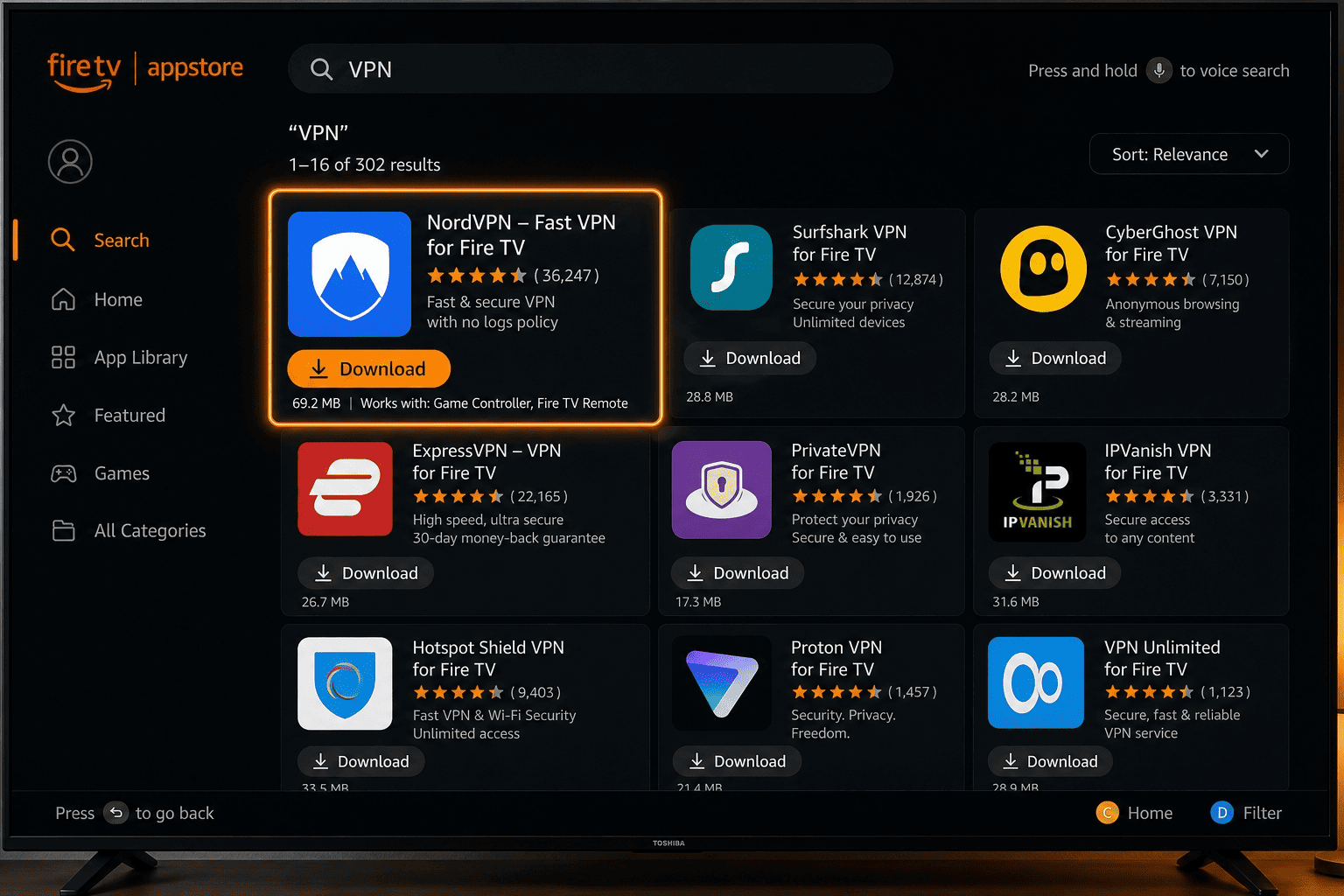
From the Fire TV home screen, open Find and use Search to type the name of your VPN provider. You can also browse the Amazon Appstore directly, but search is usually faster on a TV Stick. Look for the official app from the correct service provider, not a copycat utility with a similar name. Check the publisher name before you continue.
When you find the right app, open its store page and review the details. You should see screenshots, a short description, and the usual amazon listing elements. If the app supports Amazon Fire TV or Fire TV Stick directly, that should be clear from the page. Select Get or Download and wait for the install to finish.
Do not interrupt the process while the file installs. If your internet connection is unstable, the app may stall or fail partway through. In most cases, the fire tv system returns you to an Open button when the download is complete. The app is ready to use. If you do not see it, go to your app list and confirm the VPN appears there before moving on.
Step 3: Sign In and Grant Permissions
Open the VPN app from your Fire TV apps list. On first launch, most providers ask you to login with your account details. Enter your email and password, paste an activation code, or follow the on-screen prompt for paired sign-in if your provider supports it. Use the exact credentials tied to your subscription, not just your amazon account.
After login, the app usually requests permission to create a VPN connection on the device. Accept that request. On Fire TV, this is the prompt that allows the app to route traffic through its network tunnel. Without it, the service cannot connect. Some apps also ask for limited access related to connection status or diagnostics data. Read the screen, then allow only what is needed for the app to function.
When the main dashboard loads, pause for a second and make sure the app opens normally, responds to remote input, and shows a connect button or server list. A working dashboard at this stage means the installation completed correctly.
Step 4: Connect to a Server
Choose a server based on what you need. If your goal is privacy on your home network, pick a nearby location for better speed. If you want access to region-specific content on streaming platforms, select a server in the target country and wait for the connection to complete. On most apps, one press of the main button starts the process.
Watch the status text carefully. A working connection usually changes from Connecting to Connected, Active, or a similar message. Some providers also display a small shield icon, timer, or IP change. Once the status reads connected, the tunnel is active.
If streaming does not behave the way you expect, switch to another server in the same region before changing anything else. One location can work better than another on the same service. On a Fire TV Stick, that simple adjustment often fixes playback issues without extra troubleshooting.
Step 5: Test Streaming and Fix Common Issues
Open the streaming app you want to use. Netflix is a good first test. Play a title after the VPN connects. If the video starts quickly and holds resolution, the setup is working. If buffering appears right away, try a nearer server. For other problems, work through these steps:
- If the VPN app will not load, clear the app cache under Settings > Applications > Manage Installed Applications, then restart the Amazon Fire TV Stick.
- If login fails, re-enter your credentials carefully or sign out and login again.
- If the connection drops, reopen the app, pick a different server, and test the service one more time. A short restart of the Fire Stick often clears stubborn issues.
Best VPNs for Firestick
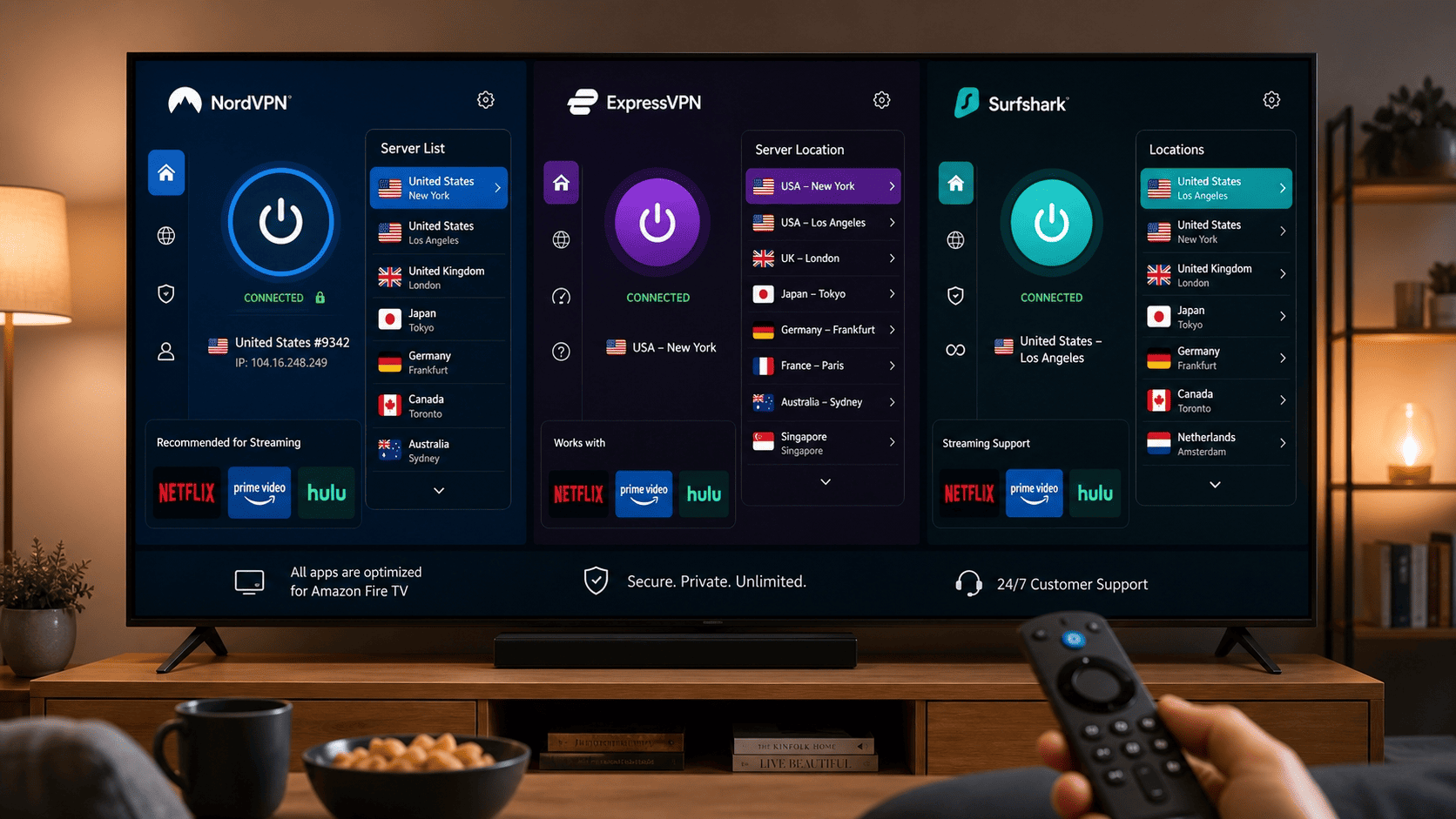
Not every VPN is equally good on Fire TV. Some have polished apps in the Amazon store, remote-friendly menus, and fast server switching. Others technically work on a TV Stick but feel clumsy, or they struggle with common streaming services once you actually press play.
For this kind of device, focus on three things: native Fire TV support, stable performance, and a simple set up flow. Extra features matter, but only after the basics are right. An app that is hard to navigate on a large screen will frustrate you quickly.
What to Look for in a Fire TV VPN
Start with direct support for Fire TV and Fire TV Stick. If a provider offers a native app built for Amazon Fire hardware, installation is easier and daily use is better. Prioritize large on-screen controls, quick access to the server list, and a clear connect button that works well with the Fire remote.
Speed matters too. A Fire TV VPN should connect quickly and stay connected without constant retries. For streaming services, small delays in connection setup are tolerable; repeated buffering is not. Look for providers with broad server coverage and a decent reputation for stability on home internet connections.
Finally, keep the interface practical. The best VPNs for this platform make it obvious how to sign in, switch regions, and reconnect after sleep or reboot. If the app hides key controls in side menus or makes you jump through too many screens, it is a weaker option for a living-room device.
Streaming Support and App Availability
Before you subscribe, confirm that the provider has an app you can download directly from the Amazon Appstore. That saves you from manual installation and reduces the odds of compatibility issues with the Amazon Fire TV interface. Check the store page, supported platforms list, and any setup details on the provider site.
Then look at streaming support. A VPN can be fine for general privacy and still disappoint on Netflix or other streaming services. Look for a service that offers reliable access to major platforms and lets you change regions without turning the experience into guesswork. On a Fire TV Stick, quick server switching matters because troubleshooting with a remote is less pleasant than on a laptop.
If you are comparing options, prioritize providers whose Fire TV app is built specifically for the platform with a remote-friendly layout. That kind of app design makes a noticeable difference in daily use.
Free VPN vs Paid Service Provider
A free VPN can sound appealing on a Fire TV Stick, especially if you only plan to use it occasionally. In practice, the trade-offs are usually clear: fewer server locations, stricter data caps, slower speeds, and a less polished app. That combination can make streaming frustrating fast.
Privacy is the bigger issue. Some free services collect more usage data than many readers would accept, and the privacy policy can be vague about retention, logging, or third-party sharing. A paid service provider is not automatically perfect, but it usually gives you more transparent policy details, better support, and stronger performance.
If you stream often, a paid provider is usually the better option. I would be especially cautious with any free VPN that makes setup hard, hides ownership, or offers thin documentation. For a Fire TV device used in the living room, reliability matters almost as much as privacy.
Why Use a VPN on Firestick
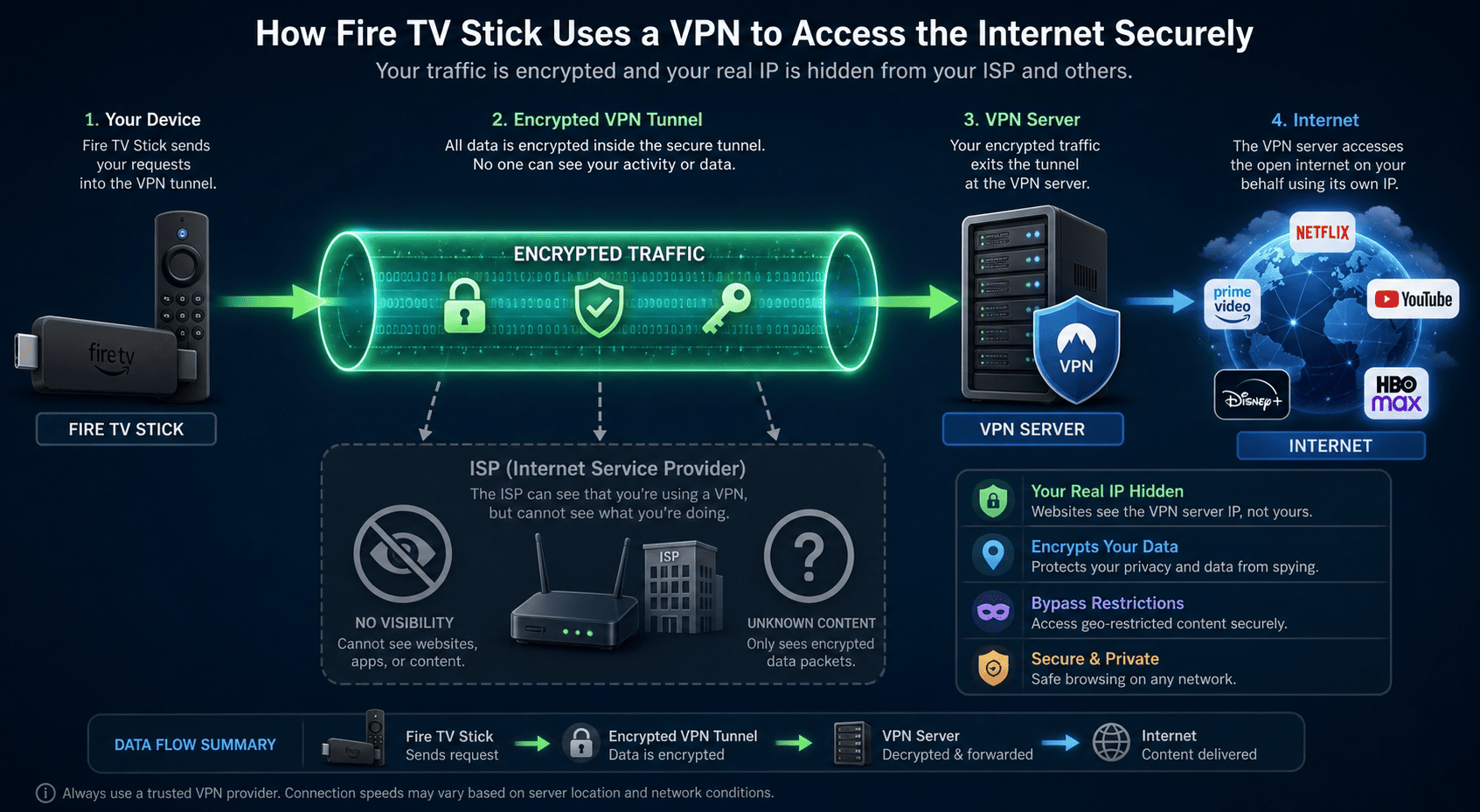
A VPN on a Fire TV Stick is mostly about two things: privacy and flexibility. It adds a layer between your device and the wider internet, which can reduce how much your internet service provider can see about your streaming activity. It can also help with access to different content libraries, depending on the platform and your location.
That does not make a VPN a cure-all. Your network speed, the streaming app, and the provider you choose still matter. But on an Amazon Fire streaming device, a good VPN gives you meaningful control over your privacy and content access.
Privacy and ISP Protection
When you connect a Fire TV Stick through a VPN, your traffic travels through an encrypted network tunnel before it reaches the wider internet. That means your internet service provider has less visibility into the exact services you use and when you use them. For readers who care about privacy, that alone can be enough reason to install one.
It also helps on a home network shared with many devices. Your Fire TV traffic is less exposed to casual observation, and the added layer can reduce unwanted tracking tied to your IP address. Read the provider’s privacy policy carefully, though. Protection depends in part on what data the service itself keeps.
Access to More Streaming Content
Many people use a VPN on Amazon Fire hardware because they want more flexible access to streaming content. If a service offers different libraries by region, connecting to a server in another location may let the app show a different catalog. That can be useful for travel or for readers who move between countries regularly.
It also helps when local app availability changes by region. On a Fire TV Stick, switching to a different server location is often much easier than changing device settings manually. You still need a provider that works well with the platforms you use.
When a VPN Matters Most
A VPN matters most when you use your Fire TV Stick on unfamiliar networks, stream often, or care more than average about privacy. Public Wi-Fi is the obvious case. Hotel and shared apartment network setups are not always ideal, and a VPN gives your device an extra layer of protection.
It also makes sense for frequent streaming households. If the Fire Stick is your main TV source and you move between platforms regularly, stable VPN access becomes more useful over time. Readers who are privacy-minded will get the most value, but even casual users can benefit from the added control.
How We Tested VPNs for Firestick
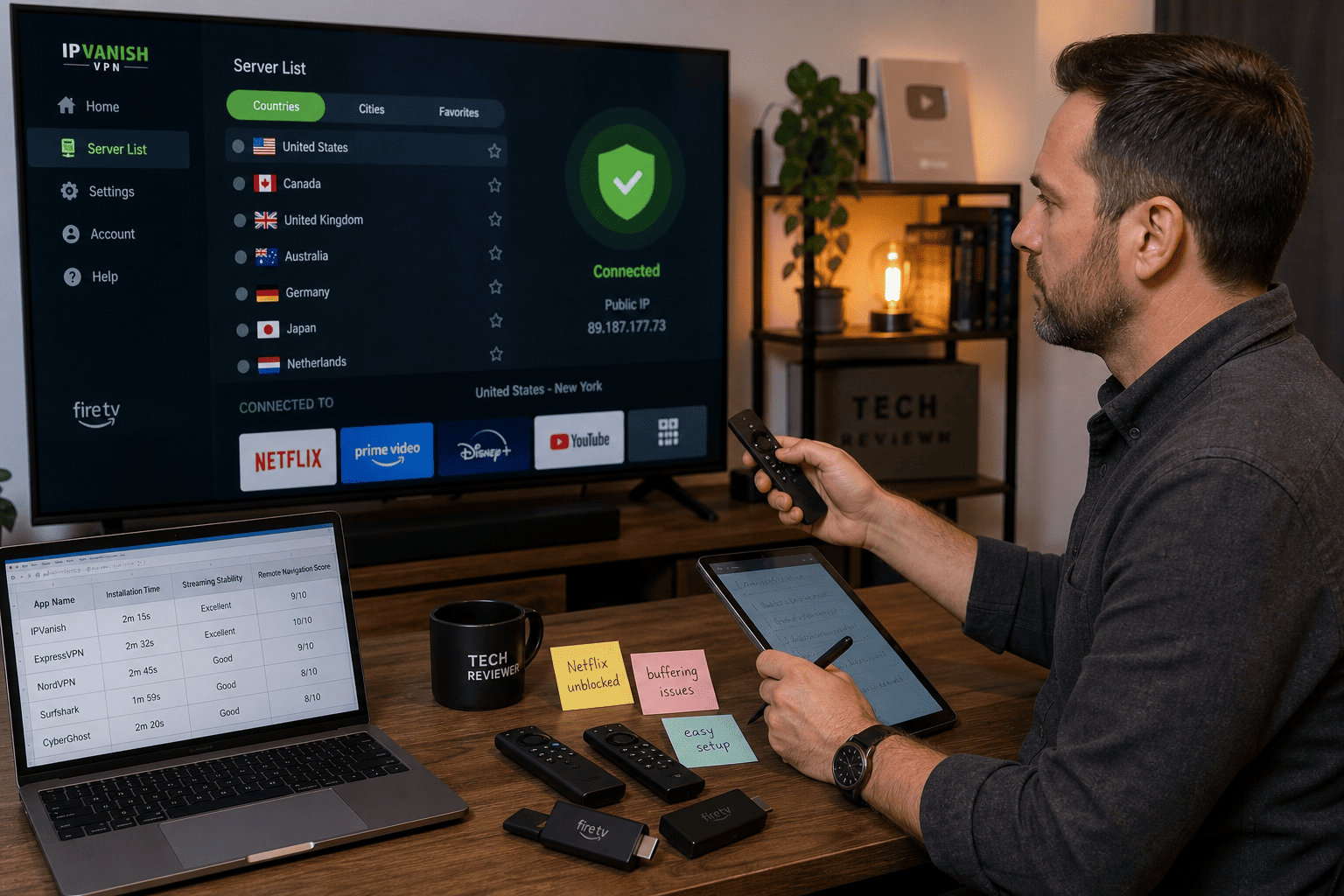
We evaluated Fire TV VPN options with the setup process, app design, and streaming practicality in mind. The goal was not just to see whether a service could connect, but whether it felt usable on a television-first device with a remote, a couch, and little patience for fiddly menus.
Basic privacy details, network behavior, and support quality were also part of the evaluation. For a Fire TV Stick, small annoyances add up quickly, so ease of use carried extra weight in the final assessment.
Installation and Ease of Use
Each VPN app was checked for how easy it was to download from the Amazon store and install on the device. The search result visibility, login flow clarity, and total steps to reach the first connection were all noted.
App layout received close attention too. If buttons were hard to reach, menus were awkward, or details were hidden behind too many screens, that counted against the service.
Speed and Streaming Stability
Each provider was tested against normal streaming tasks on a Fire TV Stick, including app launch time, buffering, and server switching. A single fast result was not treated as sufficient. Stable playback over time on a home internet connection was the standard.
The tests also covered whether changing server locations disrupted the stream, whether video quality held steady, and whether the VPN stayed connected across repeated sessions on the same network.
Privacy, Security, and Support
Each provider’s privacy policy, account controls, and support coverage were reviewed before inclusion in our list. Logging language, available help articles, and responsiveness all matter when a service runs on a living-room device used by non-technical readers.
The review also considered whether the app handled connection prompts cleanly, how it treated basic data, and whether support resources included Fire TV setup links and troubleshooting guidance.
FAQs
Can I Install a VPN Directly on Firestick?
Do All VPN Apps Work on Fire TV Stick?
Will a VPN Slow Down Streaming?
Is It Safe to Use a Free VPN on Firestick?
What If the VPN App Won’t Open?