


Watching on Apple TV is supposed to be simple: open an app, pick a show, press play. The trouble starts when your library changes by country, a hotel network slows everything down, or a streaming service refuses to load the catalog you expected. That is where the best VPNs for Apple TV earn their keep.
This guide is for viewers who want a TV VPN that works with real streaming services, not just one that looks good on a feature page. We evaluated Apple TV setup options, native app support, Smart DNS tools, server coverage, and speed consistency under real streaming conditions. We also looked at how each provider handles everyday use across more than one device, since most people are not buying a VPN for a single screen.
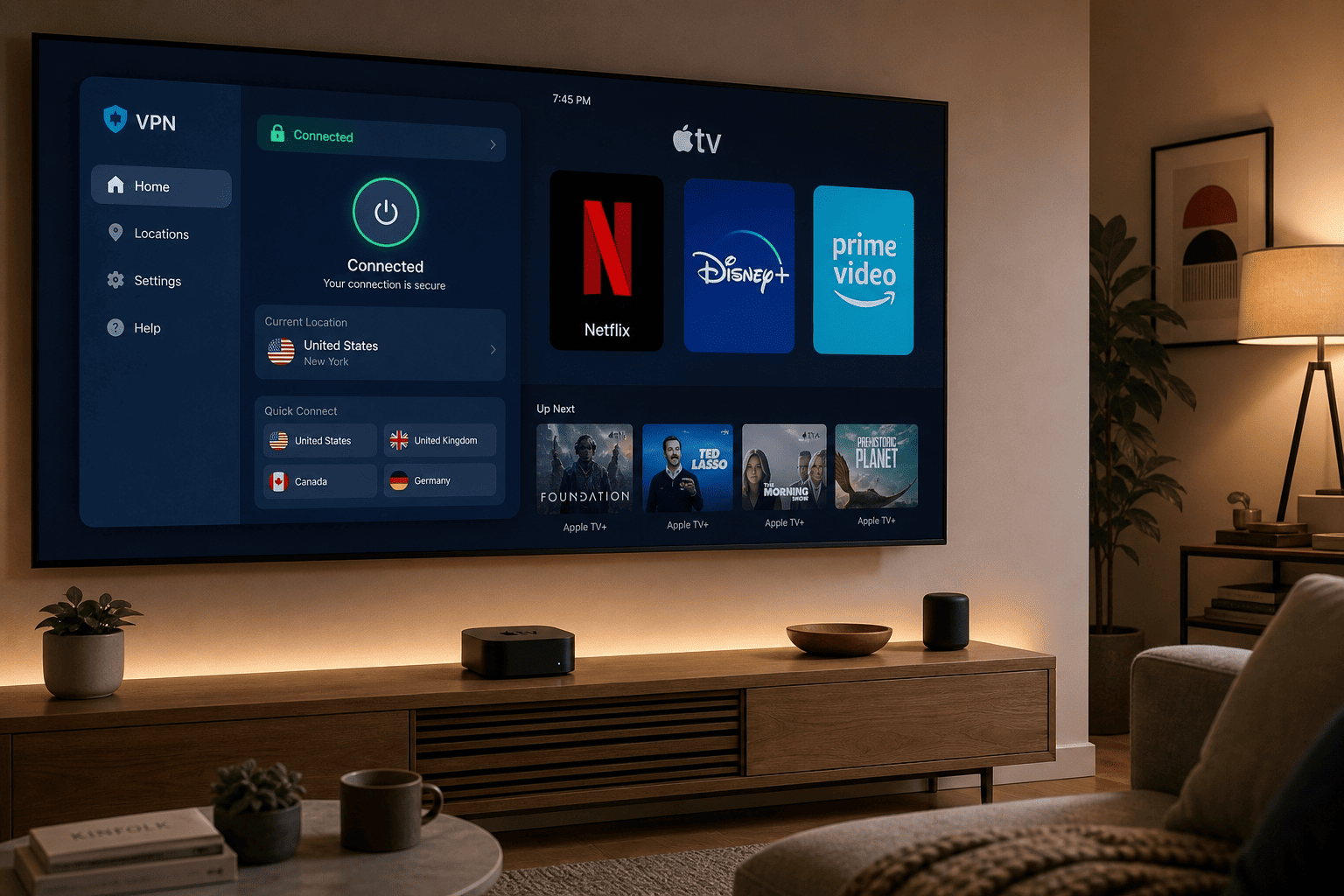
Our picks lean toward providers that are easy to set up, have reliable access to major platforms, and do not turn a 4K stream into a buffering contest. ExpressVPN leads for its polished Apple TV app and strong Smart DNS option, NordVPN is close behind for speed and broad coverage, and Surfshark stands out if you want a lower-cost plan with unlimited connections. We retest this category through the year because platform support changes fast, and Apple TV VPN performance can shift from month to month.
Tested and Ranked for Apple TV

ExpressVPN
Why it made the list
- Native tvOS app plus dependable Smart DNS support.
- Native Apple TV VPN app available through the App Store
- MediaStreamer Smart DNS offers an extra set up path

NordVPN
Why it made the list
- Strong speeds for Netflix, Disney+, and Amzon Prime
- Native Apple TV app with quick server switching
- Fast speeds well suited to 4K streaming

Surfshark
Why it made the list
- Unlimited connections and easy Apple TV setup.
- Native VPN app for Apple TV in the App Store
- Unlimited simultaneous connections on one plan
Apple TV support used to mean workarounds: router installs, DNS tweaks, or sharing a connection from another device. That changed once tvOS opened the door to native VPN app support, but not every provider took advantage of it equally. Some now offer a proper Apple TV app in the App Store, while others still lean on Smart DNS or router-based methods. For most people, that difference matters more than a long feature list.
We ranked these services around practical use, not marketing copy. The criteria we focused on:
- How easy each VPN provider is to set up on tvOS
- How consistently it handles major streaming services
- Whether its server locations cover the regional catalogs users actually want
- Whether it keeps fast speeds during longer sessions, not just quick benchmark runs
- Flexibility across connection methods: native app, router, and DNS-based routing
If you want the shortest version, the top three are easy to separate. ExpressVPN is the most rounded option for Apple TV, NordVPN is the strongest speed-first alternative, and Surfshark offers unusual value for households with lots of screens. The rest of this list still has a place, though, especially if your priorities lean toward privacy, a simpler app store install, or a Smart DNS-heavy setup instead of a full tunnel.
On Apple TV, setup method matters as much as specs: a native app you can install in two minutes beats a faster service that requires router configuration. That is where to start when deciding which provider fits your home.

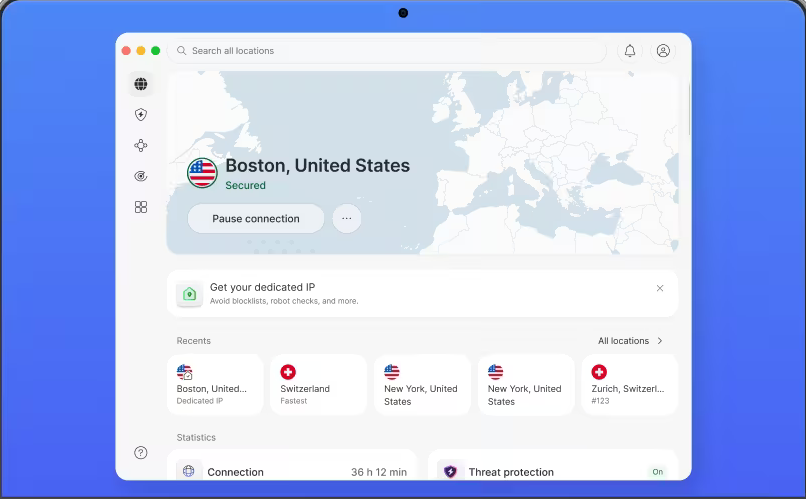
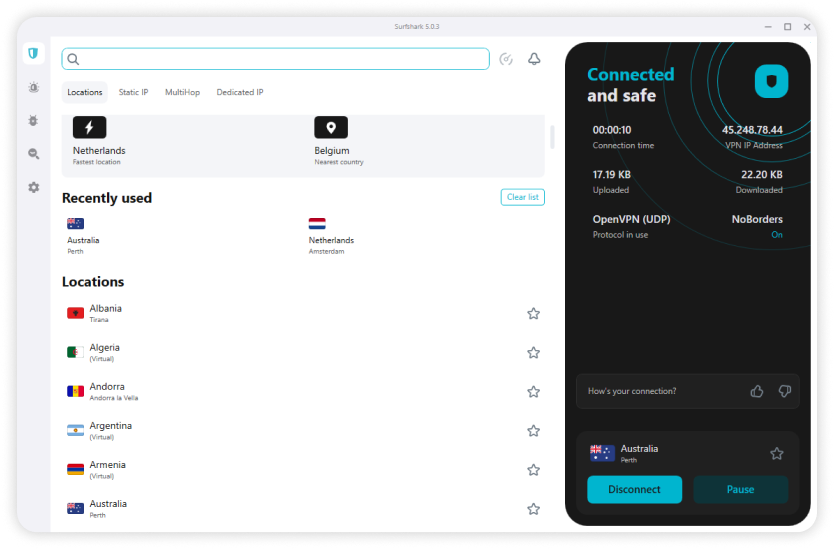
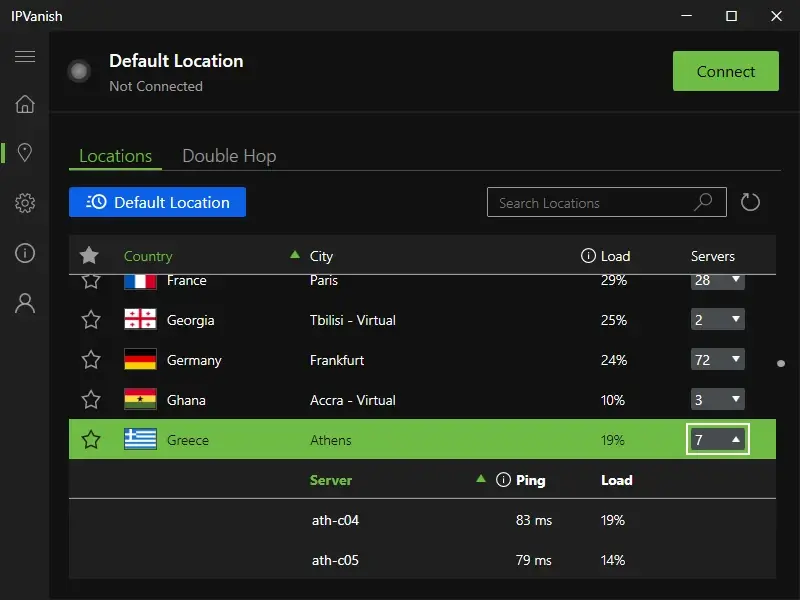


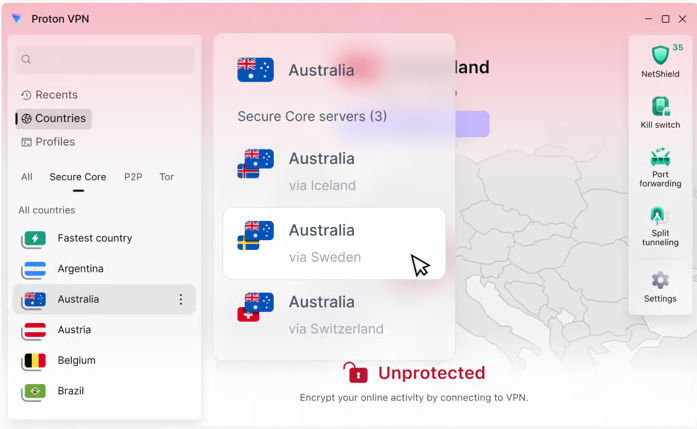
How to Set Up a VPN on Apple TV
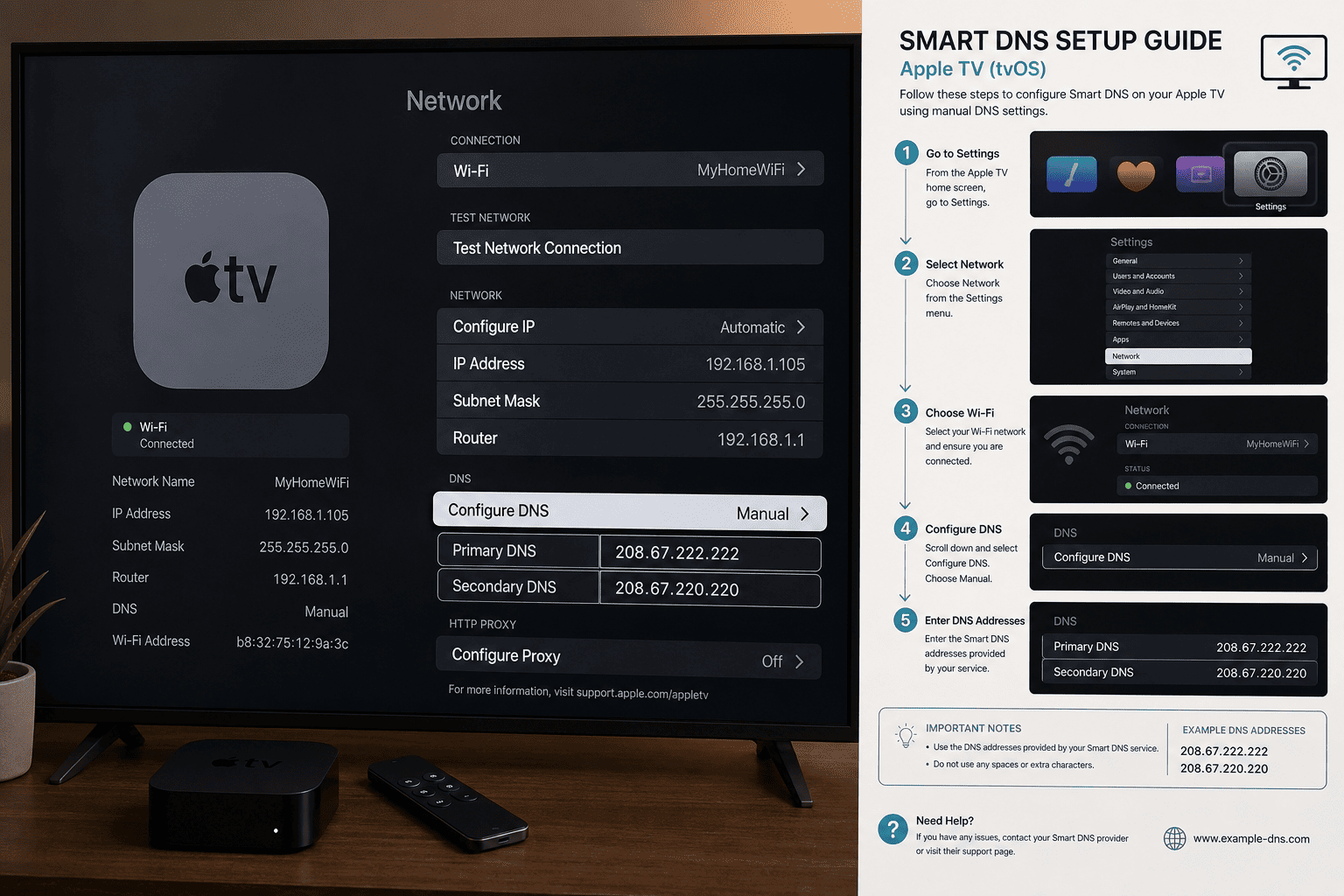
There is no single best way to set up a VPN on Apple TV because the right method depends on your provider, your Apple TV model, and how much control you want over the connection. If your service offers a native tvOS app, that is almost always the easiest route. If it does not, Smart DNS or a router setup can still get the job done.
The good news is that Apple TV support is much better than it used to be. Several major providers now have a proper Apple TV app in the App Store, which cuts setup time down to a few minutes. Older workarounds still matter, though, especially if you want to cover every device in the house or use a provider that leans more heavily on Smart DNS than a full VPN app.
Use a Native tvOS App
For most people, this is the cleanest way to set up a tv VPN. Follow these steps:
- Open the App Store on Apple TV and search for your provider.
- Download the VPN app and sign in with your account details.
- Pick a server in the country you want, then connect to server from inside the app.
- Confirm the connection is active, then open your streaming app.
Before you start, check three things. First, make sure your provider actually offers an app for apple that supports Apple TV specifically, not just iPhone or iPad. Second, update tvOS before installation, since compatibility issues often come from outdated system software rather than the VPN itself. Third, test more than one server if a streaming platform does not load immediately — a different location often fixes the issue without any other changes.
A native tvOS app is easier to manage, faster to switch between locations, and simpler to disable when you do not need it. Services like ExpressVPN, NordVPN, Surfshark, and IPVanish have made this route practical for most users.
Configure Smart DNS on Apple TV
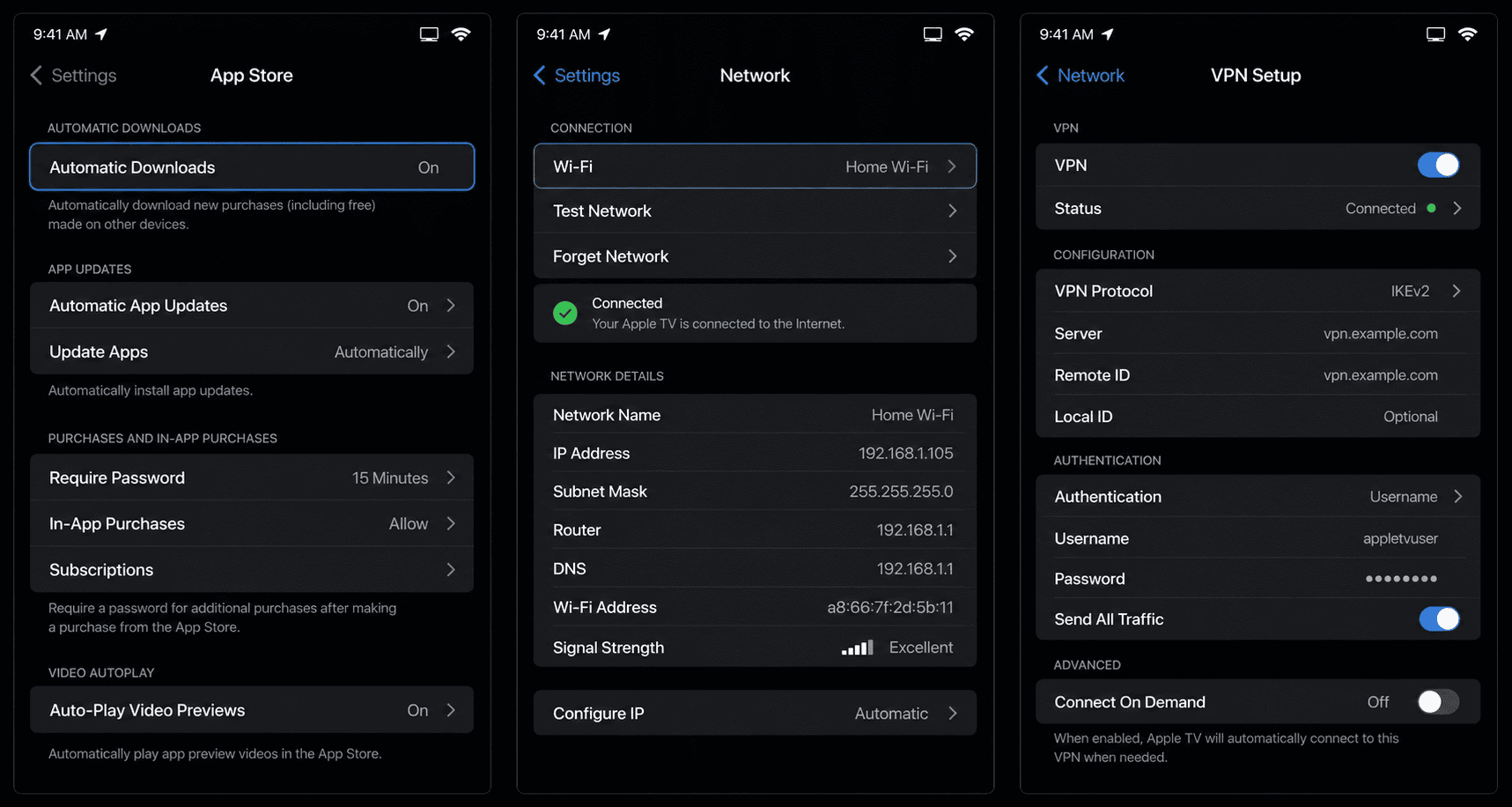
Smart DNS is the lighter alternative to a full tv VPN tunnel. Instead of encrypting all of your traffic, it reroutes the location-sensitive part of your requests so certain streaming services think you are in a different region. That usually means easier access to content and, in some cases, slightly better performance because there is less overhead than a traditional VPN connection.
To set up Smart DNS on Apple TV, you typically log in to your provider account on another device first, find the assigned DNS addresses, and register your IP if the service requires it. Then go to Apple TV network settings, switch DNS from automatic to manual, and enter the Smart DNS address provided. After that, restart the Apple TV and test the target platform.
This method works best when your main goal is streaming access rather than full privacy. It can be very effective for region switching, but it is not the same as using a VPN app. There is no full encryption tunnel, so the security and privacy benefits are smaller. Think of it as a surgical tool, not a blanket solution.
It is also worth checking region support before you commit. Some providers handle Netflix and other streaming services better through Smart DNS than others, and available countries may be more limited than with the full app. If access is your main concern, Smart DNS can be excellent. If you want broader protection across internet traffic, use the VPN app instead.
Set Up Through a Router
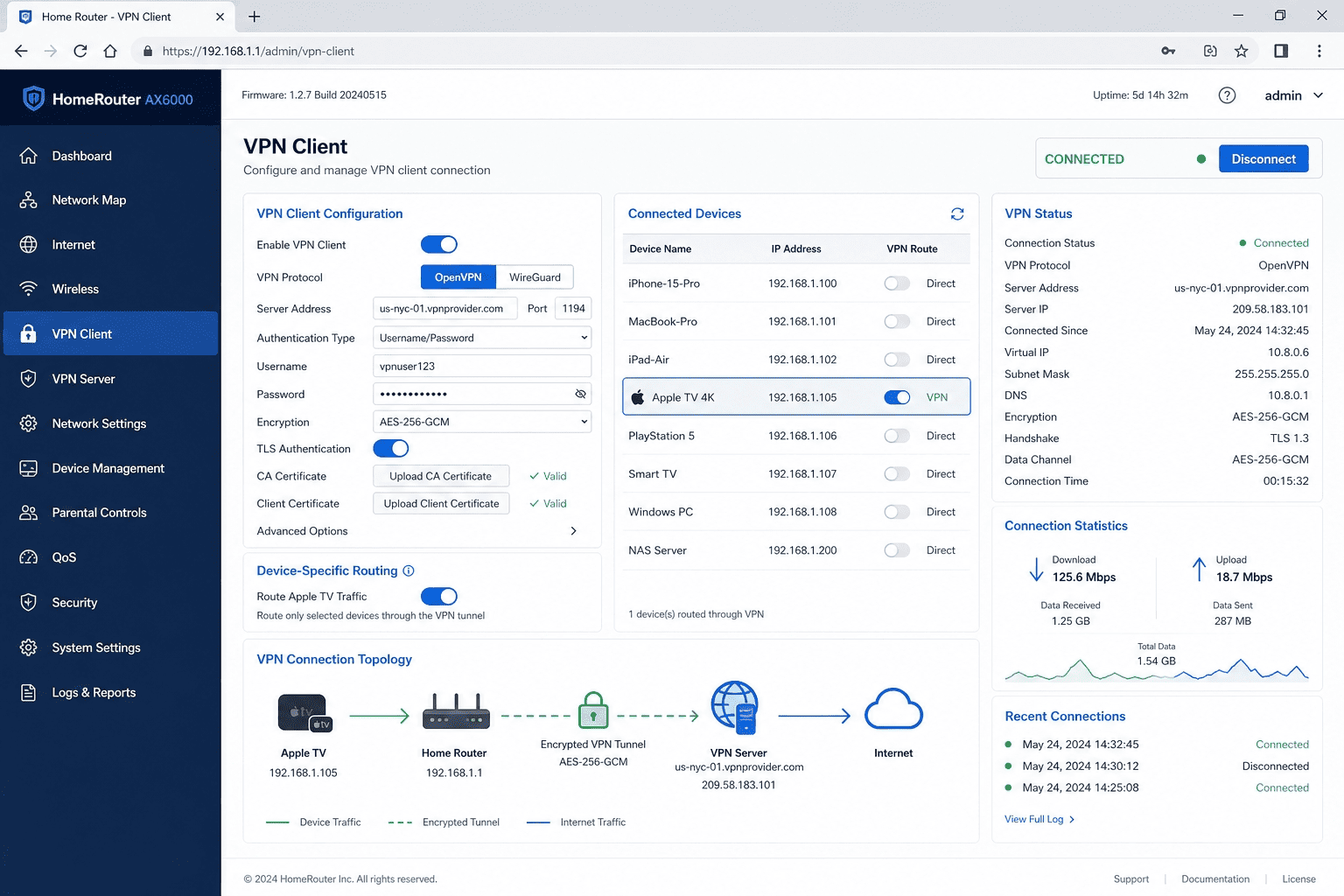
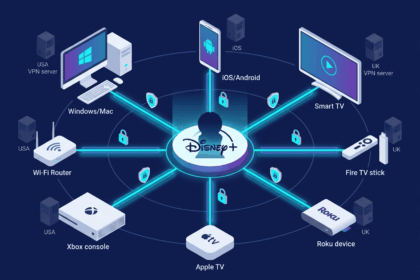
Router setup is the older, more universal option, and it still matters if your preferred provider does not offer a native Apple TV app or if you want to cover every device on your home network at once. When the router handles the VPN, your Apple TV simply connects to Wi-Fi as usual and inherits that protected connection.
The benefit is clear: one setup can protect multiple connections, including phones, tablets, consoles, and streaming boxes. For families, that can be cleaner than installing separate apps everywhere. It is also useful if you want one stable regional location for the whole house, such as a US server for several streaming platforms.
The drawback is complexity. Not every router supports VPN installation, and the process varies by firmware, provider, and protocol. WireGuard, a modern VPN protocol designed for speed, is easier on some newer routers, while OpenVPN can still be common on older hardware. You need to follow your VPN provider’s guide carefully and keep a note of the original router settings before changing anything.
If you take this route, test in stages. Confirm the router connects, verify the location changed, then open the Apple TV streaming apps one by one. Router setup can be powerful, but it rewards patience more than speed.
Use a Shared Connection From Mac or PC
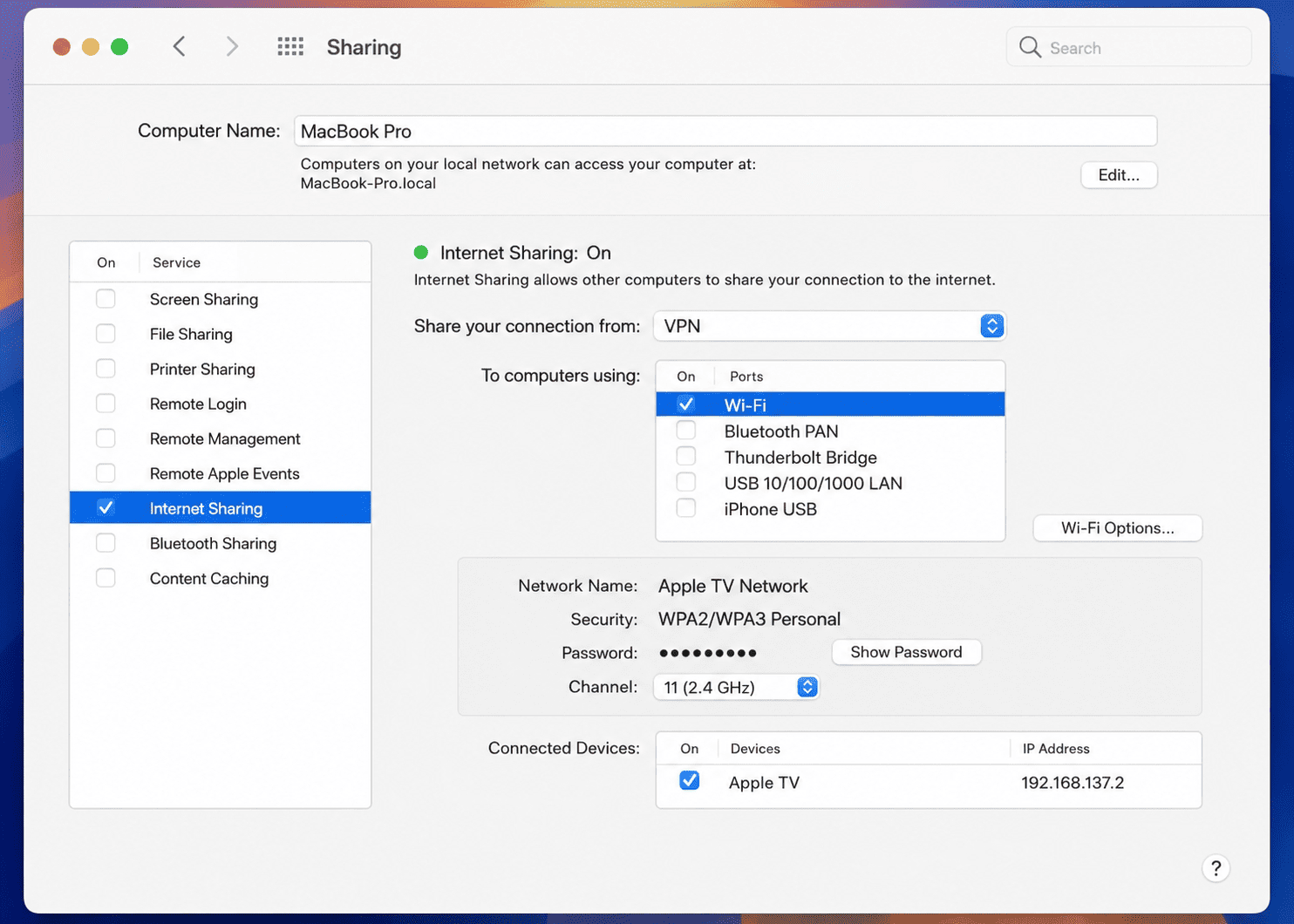
If the direct Apple TV methods are unavailable, sharing a VPN connection from a computer is the fastest workaround. The idea is simple: connect your Mac or PC to the VPN first, then share that protected internet connection with the Apple TV over Wi-Fi or Ethernet. It is not the most elegant setup, but it can work well when you need a short-term fix.
On a Mac, you usually connect through the provider’s app, then use system sharing settings to broadcast that connection. On Windows, the steps are similar, though the menu path is different. Once the Apple TV joins the shared network, it uses the same routed connection as the computer. That effectively places VPN on Apple TV without requiring a native Apple TV app.
This method is handy for travel, temporary testing, or homes where router access is restricted. It is also useful if you want to compare performance against Smart DNS or a direct tvOS app before settling on one method. The main downside is convenience: your computer has to stay on, connected, and within range.
If you use a shared connection, keep expectations realistic. It is a practical bridge, not usually a long-term living room solution. Still, if you need to set up Apple TV quickly and your provider gives no better option, it works more often than people expect.
How to Choose the Best VPN for Apple TV
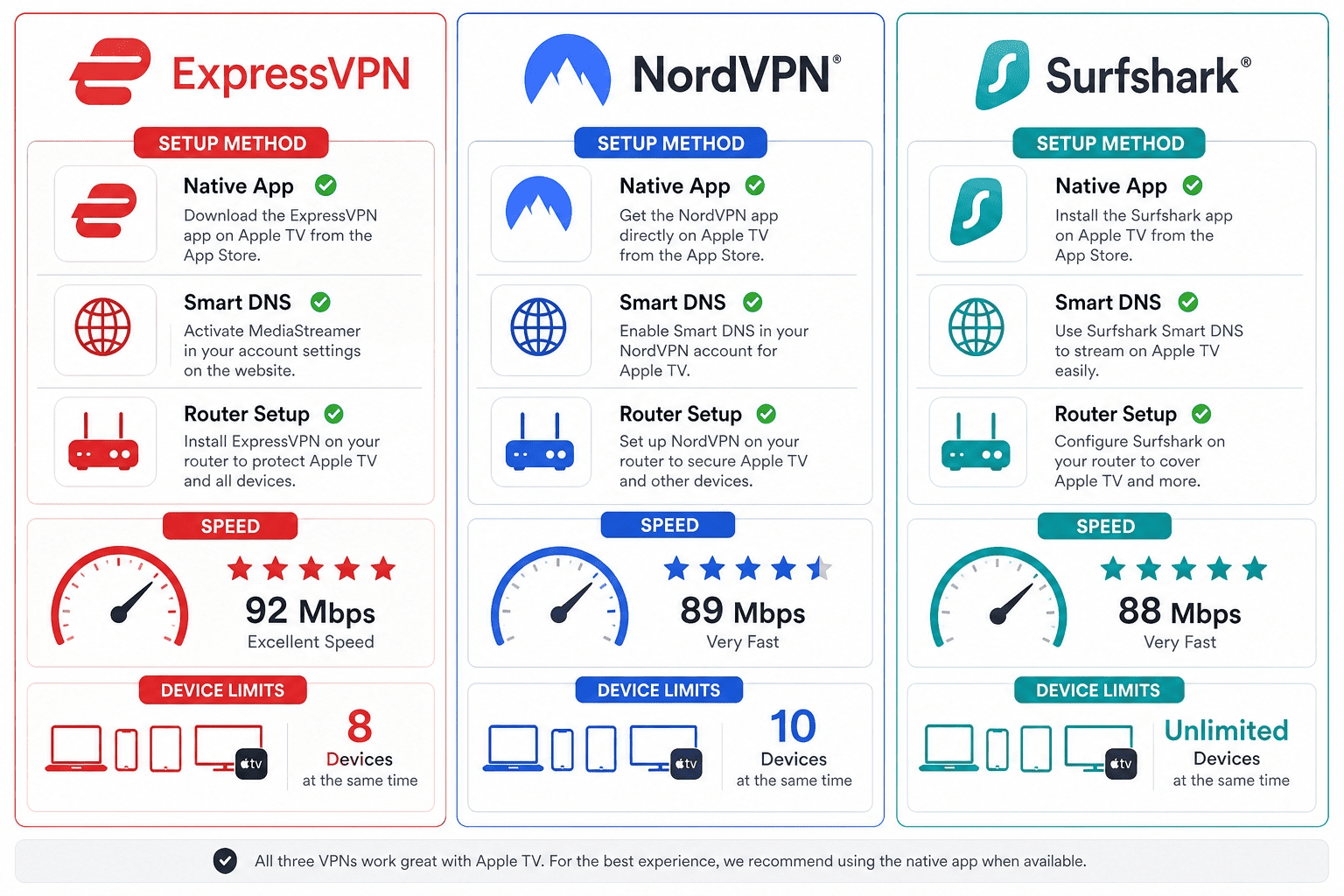
The best VPN for Apple TV is not always the one with the longest feature list. It is the one that matches how you actually watch. Some readers need a simple app for Apple TV and strong Netflix access. Others care more about server network size, privacy, or enough simultaneous connections to cover every screen in the house. On Apple TV, the features that matter most are setup method, streaming reliability, and remote-friendly design — not the desktop-focused extras that bulk up many comparison pages.
We judge an Apple TV VPN a little differently from a general VPN service. Strong mobile and desktop apps still matter, but TV use puts more weight on setup simplicity, streaming reliability, remote-friendly design, and practical regional access. If a provider works with Apple TV but takes half an hour to configure, that is a trade-off. If it opens the right services in one tap, that is value.
Streaming Compatibility Matters Most
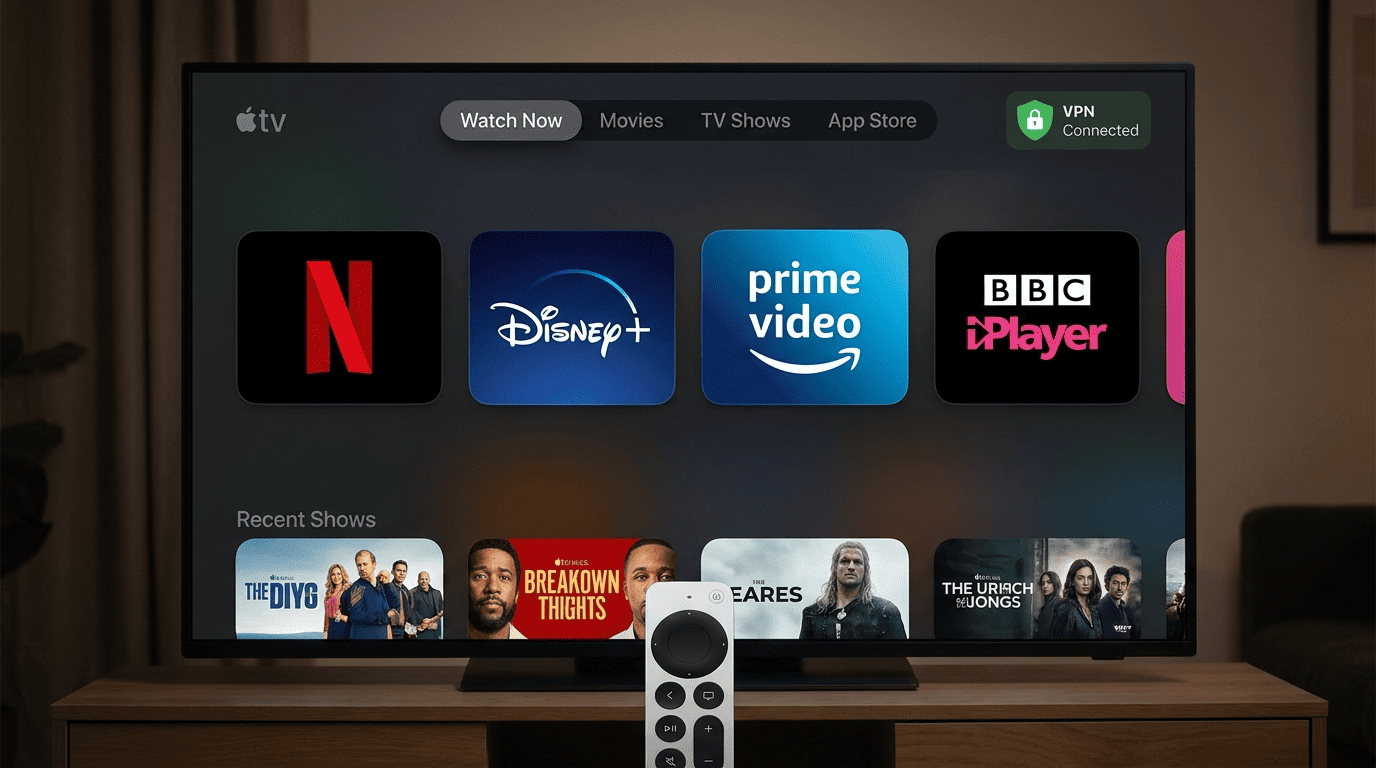
Start with compatibility, because that is usually the whole reason people buy a tv VPN in the first place. A service may look excellent on paper and still struggle with the streaming platforms you actually use. That is why you should check whether the provider works with Apple TV through a native app, Smart DNS, router support, or some combination of the three.
The most important targets are the familiar ones: Netflix, Disney+, Prime Video, and BBC iPlayer. If those are part of your weekly routine, do not settle for vague claims. What matters is whether the provider consistently loads those platforms without proxy errors and whether its server network gives you enough options when a single location stops working. Real unblocking is what counts.
Apple TV also changes the equation because people tend to expect appliance-like behavior. You sit down to watch, and you expect it to work. That makes compatibility more important than a long list of niche extras. A VPN provider with fewer bells and whistles but better streaming consistency is often the stronger choice.
If you mainly watch one service, optimize for that. If you rotate among several platforms through the month, pick the provider with broader support and more fallback server locations.
Speed, Stability, and Buffer-Free Playback
Fast speeds matter on Apple TV, but raw top-end numbers are only part of the story. Stability is what keeps the picture sharp through a full episode or a live event. A provider that delivers strong speed for ten seconds and then dips during peak hours is less useful than one that stays steady the whole time.
That matters even more for 4K streams, where you need a margin of safety. Apple TV can make high-bitrate content look excellent, but it also exposes weak performance quickly. If your VPN service adds too much latency or bounces between overloaded servers, buffering will show up fast. In our experience, consistency beats headline speed almost every time.
Look for a provider known for nearby server performance and quick recovery when a region is crowded. A good service should let you switch locations easily, reconnect without fuss, and resume playback without turning the process into a chore. This is where NordVPN and ExpressVPN usually separate themselves.
For most users, the best test is not a benchmark chart. It is whether the stream stays smooth during the hours you actually watch.
Device Limits and Family Use
Apple TV rarely exists in isolation. In many homes, the same VPN provider will also cover iPhones, iPads, laptops, maybe a travel router, and another smart TV in the bedroom. That is why simultaneous connections are worth checking before you buy. A service can be excellent on the TV and still be a poor value if it runs out of room once the rest of the household logs in.
This is where Surfshark stands out. Unlimited simultaneous connections make it unusually practical for larger households, shared apartments, or families that do not want to micromanage which device stays online. Other providers may cap connections at a fixed number, which can still be enough, but the limits matter more than they first appear.
There is also a convenience angle. If one plan covers every screen, users are more likely to keep the VPN active consistently rather than turning it into a TV-only tool. That helps if you care about privacy and security beyond streaming.
So ask a simple question: is this just for Apple TV, or is it part of a broader home setup? Your answer changes the best option.
Trial Periods and Money-Back Guarantees
A money back guarantee is more useful for Apple TV than for many other categories because setup quality is hard to judge from a sales page. You need to see how the app works with your network, your preferred services, and your usual viewing hours. A provider may look perfect on paper and still feel awkward in your living room.
That is why a real trial window matters. It gives you time to set up the service, test a few server locations, try different streaming platforms, and compare app behavior across devices. If the provider advertises a 30-day or similar plan, use it as a practical testing period rather than a safety blanket you forget about.
Also read the terms. Some services make refunds straightforward; others ask more questions or handle cancelation less cleanly. We prefer providers whose money back guarantee feels predictable, because Apple TV users often discover fit issues only after a week or two of actual use.
A little caution here saves frustration. The best VPN service is the one that works in your home, not just in a product screenshot.
VPN Features and Comparison

Feature lists can make VPNs look interchangeable, but they are not. On Apple TV, the most useful differences come down to how you connect, how easy the app is to use, and whether the service gives you the right balance of security, privacy, and streaming performance. Some features matter on every device. Others matter much more on a TV than on a laptop.
The useful way to compare them is practical. Can you install the VPN app from the app store? Do you get Smart DNS as a fallback? Are there enough server locations to reach the catalogs you want? And does the app feel natural to navigate with a remote rather than a mouse?
Native App vs Smart DNS
A native app is the more complete approach for Apple TV. You download it from the App Store, sign in, pick a server, and route your traffic through an encrypted tunnel. That encryption protects internet traffic and adds a fuller layer of security and privacy, which is especially useful if the Apple TV shares a network with other devices or runs on public Wi-Fi during travel.
Smart DNS does something narrower. It changes how certain requests are routed so streaming platforms see you in a different region, but it does not create a full VPN tunnel. That usually makes it simpler and sometimes a little faster for pure streaming, though the gain depends on your provider and home connection. The trade-off is direct: easier regional access, less traffic protection.
For many users, the native VPN app is the better default because it is easier to manage and gives broader coverage. Smart DNS is still valuable as a backup or as a lightweight option when streaming is the only goal. If your provider offers both, you get the best mix of convenience and flexibility.
Server Coverage and Location Variety
Server coverage matters because content libraries vary by region. More countries and more useful server locations usually mean more options for switching catalogs, finding a less crowded route, or recovering quickly if one server stops working with a service. The raw number is not everything, but it is part of the story.
Quality matters as much as quantity. A smaller network with strong performance in the locations people actually need can beat a giant list full of weak nodes. For Apple TV, the best providers combine broad reach with stable routing to major streaming regions such as the US, UK, Canada, Australia, and parts of Europe.
This is also where a good provider proves its worth during the year. Catalog access can change, and a service with healthy depth in key regions is more likely to give you another working path when a platform tightens controls.
Privacy Tools and Security Extras
Streaming is the headline use case here, but privacy and security still matter. A VPN should protect your data in transit, avoid obvious leaks, and give you confidence that your viewing habits are not being logged carelessly. That starts with the basics: strong encryption, a clear no-logs stance, and reliable DNS handling.
Some extras are worth understanding. A kill switch, which cuts internet access if the VPN drops, is more critical on phones and laptops than on Apple TV, but it still matters across your account. WireGuard and Lightway, both modern protocols built for speed, can improve performance while keeping overhead low. Smart DNS, as noted, is useful for access but not a replacement for full protection.
A good Apple TV choice does not need every advanced extra under the sun. It does need the fundamentals handled well.
Ease of Use on tvOS
Ease of use is not fluff on Apple TV. It is central. A service can have great privacy credentials and still be annoying enough on tvOS that users stop opening it. Remote navigation is slower than keyboard navigation, so menu design matters more than providers like to admit.
The best Apple TV apps keep the basics close at hand: quick connect, recent server locations, clear status indicators, and fast reconnection. They also avoid burying simple actions under layers of settings meant for desktop users. A good TV VPN should feel built for the screen in front of you.
This is one place where the best VPNs separate themselves quickly. ExpressVPN, NordVPN, Surfshark, and IPVanish all make a stronger first impression on tvOS than providers that still seem halfway adapted from mobile interfaces.
Streaming and Geo-Unblocking with VPN

Most people buy an Apple TV VPN for one reason: access. They want to open the streaming services they already pay for and reach the version of the catalog tied to another region, or keep familiar content available while traveling. That goal sounds simple, but it depends on a mix of server quality, DNS handling, and how quickly a provider reacts when platforms tighten their filters.
There is also a legal and practical caveat worth stating clearly. Using a VPN for lawful access to subscriptions you already have is generally legal in many places, but streaming platforms’ terms may discourage location circumvention, and some countries restrict VPN use. That includes places such as China, Russia, the UAE, Iran, and Belarus. So the right setup is partly about access and partly about context.
Netflix, Disney+, and Prime Video
Netflix, Disney+, and Prime Video are usually the first tests people run on Apple TV, and for good reason. They are widely used, their regional libraries differ, and they do not all react the same way to VPN traffic. A provider that works well with Netflix may still need a different server strategy for Prime Video.
The practical takeaway is to choose a VPN provider with a record of adapting quickly. Good streaming access is rarely about one magic server. It is about having enough working locations, enough depth in important countries, and enough speed to keep playback stable once you get in. That is why ExpressVPN and NordVPN remain near the top here, with Surfshark close behind.
It is also smart to keep expectations realistic. Access can vary by region and month, and the strongest services are usually the ones with the best fallback options rather than the boldest claims.
BBC iPlayer and Regional Catalogs
BBC iPlayer is one of the more demanding examples because it often needs a specific route and the right UK server behavior to load cleanly. The same basic logic applies to other regional catalogs: the provider needs suitable server locations, low enough friction to switch between them, and enough consistency that you are not guessing every time you open the app.
This is where broad network coverage helps. If one UK server struggles, another nearby option may work better. If you rotate across different countries for sports, film libraries, or language-specific content, a wider spread of locations gives you more room to adapt. Not every service has that depth.
For Apple TV users, flexibility matters almost as much as first-try success. The best option is usually the one that gives you a second or third working path when a platform changes its filters.
Avoiding Detection and Playback Errors
Streaming errors often have mundane causes. If a service refuses to load content, start by switching to another server in the same region. That fixes a surprising number of problems. If that fails, close and reopen the app, restart the Apple TV, and check whether the service itself has updated or cached old location data.
DNS conflicts can also get in the way, especially if you previously used Smart DNS and then switched back to a full VPN connection. In those cases, a clean restart helps. So does making sure your provider’s app and the Apple TV software are current. Old app versions are a quiet source of playback trouble.
Some users assume a block means the provider is done. Usually, it means the route needs adjusting. The arms race with platforms is ongoing, and the providers that handle it best are the ones with enough server depth to recover quickly.
When Smart DNS Is Enough
Smart DNS is often enough when your only goal is to reach region-specific content and you care more about convenience than full-device protection. Because it does not encrypt all traffic, it can feel a bit lighter in use and may be easier to keep stable on certain home setups. On Apple TV, that simplicity has real value.
It is especially attractive if your provider’s Smart DNS setup is well documented and your main streaming services respond well to it. For a lot of living room use, that is all people need: access to a regional library, good picture quality, and no router drama.
The limit is privacy. Smart DNS does not give the same security benefits as a full tv VPN, so it should not be treated as the same tool. Use it when access is the main job. Use the full VPN when privacy, security, and broader traffic protection matter too.
VPN Speed and Performance for Apple TV

Speed is one of the first things users notice on Apple TV, but the more useful question is not “which VPN is fastest?” It is “which one stays fast enough to keep playback clean at the times I actually watch?” On a TV, performance problems are obvious. A weak connection does not hide behind a browser tab; it shows up as buffering, resolution drops, and streams that take too long to start.
We looked at Apple TV VPN behavior with streaming in mind rather than synthetic bragging rights. That means focusing on playback quality, connection stability, and how quickly a provider recovers when one server gets crowded. A service that looks great in isolated tests but stumbles during peak internet hours is not much use on the couch.
What Speed Actually Means for Streaming
For streaming, speed is not just a big number on a dashboard. It is your margin for error. A 4K stream needs consistent throughput, not short spikes. If a VPN drops below that comfortable line for even brief stretches, Apple TV will show it through softer image quality, pauses, or longer loading screens.
That is why performance has to be judged over time. We care about how a server behaves through a full episode, a live sports window, or a movie night shared across several connections in the house. Stable delivery matters more than a flashy result from one quick benchmark.
The best providers usually combine good protocols, sensible routing, and enough network depth to avoid crowded exits. On Apple TV, that balance is what turns a fast-looking service into one that actually feels fast.
Why Nearby Servers Often Perform Better
Nearby servers usually win because distance still matters. A shorter path often means lower latency, faster response times, and fewer opportunities for congestion. If you do not need a distant region for a specific catalog, a closer server is often the better option for streaming quality.
That does not mean the nearest server is always perfect. Sometimes a slightly farther location performs better because it is less busy or has a cleaner route to the platform you want. The practical move is to test a few likely options rather than assuming one will always stay best.
For Apple TV users, this can be the difference between a stream that starts instantly and one that feels sticky every time you press play.
Handling Peak-Time Slowdowns
Even strong providers can slow down during busy evening hours. More users are online, more homes are streaming at once, and the pressure on popular server locations rises. That is normal. The key is how gracefully the VPN provider handles it.
A good rule is to keep backup server locations in mind before you need them. If your usual US server struggles, try another city in the same country. If the UK route feels crowded, test a second nearby option. Providers with broad networks make this easier because they give you more escape hatches.
This is one reason large networks remain valuable through the year. Performance at 2 p.m. and 9 p.m. can feel like two different products.
How to Test Playback Quality at Home
Home tests do not need to be complicated. Pick one piece of content, use the same internet connection, and compare a few servers under the same conditions. Watch startup time, picture stability, and whether the stream holds quality for at least several minutes. Then repeat the process during your usual viewing window.
You can also compare Smart DNS against the full Apple TV VPN connection if your provider supports both. That gives you a cleaner sense of whether you need full-tunnel protection for that app or whether the lighter option is enough. The goal is not lab-grade data. It is a realistic answer to what works in your living room.
Free vs Paid VPNs for Apple TV
The gap between a free VPN and a paid one is especially noticeable on Apple TV. Streaming puts pressure on speed, server quality, app support, and reliability all at once, and free plans tend to compromise on at least two or three of those. That does not make every free option useless, but it does change what you should expect from it.
Paid services are usually built for repeated use over many days and months, with broader server locations, better app support, and more stable performance under load. Free plans often work more like a sample: useful for light testing, limited for serious streaming.
Limits of Free Plans
Most free VPN plans struggle on Apple TV for the same reasons they struggle on other streaming devices: fewer server locations, tighter data caps, and weaker speed under pressure. Those limits might be tolerable for a quick test or occasional access check, but they become frustrating fast if you stream regularly.
There is also the setup issue. Many free options do not offer a strong Apple TV path, whether that means a missing app, poor Smart DNS support, or limited router guidance. Even if the service works in theory, the real-world experience can feel half-finished. On a TV, that matters.
Privacy and security can be uneven too. A free VPN is not automatically unsafe, but the business model often involves sharper trade-offs than users realize. For regular streaming, those compromises tend to pile up.
Why Paid VPNs Work Better on Apple TV
Paid VPNs usually perform better because they invest in the things Apple TV users actually notice: stable apps, more countries, better server capacity, and faster support when a streaming platform changes its behavior. That leads to better access, cleaner playback, and fewer frustrating dead ends.
They also tend to offer more complete setup paths. A paid VPN service is more likely to include a native app, Smart DNS, and router support instead of forcing you into one imperfect method. That flexibility matters because Apple TV users do not all need the same setup.
Then there is simple reliability. If you stream several nights a week, performance consistency matters more than saving a small amount each month. Paid providers are just better positioned to deliver that consistency.
What a Money-Back Guarantee Changes
A money back guarantee narrows the gap between curiosity and commitment. Instead of guessing from marketing pages, you can run the service on your own Apple TV, test the app, compare a few locations, and see whether playback stays stable during your usual hours.
That lowers risk in a practical way. Many premium services offer a 30 day money back window, which is usually long enough to judge whether the plan suits your internet setup and preferred services. Just do not treat every refund policy as identical. Read the terms and note how support handles cancellations.
For Apple TV, that trial period is often more useful than a permanently limited free VPN plan.
When a Free Option Can Still Make Sense
A free option can still make sense if your needs are narrow. Maybe you want to test whether a provider works with Apple TV before upgrading, or maybe you only need occasional access on a secondary device while traveling. In those cases, a limited plan can be a reasonable first step.
It can also help new users understand the basics of server switching, Smart DNS, or app setup without committing right away. That said, free plans are rarely the right long-term option for regular 4K streaming, multiple connections, or reliable regional access.
If your Apple TV is part of your everyday entertainment setup, the paid route is usually the better call.
Troubleshooting VPN Issues on Apple TV
Even the best Apple TV VPN can hit the occasional snag. Apps fail to connect, streaming services still show the wrong library, or playback slows down at exactly the worst time. The good news is that most problems are routine. They usually come down to the wrong server, stale app data, DNS conflicts, or old software rather than anything more dramatic.
The key is to troubleshoot in the right order. Start with the easy fixes, then move toward resets only if the basics fail. On Apple TV, that saves time and avoids breaking a setup that only needed a small adjustment.
App Not Connecting
If your Apple TV app will not connect, start with the obvious checks. Confirm your login details, make sure the subscription is active, and try a different server. Sometimes the issue is just that one location is overloaded or temporarily unavailable.
Next, restart the VPN app and then restart the Apple TV itself. That clears a surprising number of temporary faults. Also check for tvOS and app store updates, since old software can interfere with authentication or server handshakes. If the provider offers multiple protocols, try switching if that option is available.
If none of that works, sign out and back in. It is basic, but basic often wins.
Streaming Service Still Blocked
If a streaming platform is still blocked, switch to another server in the same region first. If that fails, try a nearby region that still gives you the content you want. Providers with more locations usually recover faster here because you are not depending on a single route.
Then close the streaming app, reopen it, and if needed restart the Apple TV. Old DNS data or cached location information can linger longer than expected. This is especially common if you recently changed from Smart DNS to a full VPN on apple setup, or vice versa.
If your provider includes Smart DNS, it may be worth testing that as an alternative path for the affected service.
Slow Speeds or Buffering
Slow performance is often easier to fix than users think. Start by switching to a closer server, since a shorter route usually improves speed and stability. If your provider supports different protocols, compare them. Some handle video traffic better on your network than others.
It is also smart to check the rest of your home connections. If several devices are streaming or downloading at once, the VPN may not be the only bottleneck. Peak-time congestion can also hit popular locations, so keeping a few backup servers in mind helps.
Apple TV makes these problems visible quickly, but the fix is often simple: closer location, less crowded server, cleaner route.
When to Reinstall or Reset Settings
Reinstalling should be the last step, not the first. Use it after you have already tested another server, restarted the Apple TV, checked updates, and confirmed your account is working. If the app itself seems corrupted or settings have become inconsistent, a reinstall can clear the slate.
The same goes for resetting network settings or re-entering Smart DNS details. Do it carefully and only after simpler fixes fail. Once the setup is rebuilt, test access right away on the same platforms that were failing before. That gives you a clean before-and-after result.
A full reset can solve stubborn problems. It just should not be your first swing at them.
Apple TV VPN FAQ
Can I use a VPN directly on Apple TV?
Is Smart DNS better than a VPN for streaming?
Which VPN works best with Netflix on Apple TV?
Are free VPNs good enough for Apple TV?
Do I need a router to use a VPN with Apple TV?
Will a VPN slow down my Apple TV streaming?