


Changing your Netflix country usually means changing the location Netflix sees, most often by using a VPN to get an IP address in another region. That can let you access a different Netflix library on the same account, but it does not guarantee every title in every country, and it can trigger proxy errors if the service detects a mismatch.
- Why Netflix Content Varies by Region
- How to Change Netflix Region with a VPN
- How to Change Netflix Region Without a VPN
- Best VPNs for Changing Netflix Region
- Free vs. Paid VPNs for Netflix
- How to Change Netflix Region on Different Devices
- Common Issues and Solutions When Changing Netflix Region
- Netflix Libraries by Country
- Legal and Policy Considerations
- Frequently Asked Questions
This guide is for readers who want a practical, low-risk way to watch Netflix in another region, whether that means checking the UK catalog, comparing Netflix libraries, or understanding what smart DNS can and cannot do. We focus on the steps that matter, the devices that cause the most friction, and the limits you should expect before you switch servers.
We also keep the advice grounded. Some methods work better than others, free tools are often a dead end, and the best option depends on your device, target country, and tolerance for troubleshooting. If you want the short version, NordVPN is the most reliable all-around pick, Surfshark is the value choice for many users, and ExpressVPN remains one of the simplest services to use across devices and months of routine streaming.
Why Netflix Content Varies by Region
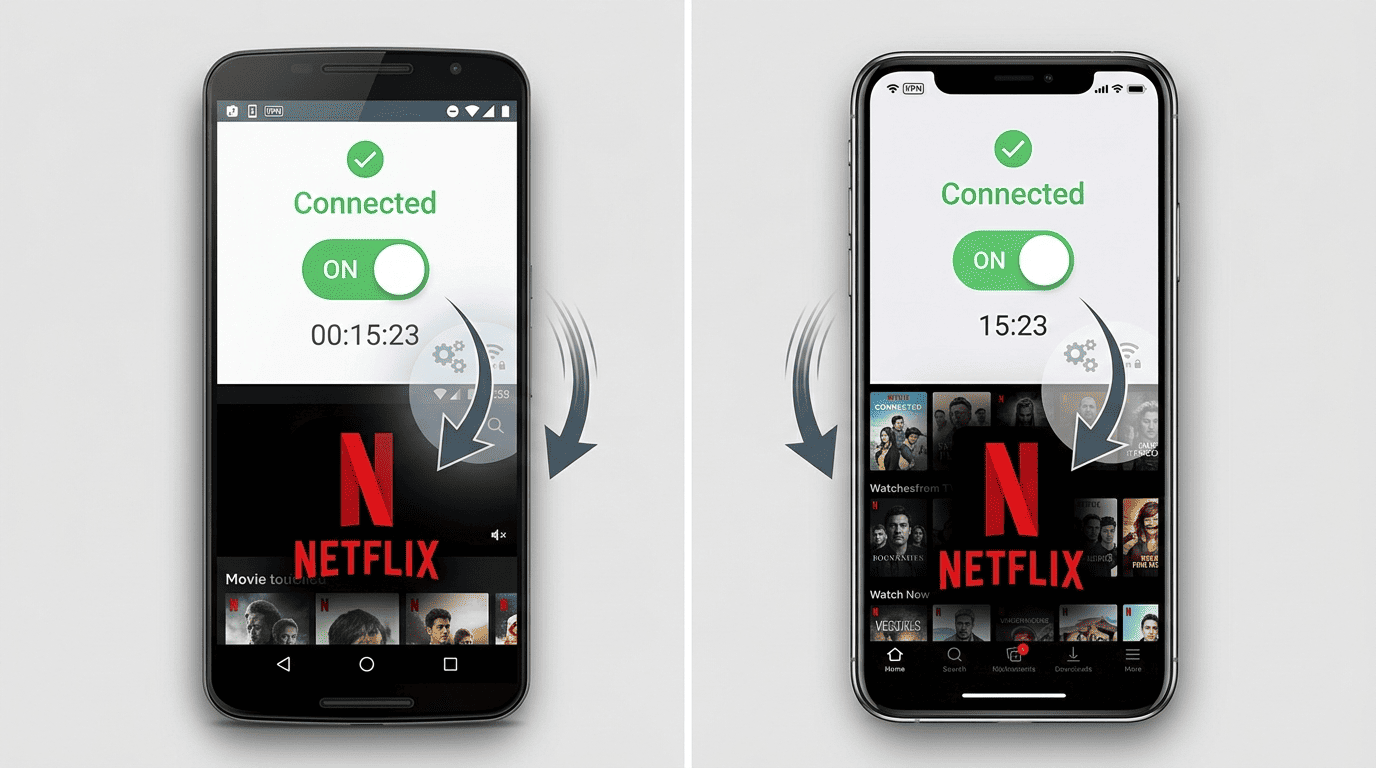
Netflix content varies by region because the service does not own worldwide rights to every show or movie it carries, and it uses your location to decide which library you can access. In practice, that means the same Netflix account can show different content in each country, even if the app design looks identical.
For most users, the key idea is simple: Netflix is one service, but not one universal catalog. Rights deals, local demand, release timing, and your visible IP address all affect what appears when you open the app or browser.
Licensing, rights, and local catalog rules
Netflix licenses a large share of its content on a country-by-country basis. A studio may sell streaming rights in the US, keep them with a local broadcaster in the UK, and hand another region to a different service entirely. That is why one library can gain a title while another loses it overnight.
These agreements also expire. When rights change hands, Netflix has to remove or add movies and shows based on that contract, not on what subscribers in another country can access. The result is a moving list of titles rather than a fixed catalog. Even if the Netflix brand is global, the content rules underneath it are still regional.
How Netflix identifies your location
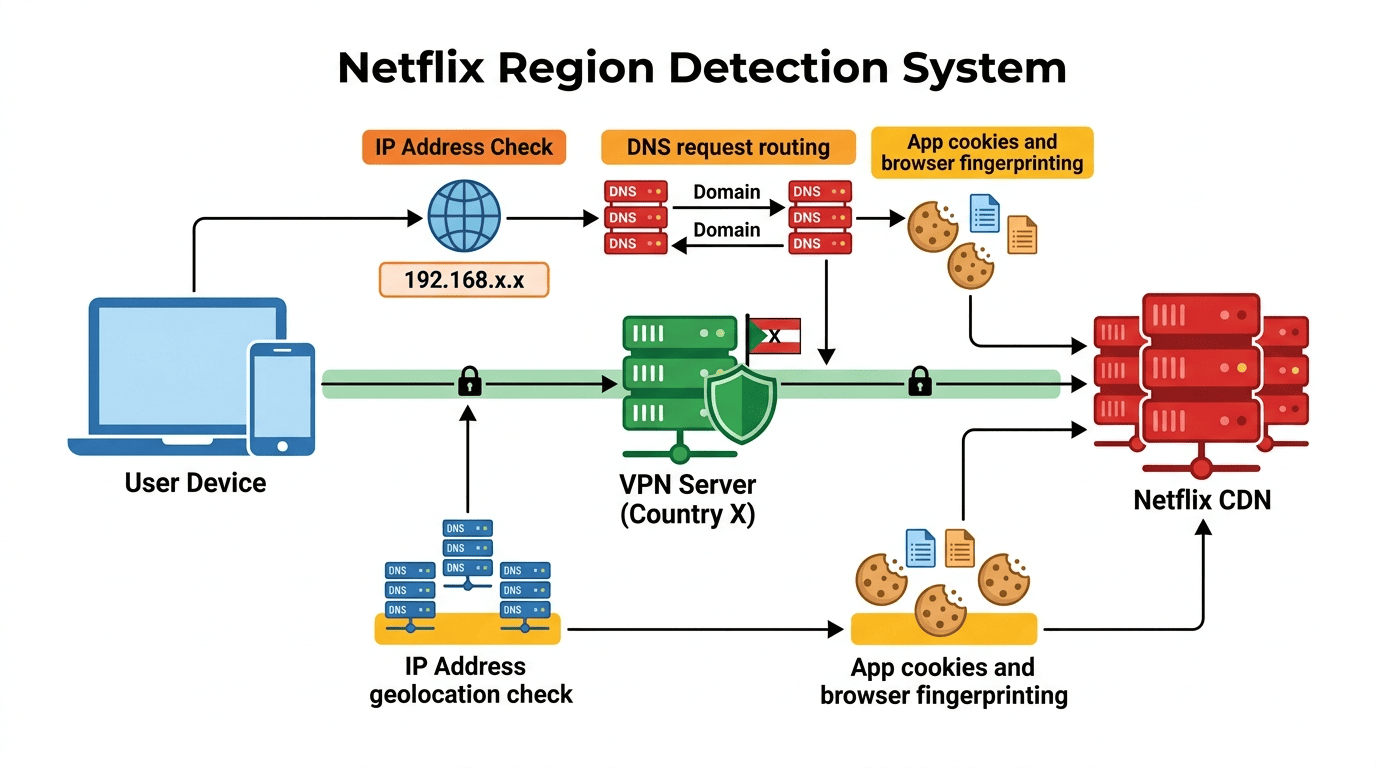
The main signal is your IP address. When you open Netflix, the service checks the address your device appears to be using and maps it to a country or region. If that address belongs to a known VPN server, proxy endpoint, or data-center network, you may see a playback warning instead of the title you expected.
Other data can matter too. Browser cookies, app cache, DNS requests, and account activity can create a location mismatch if they still point to your previous region. That is why a user may need to clear a browser session, restart an app, or reconnect to servers before Netflix updates the library correctly. The process is usually quick, but stale data can get in the way.
Why the same title is not everywhere
A title may be missing from your Netflix region for several reasons. Release windows often differ by market, so a film can arrive in Canada months before it appears in the US. The same goes for TV shows, especially when local broadcasters still hold first-run rights.
Even Netflix originals are not always identical across different countries. Music rights, older distribution deals, or local edits can shape what is available in a given library. Regional demand matters as well: if a category performs strongly in one country, Netflix may prioritize that content there. So while many users think of one global service, what they actually access is a region-specific version of Netflix.
How to Change Netflix Region with a VPN
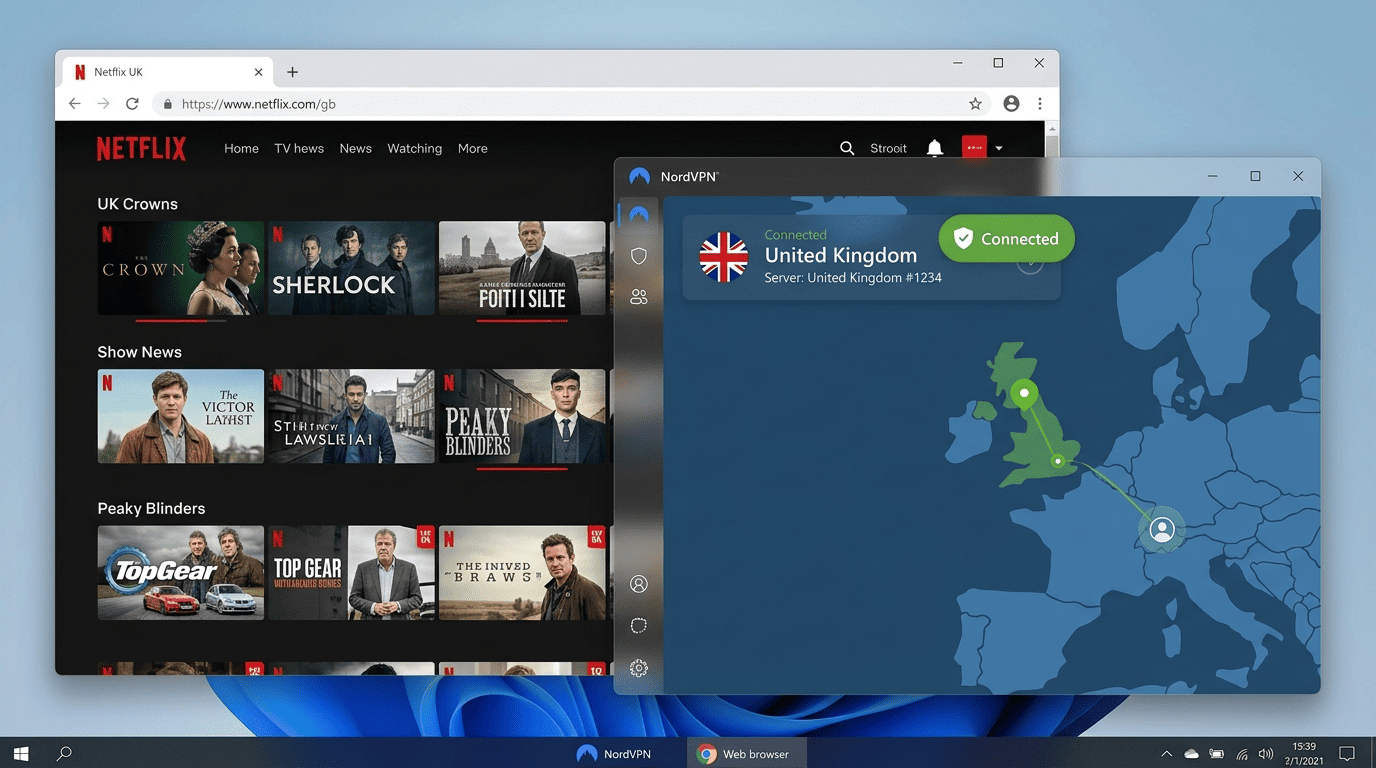
The most reliable way to change Netflix region is to use a VPN, pick a server in your target country, and refresh Netflix until the new library appears. In simple terms, the VPN changes the IP address Netflix sees, which changes the region tied to your session if the server is working well.
The quality of the VPN service, the specific servers you use, the app on your device, and leftover browser or app data all affect the result. If one server does not work, switching to another in the same country is often enough.
Step 1: Choose a streaming-friendly provider
Start with a VPN service that has a proven track record for streaming, not just a long feature list. For Netflix, that usually means large server coverage, frequent IP rotation, decent speeds, and support that can point you toward servers that still work in a given country. A provider can look good on paper and still struggle to access a specific Netflix region.
We would keep the shortlist practical: NordVPN, Surfshark, and ExpressVPN are the safest options for most readers. They have mature VPN app support, enough servers to spread load, and a better chance of avoiding detection than a typical free VPN. If your goal is to change Netflix and watch reliably across several months, provider quality matters more than niche extras. It saves time later.
Step 2: Install the app and sign in
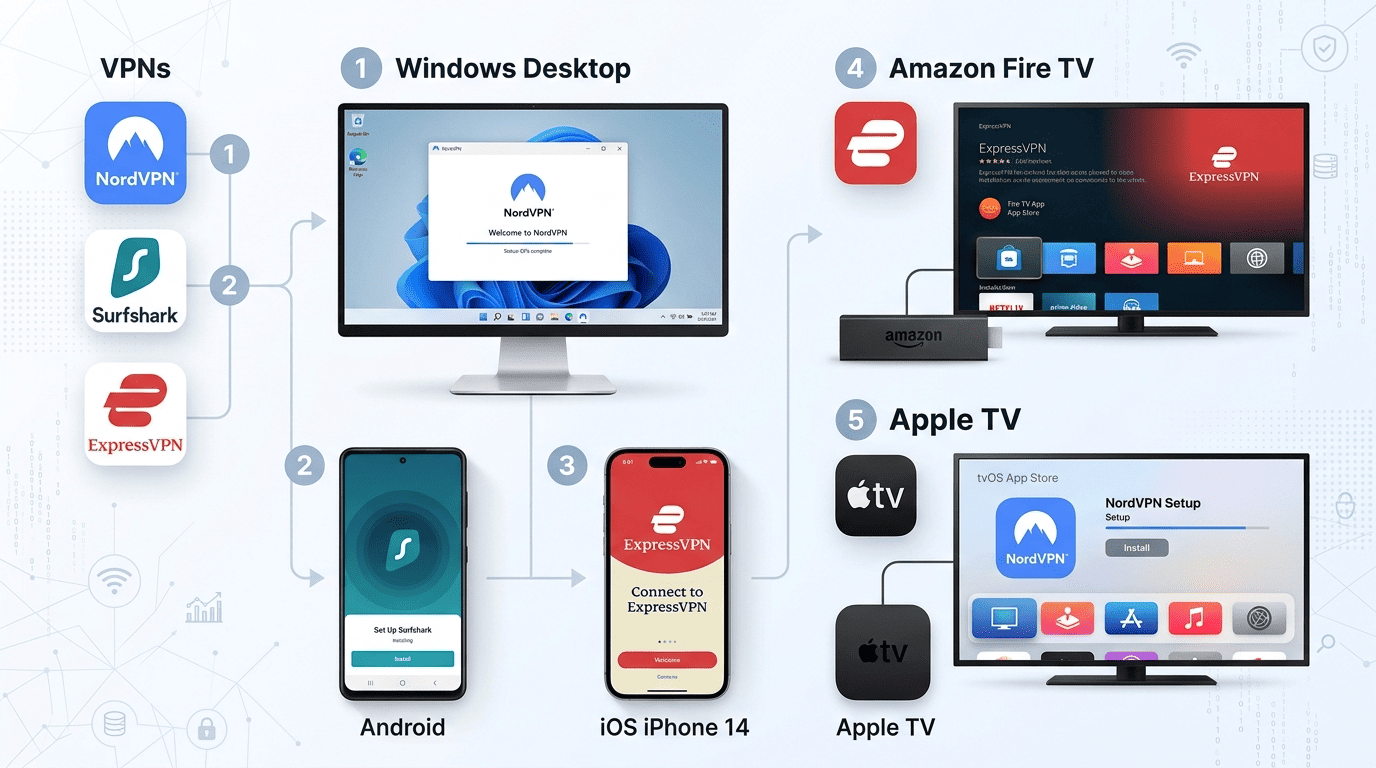
Download the correct VPN app for your device from the official store or provider site. On Windows and Mac, that usually means a desktop installer. On Android, iPhone, Fire TV, or Apple TV, use the store version when available. Then sign in to your VPN account or create one if you are starting from scratch.
Before you connect to server locations, check the basic settings. Turn on the kill switch if the app offers it; that feature cuts traffic if the VPN drops, which helps stop your real IP address from leaking mid-session. Also review privacy settings and logs claims, especially if you plan to use the same service beyond streaming. You do not need deep tuning for Netflix, but a clean setup avoids small network errors that can spoil the experience.
Step 3: Connect to a matching country server
Pick the country that has the library you want, then connect to server options in that location. If you want UK titles, choose a UK VPN server. If you want the US library, use a US server. This is the step that actually lets you change your Netflix region, because Netflix reads the server IP address rather than your physical address.
If the first VPN server does not work, switch to another one in the same region. This is common. Streaming platforms and VPN providers are in a constant arms race, so one server may be blocked while another still has access. If Netflix keeps showing the old catalog, clear cache in the app or browser, sign out, and try again. A stale session can preserve your old location longer than expected.
Step 4: Open Netflix and verify the catalog
Once connected, open Netflix fresh rather than relying on an already-running session. In a browser, close the tab, reopen it, and reload the site. In the app, force close it first if needed. Then search for a title known to be in the target country’s library to confirm the change Netflix process worked.
If the catalog still looks unchanged, the likely causes are simple: Netflix still sees old location data, the VPN server is flagged, or your browser and app are pulling conflicting network information. Try a different server, flush cookies, or change protocol in the VPN app if that option is available. If you get a proxy warning, do not keep retrying the same endpoint. Switch servers, reconnect, and test again. That is usually the fastest path back to watch Netflix without friction.
How to Change Netflix Region Without a VPN
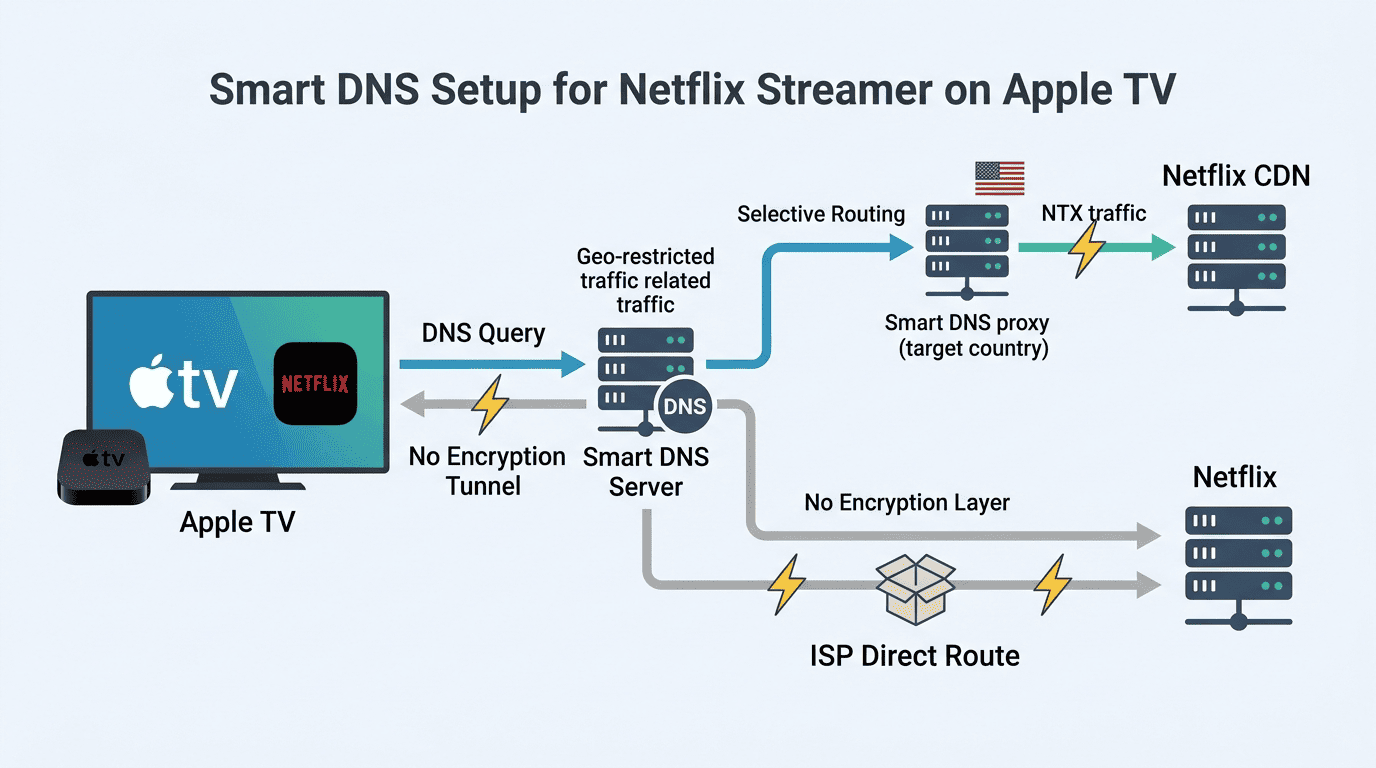
You can change region without a VPN in limited cases, but the results are less consistent. The main alternative is smart DNS, which can reroute certain traffic to make your Netflix account appear in another home country or region on some devices, though it does far less for privacy and often supports a shorter list of platforms.
For most readers, the short answer is this: non-VPN tools can work, but they are narrower in scope and easier to break.
Smart DNS and what it can offer
Smart DNS changes how some of your traffic is resolved, steering requests in a way that can help with streaming. Unlike a VPN, it usually does not encrypt traffic and does not hide your full IP address in the same way, so the privacy benefit is limited. Its value is convenience and speed on devices where a full VPN app is unavailable.
That makes smart DNS a realistic option for Apple TV, some smart TV setups, or game consoles. Still, compatibility varies by service and country. A method that helps change Netflix on one device may fail on another, especially if the app checks more than simple DNS routing.
Account, billing, and travel scenarios
Changing your billing details does not directly change region. Your Netflix account can keep the same payment method and still show a different library when you travel, because Netflix mainly reacts to your current location signal rather than profile settings alone. That is why people on a trip often see a temporary change in content without touching account menus.
Profiles also do not solve this. Switching profile language, maturity level, or preferences will not change your Netflix region. The same goes for changing your home country in unrelated services or device settings. Catalog access follows detected location first.
When non-VPN methods fall short
Non-VPN methods tend to fail in three places: coverage, consistency, and device support. Some catalogs remain blocked, some apps still throw a proxy-style error, and some devices simply do not support the workaround cleanly. A browser extension may help with one browser session, but that is not the same as full-device routing.
If you only need occasional access and your device supports smart DNS, it can be a useful option. If you want to change your Netflix region often, across several servers and devices, a proper VPN service is still the better tool.
Best VPNs for Changing Netflix Region

If you want reliable access to more Netflix libraries, the best VPNs are the ones that combine streaming stability, broad server coverage, consistent app performance, and fast enough performance for HD or 4K. Many services advertise Netflix support; fewer hold up after repeated server switches across months of everyday use.
The other point worth making up front is that there is no perfect VPN service for every country all the time. Netflix changes detection methods, providers rotate servers, and one library may work better than another on the same day. So the goal is not mythical universal access. It is consistent, low-hassle access to the Netflix region you actually want.
NordVPN is the safest recommendation for most readers who want to change Netflix region without spending excessive time on debugging compared to other services. It has a large pool of servers, fast performance, and enough country coverage to make library-hopping practical rather than tedious.
Its apps are also mature. The VPN app is clean on desktop, mobile, and streaming devices, and it is easy to connect to server locations by map or list. If one US or UK endpoint is under pressure, switching servers usually takes seconds — and because the server pool is large, a working alternative is rarely far away.
On privacy, NordVPN states it does not keep activity logs that would tie your streaming session to browsing history, and its service has a proven track record compared to many mid-tier competitors. I would not call it cheap, especially on shorter plans, but for readers who care about reliable access to Netflix libraries across more than one country, it earns the top spot. It is also the provider I would pick over a free VPN without hesitation.
Surfshark is the value choice in this list. If you want to change your Netflix region on several devices at once, or share a VPN service across a household, its unlimited connections are hard to ignore. That makes it especially attractive for families with a smart TV, phones, tablets, and a Fire TV all in the mix.
Performance is generally good enough to watch Netflix in HD and often 4K, though some servers need a second attempt in tougher regions. That is the tradeoff. You save money, especially over longer months on a discounted plan, but you may do slightly more troubleshooting than with NordVPN.
Still, Surfshark gets the fundamentals right: broad country selection, useful apps, and decent privacy posture. For readers balancing budget and flexibility, this is the option I would put just behind NordVPN. It also tends to be a better long-term answer than chasing a free VPN that burns out after a few days of use.
ExpressVPN remains one of the easiest services to recommend to less technical users. If your main concern is setup quality rather than shaving every dollar off the price, it is a polished choice. The app design is simple, the server selection is straightforward, and support for living-room devices is better than average.
That matters on Apple TV, routers, and some smart TV setups where a rough app or confusing DNS tool can derail the process. ExpressVPN usually avoids that trap. It is not always the cheapest option, and on raw value it trails Surfshark, but the day-to-day usability is reliable.
Its performance is good rather than class-leading. For most Netflix streaming, that is enough. If you want a VPN that feels tidy, stable, and low-drama across a wide range of hardware, ExpressVPN still deserves a place among the best VPNs for this use.
Free vs. Paid VPNs for Netflix
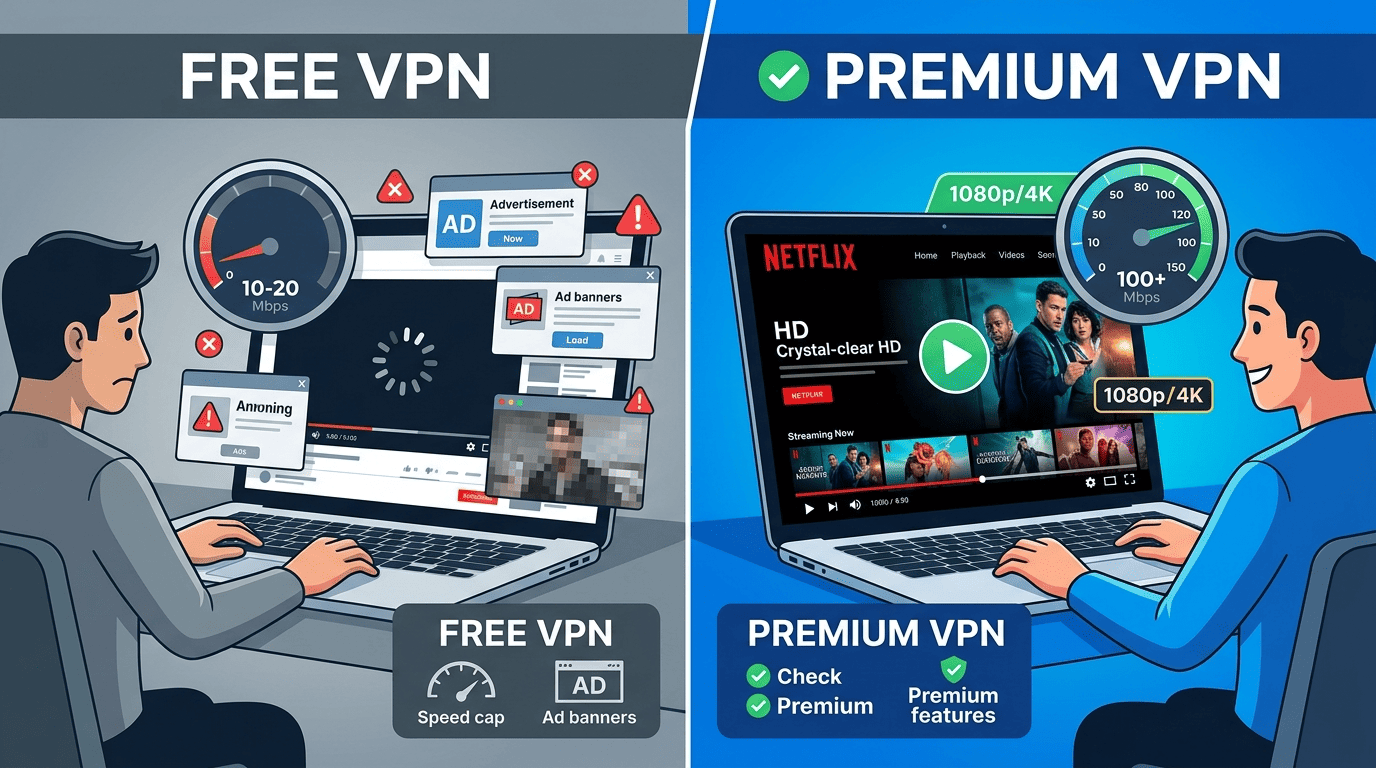
For Netflix, paid plans are usually the better option. A free VPN can occasionally access a small library, but most free services have too few servers, weaker IP rotation, and tighter data limits to watch Netflix reliably for long.
That does not mean every paid service is worth it. It means the gap between free and paid is unusually clear for streaming.
What free VPNs usually get wrong
A typical free VPN struggles in three predictable ways. First, speeds are often too low for stable playback, especially at busy hours. Second, data caps can run out after a movie or two. Third, the server pool is so small that Netflix can detect and block those IP ranges more easily.
There are privacy concerns too. Some free providers keep vague logs policies, show ads, or have limited support when a server stops working. For occasional testing, a free VPN may be an option. For regular use, it is usually a false economy.
Why paid plans work better
A paid VPN service generally has more servers, more country choices, and better maintenance. That means fresher IP address rotation, stronger network quality, and faster fixes when a Netflix region stops loading correctly. You are also more likely to get native apps for each device instead of a patchwork setup.
There is a practical safety net as well. Most top providers offer a money back guarantee, often framed as a 30 day money back period, which gives you time to test whether you can watch Netflix on your preferred devices before committing longer.
Which option makes sense for you
If you only need brief access, testing a provider during its refund window is smarter than relying on a permanently free plan. That approach gives you the upside of a better VPN service without locking you in for months if it does not fit your needs.
If you stream often, paid is the clear choice. If you stream rarely, use trials or a day money back policy carefully and cancel in time.
How to Change Netflix Region on Different Devices

The core method is the same on every device: install a VPN app if one exists, connect to server locations in the target country, then reopen Netflix and check whether the library changed. The details differ by platform, especially on TV hardware and browsers where old location data can linger longer than expected.
Most common devices support this one way or another, though some require workarounds depending on the platform.
On Windows and Mac

On Windows and Mac, you can use either the desktop VPN app or a browser, though the full app is usually more reliable than a browser extension alone. Connect to server locations in your target country, then fully close Netflix before reopening it.
If the catalog does not update, clear browser cookies or app cache and sign in again. This is often enough to flush the old location. If one server fails, switch to another nearby option in the same region and retry. Desktop systems are usually the easiest place to change your Netflix region.
On Android and iPhone

On Android and iPhone, install the VPN app from the official app store, sign in, and allow any required permissions. Then connect before opening Netflix. Mobile operating systems sometimes keep app sessions alive in the background, so force closing the app can help the new country register correctly.
Check that the VPN app stays active while Netflix is running. Battery-saving settings can interrupt a background network connection and expose your regular IP address. If the library remains unchanged, reconnect and test another server.
On Fire TV, Apple TV, and smart TV

Fire TV supports native VPN apps from several providers, which makes it one of the cleaner TV options. Apple TV now supports VPN apps from more services too, though setup quality still varies. On a smart TV, support depends on the brand and app ecosystem; some models have native apps, others do not.
If there is no direct VPN app, smart DNS or router-based setup may be the fallback. That routes the device through another network path without changing settings on the TV itself. Watch for proxy conflicts, old DNS entries, or a smart TV that insists on local network preferences despite the VPN running elsewhere.
On game consoles and browsers
Game consoles rarely support full VPN apps, so router setup or smart DNS is more realistic there. That can work, but it is less flexible than changing servers from a native app on the device itself. If you often switch between Netflix libraries, consoles are not the most convenient option.
In a browser, a browser extension may help in some cases, but it is usually better to use the main app or desktop client for complete routing. Extensions can be useful for quick testing, yet they do not always control every part of the network path. Keep expectations realistic.
Common Issues and Solutions When Changing Netflix Region
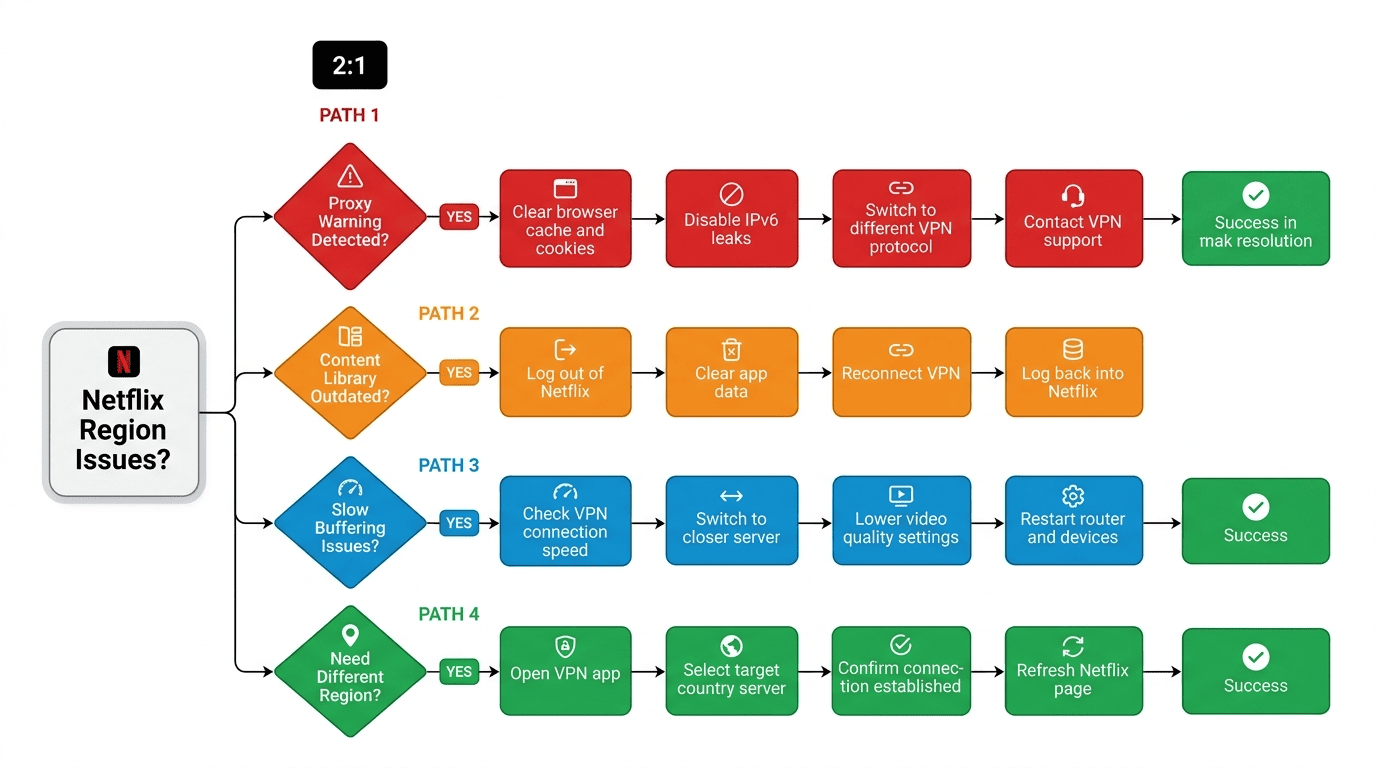
Most Netflix region problems come down to three things: blocked servers, stale location data, or weak network performance. If access suddenly stops working, the fix is usually mechanical rather than mysterious. Diagnose the likely cause first, then switch one variable at a time so you know what changed.
That matters because random troubleshooting wastes time. A better approach is simple: identify the problem type, clear the most likely blocker, and only then move to deeper steps like protocol changes or support tickets.
Netflix says you are using a proxy
Problem: Netflix shows a proxy or unblocker warning instead of loading the title. Diagnosis: the VPN server IP address is likely flagged, or your browser/app still exposes old location data. Fix: disconnect, switch to another server in the same country, and try again before changing anything else.
If that does not work, clear cookies in the browser, wipe app cache on the device, and restart the session. Then test again. Some providers also let you switch protocols in the VPN app, which changes how traffic moves across the network and can help with detection. If multiple servers fail, check support guidance rather than cycling blindly. Good services track which endpoints still work.
The library does not update after reconnecting
Problem: you connect successfully, but Netflix keeps showing the old library. Diagnosis: cached session data, DNS residue, or another app on the device still using your previous location. Fix: sign out of Netflix, force close it, reconnect, and sign back in.
On desktop, also clear the browser cache if you use the web player. On mobile or TV devices, restart the app entirely. If the problem persists, test a title unique to the target region instead of judging by the home screen alone. Recommendation rows can lag behind. System logs are rarely needed for basic users, but they can help support confirm whether the network switch actually completed.
Slow speeds or buffering during playback
Problem: the stream loads, then buffers or drops quality. Diagnosis: the server may be overloaded, your base network may be weak, or the route to a distant country is adding too much latency. Fix: test several servers, including one in the same region but a different city, and compare results.
Also reduce background traffic on the device. Cloud backups, game downloads, and updates can eat bandwidth faster than many users realize. If possible, move from weak Wi‑Fi to wired Ethernet, especially on a smart TV or Fire TV. For long-distance libraries, some speed loss is normal. The goal is stable playback, not perfect benchmark numbers.
Netflix Libraries by Country
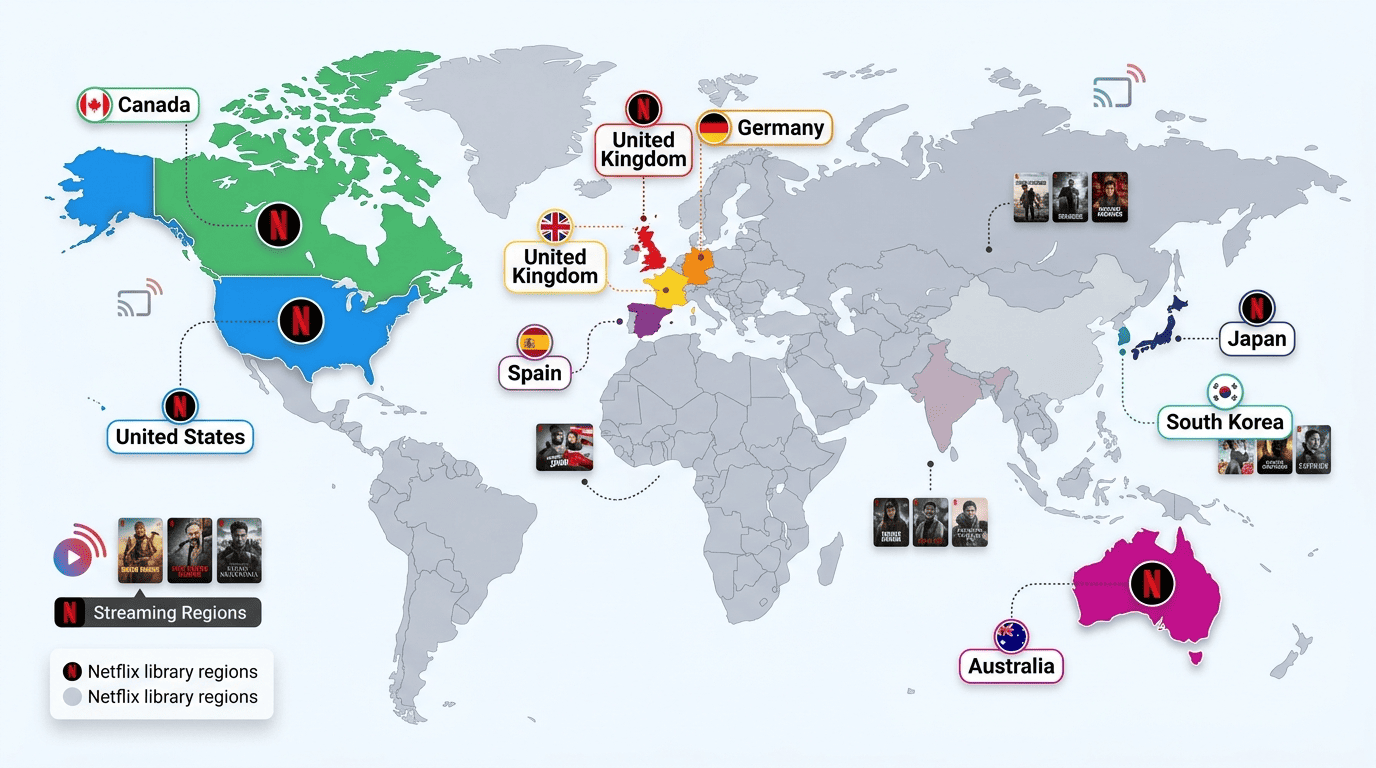
Netflix libraries differ a lot by country, and the best region depends on what you want to watch. Some users care about the biggest mainstream catalog for movies and TV shows. Others want a smaller content library with specific language tracks, local series, or niche releases that never appear in the US.
That is why it helps to think in categories rather than chasing a single “largest” library. Different countries are useful for different reasons.
United States, UK, and Canada
The US remains the most targeted Netflix region for mainstream viewing, especially for popular movies, major studio titles, and broad genre coverage. The UK is another common pick because it often combines strong English-language selection with local series and different licensing outcomes. Canada sits somewhere between the two, with overlap but also its own gaps and surprises.
These are among the most searched Netflix libraries because users already know many titles by name. If a show is missing at home, the US, UK, or Canada is often the first country they check. Still, no single library has everything.
Europe-focused catalogs
European catalogs can look very different from one another. Germany, France, and Spain often reflect local broadcaster deals, staggered release windows, and strong regional programming. That means a title absent in the UK might appear in Spain, or a movie in France may include language options not offered elsewhere.
For multilingual users, these libraries can be especially useful. Subtitle and dubbing choices are often broader, and the content library may include local films that never travel far. Availability shifts, though, so what works in one region this month may move next month.
Asia-Pacific and niche libraries
Asia-Pacific catalogs are not always the largest, but they can be highly valuable. Japan, South Korea, Australia, and other markets may have distinctive anime, drama, or licensed movies with limited geographic rights. Smaller or niche libraries can also surface titles that are hard to find in different countries with larger mainstream catalogs.
The tradeoff is predictability. Some TV shows appear for short windows, and some niche libraries are harder to access reliably due to smaller server coverage from VPN providers. If you are chasing one specific title, verify it directly rather than assuming a whole country library will be stronger across the board.
Legal and Policy Considerations

Changing your Netflix location is usually more of a platform policy issue than a criminal law issue, but the distinction matters. In many Western jurisdictions, using a VPN service itself is lawful; what may be restricted is how a platform’s terms of service treat geo-circumvention and account access.
Laws also change by country, and VPN use is restricted or banned in some places, including China, Russia, the UAE, Iran, Belarus, North Korea, and Turkmenistan. Check current local rules before you rely on any method.
What Netflix allows and restricts
Netflix can vary content by location and can limit access when it detects a proxy or location mismatch. That is the practical rule readers run into most often. The terms of service are about how the platform operates; they are not the same thing as criminal law.
So if you change region, think of it as something the service may block or interrupt rather than a guaranteed legal problem by itself. Availability can change at any time.
Privacy and account safety
If you use a VPN, stick to a trusted provider with clear privacy terms and a reasonable no-logs position. Avoid sketchy apps that ask for excessive permissions, store account details carelessly, or obscure who operates the service. A low price is not worth poor handling of your data.
Use strong passwords, enable account protections where possible, and do not share more personal information than necessary. Your billing address and recovery address should also stay current in case account verification is triggered.
Choosing a low-risk approach
The lower-risk option is a reputable service with stable servers, clear support, and a straightforward refund policy. That reduces the chance of repeated proxy errors, strange app behavior, or account recovery trouble if something looks unusual.
Just as important, stay within local law and understand the platform rules in your country. If your goal is simple streaming access, choose the least complicated setup that gets the job done.
Frequently Asked Questions
Can I change Netflix country with just an account setting?
Will a VPN always unblock every library?
Is it safe to use a VPN with Netflix?
Can Netflix ban my account for using a VPN?
Which country has the biggest Netflix library?
Do I need a separate Netflix account for a different country?
How do I know which VPN server to use for Netflix?
Does using a VPN slow down Netflix streaming?