

If you want the best VPN for YouTube TV, the hard part is not finding a recognizable brand. It is finding a service that keeps enough speed for live channels, offers reliable US servers, and does not make setup on a phone, browser, or TV device feel like weekend homework. We tested leading options with streaming in mind, looking at connection consistency, app quality, privacy posture, and how easily each provider let us switch location when one server hit blocks.
This guide is for subscribers who want to watch YouTube TV while traveling, people comparing the best vpns for daily streaming, and anyone trying to balance price with reliability. We focused on providers with good server network depth in the US, broad device support, and strong security and privacy standards. Where a VPN felt especially good for a certain user, such as value shoppers or privacy-first buyers, we say so plainly.
We also paid close attention to the details that matter in the real world: how fast the app connects, whether a VPN server in New York stays stable during longer sessions, how many devices can run at once, and whether the service gives you enough days or months to test it under a money back guarantee. That matters more than a glossy feature list.
Best VPNs for YouTube TV
Updated May 20, 2026 · Tested on 10+ streaming services
NordVPN
Why it made the list
- Fast speeds, reliable US location switching
- Polished apps across all major platforms
- Audited no-logs policy for strong privacy
Surfshark
Why it made the list
- Unlimited devices on one account
- Easy setup for lower long-term cost
- Solid speed for HD and 4K streaming

ExpressVPN
Why it made the list
- Consistent speed and excellent TV device support
- Lightway protocol for quick reconnects
- Easy location changes with minimal interface clutter
Best VPNs for YouTube TV
A good YouTube TV VPN needs to do more than connect. It has to keep up with live streams, switch server locations without drama, and stay simple enough that you can move from laptop to smart TV without re-learning the app each time. That balance is why the top of this list is fairly tight: several providers are good, but only a few combine speed, privacy, and everyday usability in a way that makes them easy to recommend.
We looked at how these services handled streaming sessions across different devices, how stable their US servers felt over repeated tests, and how practical each plan is for a regular user rather than a hobbyist. Security and privacy still matter here too. Even if your main goal is access, a no-logs approach, solid leak protection, and clear account policies are part of what separates a trustworthy VPN from a disposable one.
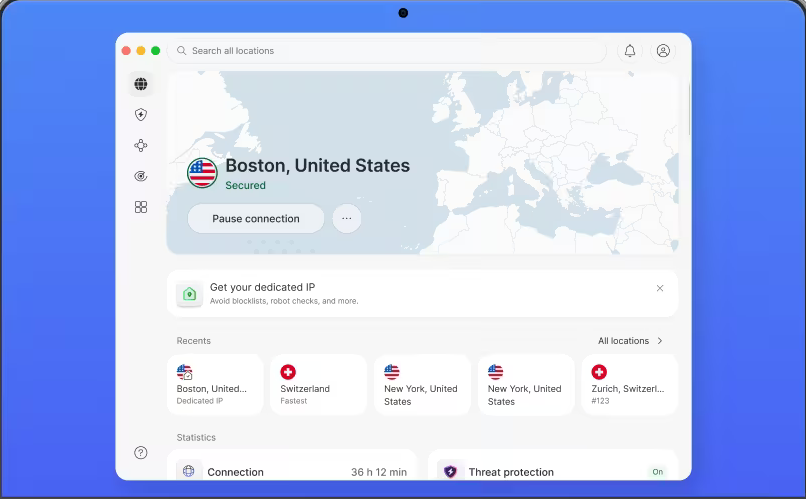
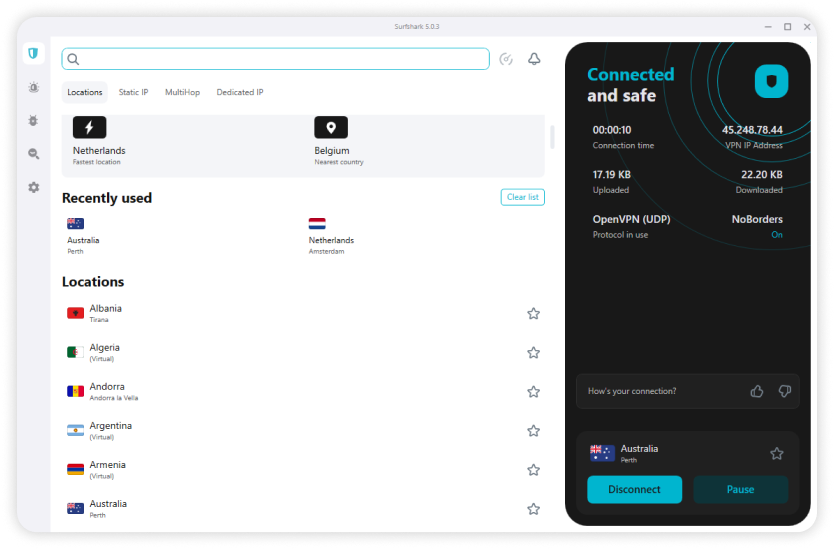

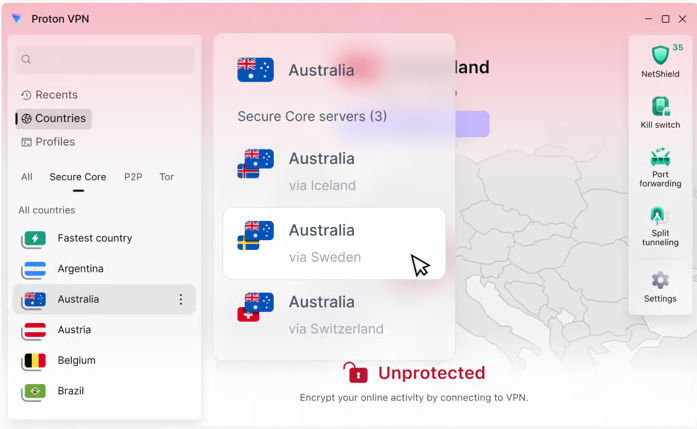


VPN Comparison Table

A ranking tells you who came out ahead. A comparison table tells you why. For YouTube TV, the practical differences come down to three things: how fast the service stays under load, how broad the server network is in useful US areas, and how easy it is to run the same account across every device in your home.
That is why the best vpns here are not separated only by headline reputation. A provider can have a big website and still feel awkward on Apple TV. Another can look cheap on paper but lose value if simultaneous connections are limited or if the app on Fire TV is clumsy. The details decide whether a service feels good after three days, three months, or a full year.
Speed, Streaming, and Server Coverage
For streaming, speed is not just a bragging point. It affects startup time, picture quality, and whether live content holds steady during longer sessions. In our tests, NordVPN and ExpressVPN were the most convincing on pure consistency, with Surfshark close enough to stay highly competitive. Proton VPN did well, but its results depended a bit more on the specific VPN server and location.
Server coverage matters because YouTube TV ties content and local programming to your area. A provider with a deeper US server network gives you more room to adapt if one endpoint runs slowly or hits blocks. That is where NordVPN, Surfshark, and Private Internet Access stand out. Their broader server locations make it easier to test another route instead of waiting on a single crowded connection. New York remains an obvious test case because it is a common target location and often a busy one.
CyberGhost and Proton VPN are still workable, but they are a touch more sensitive to server selection. That is not unusual. Some services have fewer useful fallback options in the same area, so switching can take longer. If you are the kind of user who wants the least possible friction, that difference becomes noticeable over time.
The short version: NordVPN led the pack on overall balance, ExpressVPN was especially stable, and Surfshark offered fast speeds with better value. If your main priority is access plus convenience, choose from those three first. If your main priority is security and privacy or tuning options, Proton VPN and PIA remain strong alternatives.
Device Support and App Experience

Device support is where a lot of VPNs either earn trust or lose it. A service might look excellent on desktop, then stumble on a streaming box. For YouTube TV, we paid close attention to app quality on mobile, browser extensions, and TV platforms including smart TV systems, Fire TV, and Apple TV.
ExpressVPN and NordVPN were the cleanest all-rounders. Their apps were easy to navigate on phones and laptops, and they translated well to TV environments where a remote control makes every extra menu feel longer. Surfshark deserves credit here too. It is one of the easier services to recommend for families because its account supports unlimited simultaneous connections, which removes a common headache when several people use one plan across multiple screens.
CyberGhost is also friendly for beginners, especially on standard app installs. Private Internet Access goes the other direction. It offers more control, but that flexibility can make the interface feel denser. Proton VPN sits between those extremes: not difficult, but more technical than the most mainstream picks.
If your main goal is to cover every device at home, start with Surfshark or NordVPN. If your concern is the cleanest TV experience, ExpressVPN has the edge. And if you need a backup method, some providers offer Smart DNS, a tool that changes location-related routing without full VPN encryption, which can help on hardware with limited native VPN support.
Pricing, Guarantees, and Value
Pricing only makes sense when you read it next to value. A cheap monthly plan can still be poor value if speeds dip, server locations are thin, or the app is awkward on your device. On the other hand, a pricier service can feel reasonable if the connection stays stable and the setup is painless for months at a time.
Surfshark is the standout value pick in this list. Its long-term plan pricing is usually among the more affordable options, and the unlimited simultaneous connections improve the math for households. NordVPN often costs more, but its stronger speed profile and polished apps justify the premium for many users. ExpressVPN is usually the priciest of the top group, so you are paying more for consistency and ease rather than bargain pricing.
Proton VPN and CyberGhost sit in the middle depending on the current plan structure. Private Internet Access often looks attractive on longer subscriptions too, especially for advanced users who want extra control. In most cases, the right move is to avoid judging by one month alone. Compare what you get over a year, look at how many days are covered by the refund period, and use the back guarantee window to test the service on your own network.
That trial period matters because streaming behavior can vary by area, internet service, and device. A money back guarantee gives you time to test at home, on travel Wi-Fi, and on TV hardware before committing for the long haul. For most readers, that is the safest way to confirm value.
Why Use a VPN for YouTube TV?

A VPN for YouTube TV is mainly about location and consistency. The service checks your IP address to determine where you are, which can affect local channels, playback availability, and whether you can access YouTube TV while away from your usual area. If you travel often, move between states, or rely on public internet, a VPN can give you more control over how your connection appears online.
There is also a privacy angle that should not be ignored. Streaming may feel harmless compared with banking or work, but your data still moves across networks, websites, and apps. A good VPN hides your address from the sites and services sitting between you and the content stream, which is useful on hotel Wi-Fi, airport networks, and other connections you do not fully trust.
Geo Restrictions and Location Access
YouTube TV geo restrictions are central to how the service works. Local channels, regional sports, and some parts of the lineup depend on your location, so the platform pays close attention to the IP address attached to your connection. If you are traveling, that can create friction even when you are trying to watch content from a subscription you already pay for.
A VPN changes the visible location of your connection by routing traffic through servers in another area. In practical terms, that means you can choose a US VPN server closer to the region you need and then test whether playback starts normally. If one server does not help you access YouTube TV, another nearby location may. That is why server choice matters more than many new users expect.
This is also where quality separates serious providers from weaker ones. To unblock YouTube or bypass YouTube checks on a temporary basis, a service needs enough US endpoints to rotate through when one is crowded or flagged. A thin network gives you fewer options. A stronger server network gives you room to adapt. For many readers, that alone is the biggest reason to use a VPN with YouTube TV.
Privacy While Streaming
Streaming is not the highest-risk activity online, but privacy still matters. Your IP address is a visible identifier, and over time it can be used to infer your area, your provider, and sometimes your habits across websites and connected services. A VPN hides that address behind its own servers, which gives you a useful layer of distance between your device and the wider network.
No-logs policies matter here too. If a service keeps extensive logs, the privacy upside gets weaker. That is why we favor providers that clearly explain what data they collect, what they do not retain, and whether independent audits back those claims. Privacy is not just about encryption. It is also about whether the company’s service design matches its marketing.
This is especially useful on public Wi-Fi. Hotel, airport, and café networks are convenient, but they are not places where you want every connection exposed. A VPN encrypts the traffic traveling between your device and the VPN server, making it much harder for someone on the same network to inspect it. Even at home, it can reduce how much your local network environment reveals about your browsing and streaming activity.
Better Reliability Across Devices
Most people do not watch on one screen anymore. They move between a phone in the kitchen, a laptop in the browser, and a streaming device in the living room. A good VPN helps keep that experience consistent by giving you one account that can cover several devices under the same plan.
That flexibility matters for YouTube TV because the service can be used across different platforms with very different app behavior. On mobile, the VPN app may be enough. On a TV device, you may need a native app, a router setup, or Smart DNS. A provider with broad device support makes it easier to watch YouTube on whichever screen is closest without rebuilding your setup every time.
It is also useful for travel. If you leave home for days or months, the right VPN can help you keep a more familiar connection profile across your phone, tablet, and laptop. Just remember the practical caveat: streaming platforms’ terms may discourage attempts to bypass regional rules, and some countries, including China, Russia, the UAE, Iran, and Belarus, impose restrictions on VPN use. For lawful access to subscriptions you already hold, though, a reliable VPN remains a practical tool.
How to Use a VPN with YouTube TV

Using a VPN with YouTube TV is straightforward once you know the order. Pick a provider with fast speeds, install the app on the device you actually use, connect to the right US location, and test playback before settling in. The details matter, though. The wrong VPN server can cost you speed, and the wrong setup method can make a simple job feel harder than it is.
We also recommend testing before the refund period ends. Most major providers give you a set number of days under a money back guarantee, which gives you time to check performance at home, on travel Wi-Fi, and on TV hardware. That matters because the same service can behave differently depending on your internet provider, your router, and the device you use to stream YouTube TV.
Step 1: Choose the Right Provider
Start with a provider that has a strong US server network, consistent speed, and apps for your main device. For most readers, that means NordVPN, Surfshark, or ExpressVPN. Proton VPN can also work if privacy is the main goal, while CyberGhost is a sensible pick for beginners who want an easier interface.
The key is not just raw brand reputation. You want a VPN for YouTube that offers enough server locations in the United States to let you switch if one location runs into blocks or slows down. A service with only a few useful endpoints can turn troubleshooting into guesswork. One with broader coverage gives you options.
It is also smart to check how the plan fits your habits. Do you need one device or many? Are you using laptop and browser only, or also a Fire TV in the living room? If you are unsure, pick a provider with a clear refund policy and use the back guarantee period to test it over several days instead of making a blind year-long commitment. The day money back window and day money back guarantee both matter when you want room to compare services under real conditions.
Step 2: Install the App on Your Device
Once you choose a provider, download the VPN app from the official website, your mobile app store, or your streaming device’s store. Install it, sign in with your account details, and let the app finish any first-run setup prompts. On desktop, this usually takes only a few minutes. On mobile, it is often even faster.
Most leading services support Windows, macOS, iPhone, iPad, and Android. Many also have dedicated apps for TV platforms. If you mainly use a browser, some providers offer an extension that controls the connection from inside Chrome or another browser, though a full app is often the better default because it protects the whole device.
For hardware that does not support full VPN apps well, look for Smart DNS. Smart DNS is a lighter location-routing tool that can help certain streaming devices reach region-specific content without full VPN encryption. It is not the same as a standard VPN connection, but it can be useful on certain TVs and media boxes. Either way, keep the app updated. Old versions can cause connection problems and make troubleshooting much harder.
Step 3: Connect to the Best Server Location
Open the app and pick a US VPN server. In general, start with a location that is geographically reasonable for your needs rather than jumping to the farthest possible server. A closer server often gives better speed, lower delay, and more stable playback. If your target content is tied to a specific YouTube TV location, choose a server in or near that area.
For example, if you need a major metro region, a server in New York may be a sensible starting point. If that does not perform well, try another nearby city or another server in the same state. Good providers offer enough servers that you can test a few options without much time lost. Server selection matters because different endpoints can vary in load, routing quality, and how often they run into blocks.
If available, use a modern protocol such as WireGuard or its branded variants like NordLynx, which is NordVPN’s WireGuard-based option built for better speed, or Lightway, ExpressVPN’s lightweight protocol designed for quick reconnects. You do not need to obsess over settings. But if your first connection feels slow, changing protocol and location are the two easiest fixes.
Step 4: Open YouTube TV and Test Playback
After connecting, open YouTube TV and try a live channel or on-demand stream. Do not assume the first screen tells you everything. Let the video play long enough to confirm that it loads properly and that the quality stays stable. If you can watch YouTube TV for several minutes without errors or sudden drops, you are probably in good shape.
If playback fails, clear cache and cookies in the browser or app before trying again. Old session data can make the service think you are still in a previous location. Then reconnect to the VPN, pick a different server, and test again. Restarting the app or the whole device can also help, especially after several failed connection attempts.
Keep the troubleshooting simple at first. Check that the VPN app is actually connected, verify that your IP address changed, and make sure location services on the device are not interfering. Once you find a server that works, save it as a favorite if the service supports that. It will save time the next time you want to stream YouTube TV quickly.
On Smart TV and Streaming Devices

TV setups vary more than phone or laptop installs, so this is where planning helps. If your platform supports a native VPN app, install it directly and sign in as usual. Fire TV is often the easiest case because many major providers offer dedicated apps through Amazon’s store. That makes it one of the simpler ways to run a TV VPN in the living room.
Apple TV support has improved, but the exact setup can still differ by provider. Some services offer a native app, while others push you toward router setup or Smart DNS. Router installation sends the VPN connection through your home network so every connected device uses that location automatically. It takes more work upfront, but it can be useful if your TV platform has limited app support.
On any TV platform, keep navigation simple. Use the remote to connect to the nearest suitable US location, open YouTube TV, and test one stream before browsing around. If your provider supports favorites, save the server that gave the best speed. If it does not, keep a short list of two or three working servers, such as one in New York and one in a nearby state, so you can swap quickly if one connection slows down after a few days or months of use. A good TV app should make that process easy to use.
VPN Not Working with YouTube TV (Troubleshooting)

Even the better services can hit trouble now and then. A VPN for YouTube TV might connect normally but fail at playback, or it might work with YouTube TV one day and hit blocks the next. That does not always mean the provider is bad. More often, it means the current server, app session, or cached data needs a reset.
Start with the simplest fixes first. Change one thing at a time, then test again. That way you know whether the issue came from the connection, the app, the device, or the service itself. If you change five settings at once, you learn very little.
Check the Server and Refresh the Session
The first fix is usually the best one: change servers. If your current VPN server is blocked or overloaded, disconnect and reconnect to another US location. Try a nearby area first rather than jumping across the country. This often preserves better speed while giving you a fresh connection path.
After switching, fully refresh the session. Close YouTube TV, disconnect from the VPN, reconnect to the new server, and then reopen the app or website. That sequence matters because old session information can linger. If needed, sign out and back in once the new connection is established. We have seen this solve stubborn playback errors surprisingly often in tests.
If the service still does not work with YouTube TV, test multiple server locations rather than repeating the same city. A busy endpoint in New York may fail while another nearby server works fine. Better providers give you enough servers that this process is quick. If your app shows specialty or recommended streaming servers, try those too. The goal is not to find a magical fix. It is to confirm whether the issue is tied to one location or the wider connection.
Clear Cache, Cookies, and App Data
Cache and cookies can preserve old location signals, and that can interfere with streaming even after your VPN is connected properly. In a browser, clear cookies and cached site data for YouTube TV and Google-related sessions, then close and reopen the browser. On mobile or TV platforms, clear app data or cache through the system settings if the device allows it.
Why does this help? Because the app or website may still associate your session with a previous address, area, or device state. A fresh launch after clearing data forces the service to check your current connection again. It is one of the least glamorous fixes, but it works often enough that it should be early in the process rather than a last resort.
After clearing data, restart the device. That gives the network stack and app a clean start, which can help remove lingering connection problems. Then reconnect to the VPN and test playback again. If the issue disappears, stale session data was probably the culprit. If it remains, move on to provider-specific settings or another server.
When the Service Still Blocks Access
If YouTube TV still blocks access after changing servers and clearing app data, try another protocol inside the VPN app. WireGuard, OpenVPN, and provider-specific options such as Lightway can route traffic differently enough to change the result. A protocol is simply the method the VPN uses to carry your data, and some work better than others on certain networks or devices.
You should also make sure the app is fully updated. Old builds can create compatibility issues or miss server-side changes that help a service avoid blocks. If the provider has live chat or support email, contact customer support and ask which server locations are currently performing best for US streaming. Good support teams usually cannot promise success, but they can often point you toward the right area or explain whether a known issue is in progress.
At that point, it may be time to try another provider. This is where a clear logs policy, a reliable refund window, and realistic testing over a few days become important. Not every service is equally good at adapting to blocks. If your current VPN repeatedly fails to work with YouTube TV, moving to NordVPN, Surfshark, or ExpressVPN is often the most efficient answer. Patience helps too. Regional access conditions can shift, so a location that fails today may work again after the provider rotates or updates servers.
Can I Use a Free VPN for YouTube TV?

Usually, I would not recommend it. A free VPN can look tempting if you only need access for a short trip or a few days, but YouTube TV is demanding enough that free tiers often fall short in the ways that matter most: speed, server choice, and reliability. Streaming services are not gentle on weak networks.
There is also a privacy question. Free services still need to pay for servers, bandwidth, support, and development somehow. If the plan is not funded by subscriptions, the business model can drift toward data collection, aggressive upsells, or weak service quality. That is not the trade I would make for regular streaming.
What Free Plans Usually Lack
Most free plans limit exactly the resources streaming needs. You may get a small amount of data, a tiny set of server locations, and lower priority on the network during busy periods. That can make playback feel unstable even before a service starts actively resisting VPN traffic.
Fast speeds are rare on free tiers because bandwidth is expensive. If the provider reserves better servers for paying users, the free connection can slow down quickly under load. For YouTube TV, that means buffering, quality drops, or failure to load live content at all. Many free options also support fewer devices and provide a weaker app experience on TV platforms.
Support is another weak point. If something breaks, there may be no useful help. With paid services, you usually get live chat, setup guides, and a clearer refund path. A free VPN may give you none of that, which turns a small technical issue into a dead end.
Hidden Risks and Privacy Tradeoffs
The larger concern is privacy. Some free VPNs have vague policies around logs, analytics, and how user data is handled. If the company does not clearly explain what it collects and why, that is a problem. A streaming tool still sees your connection metadata, and a bad policy can undermine the entire point of using a VPN.
Security can suffer too. Some free services lag behind on app updates, leak protection, or server maintenance. Others push intrusive ads or aggressive upgrade prompts into the experience. None of this helps when your goal is simple, stable access to streaming services.
That does not mean every free plan is reckless. Proton’s free tier, for example, has a better reputation than most. But even then, free access is usually not designed for demanding streaming. For YouTube TV, the security and privacy and reliability tradeoffs rarely make sense.
Better Low-Cost Alternatives
A better approach is to use a paid service with a money back guarantee. That gives you a safer trial window, better speeds, and full access to the server network without committing forever. If a provider offers a 30-day money back guarantee, those days are far more useful than gambling on a weak free tier.
Surfshark is often the value pick, while NordVPN is the stronger all-rounder. CyberGhost and PIA can also make sense when longer plan pricing drops. Even one or two months of a solid paid VPN is usually a better experience than trying to force a free VPN into a job it was never built to handle.
If you only need temporary access, a short paid plan is the sensible middle ground. You get full device support, clearer privacy rules, more data, and customer support if something goes wrong. That is a much safer bet.
VPN Testing Methodology

We based this ranking on hands-on VPN tests focused on streaming, not on provider marketing pages. The goal was simple: find services that could maintain enough speed for YouTube TV, offer reliable US access, and stay usable across more than one device. We also looked closely at security and privacy, app design, and whether each provider gave users realistic ways to adapt when a server hit blocks.
Testing was repeated across different times of day and on different hardware because a connection that looks fine in one short run can behave differently under real use. We care more about repeatability than about one flattering result.
Speed and Streaming Tests
We ran speed tests on US connections and compared how each VPN affected startup time, stream stability, and general responsiveness. That included repeated checks on nearby and farther US servers to see how location changed performance. We were not only looking for peak speed. We were looking for consistency across sessions.
For streaming, we tested whether playback started promptly, whether quality stabilized without long dips, and whether reconnecting to another VPN server fixed problems quickly when needed. Repeated tests matter because one good run proves very little. A service earns trust by producing similar results over time, not by winning a single sprint.
We also tracked whether switching servers remained practical when a location failed. A large server network is useful only if the app makes those swaps quick. That is why the best VPN choices in this guide were the ones that stayed strong under repeat tests, not just on paper.
Privacy and Security Review
Privacy review covered more than headline claims. We read each provider’s logs policy, checked whether the service had public audits or transparency material, and looked at the security features available in the app. A no-logs statement matters, but it matters more when the provider explains it clearly and supports it with outside review.
We also checked for standard protections such as a kill switch, which cuts internet traffic if the VPN drops, and leak protection for DNS and IP data. Those are basic expectations now, but not every service executes them equally well. For a streaming user, the risk is not only privacy loss. It is also the chance that your real address leaks and triggers access problems.
Trust signals count in this category. Security and privacy is partly technical and partly institutional.
Apps, Devices, and Support
Finally, we compared apps across desktop, mobile, and TV environments. A VPN can score well in speed tests and still rank lower if the device experience is awkward. We looked at installation flow, clarity of the interface, how easy it was to change servers, and whether the same account worked smoothly across more than one device.
Support also mattered. When a connection failed, we checked how much help the provider offered through setup guides, live chat, and general troubleshooting resources on its website. That is particularly important for users trying to set up Fire TV, Apple TV, browser extensions, or router installs.
In short, this list rewards services that combine speed, security and privacy, a capable server network, and practical app design. A strong VPN should not just benchmark well. It should be usable.
Frequently Asked Questions
Quick answers matter here because most buyers are deciding between a handful of familiar names, not a huge list. These are the questions we hear most often from readers trying to access YouTube TV more reliably with a VPN.
Frequently Asked Questions
Which VPN works best for YouTube TV?
Will a VPN slow down my streaming?
Can I watch YouTube TV on a smart TV or Fire TV?
Is using a VPN with YouTube TV allowed?
How to change your VPN location safely?
What should I check before I start streaming?