



If your VPN is not working with Netflix, confirm the VPN connection, switch to a different server, clear stored browser data, and retry the stream. This guide is for readers who want to restore Netflix access quickly after a proxy error, especially the familiar message that you seem to be using an unblocker or proxy.
We’ll walk through the most common causes, explain why Netflix blocks certain VPN and proxy connections, and show what to test before you contact customer support. The focus here is practical: quick checks first, deeper diagnosis second, and realistic expectations about what a VPN service can and cannot do with a streaming service that actively filters traffic.
How to Fix Netflix VPN or Proxy Errors
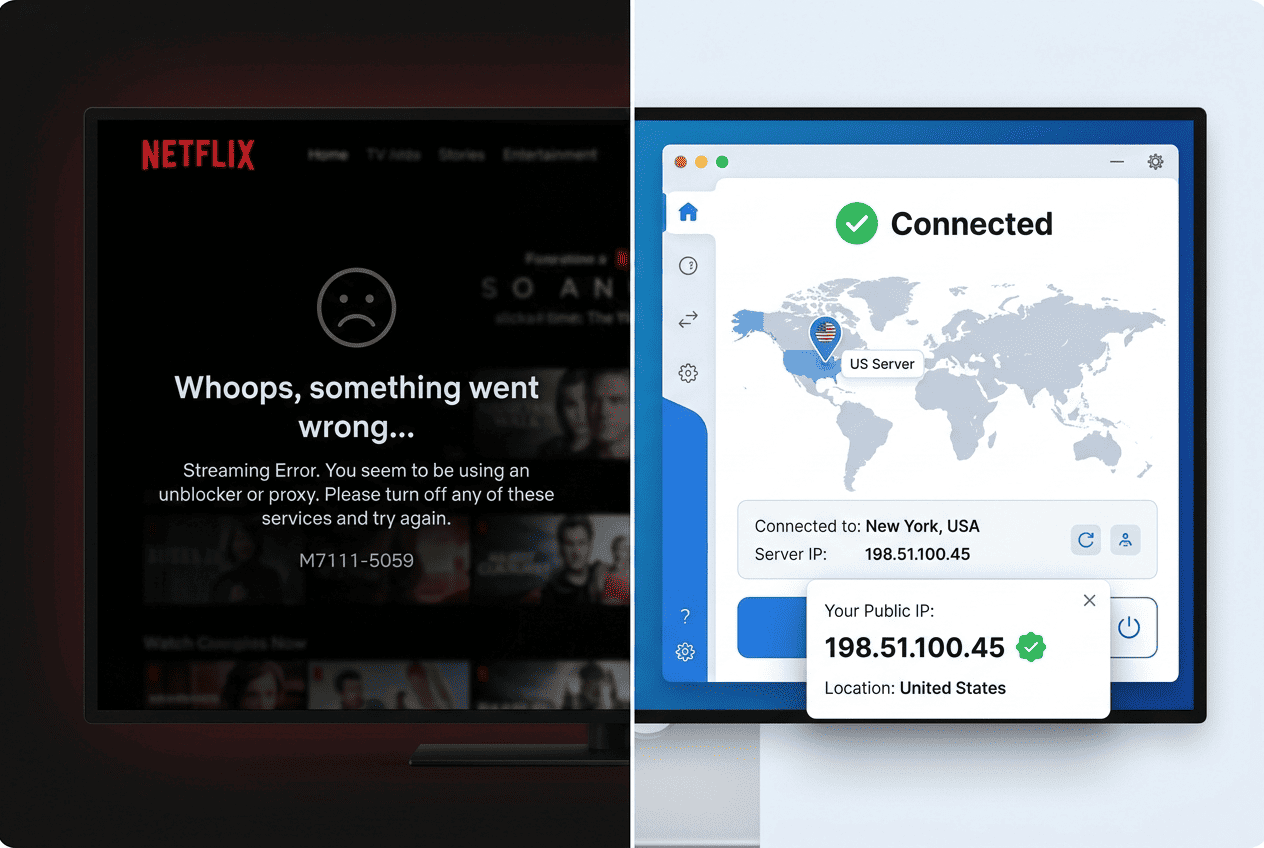
A Netflix VPN problem usually comes down to one of three things: the connection is not actually active, the current server has been flagged, or your device is still exposing old location data through the browser, app, or network. Most proxy error cases can be narrowed down in a few minutes.
Before you change settings at random, work through the steps below in order. Each step isolates a specific reason Netflix may block access, from a stale IP address trail to an overloaded server or cookies and cache stored by the website. That keeps the troubleshooting clean and gives customer support something concrete if the error message keeps coming back.
Step 1: Confirm the VPN is actually connected
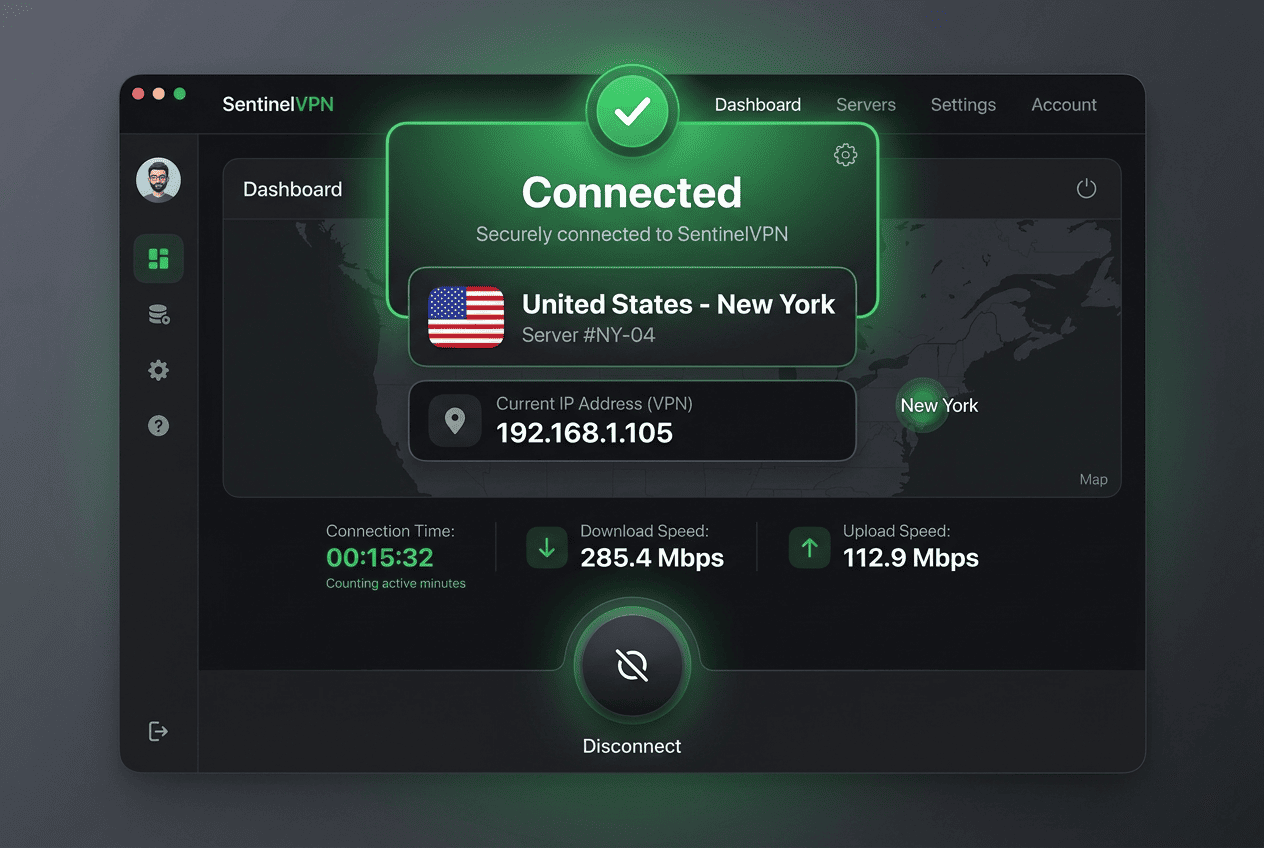
Open your VPN app and verify that it shows an active connection, not just a selected location. One of the most common causes of a Netflix error is an app displaying a chosen country before the tunnel is fully established — check for a clear connected status and note the server name.
Then confirm that your IP address has actually changed. Visit an IP check website in your browser and compare the visible address and location with your normal internet connection. If the IP address still matches your home network or your ISP region, the connection is not active. Disconnect, reconnect, and run the test again.
If the address looks correct but Netflix still fails, rule out a brief network hiccup. Restart the VPN connection once, then reload Netflix. A temporary route failure between your device and the server can trigger a proxy error even when the app appears healthy.
Step 2: Switch to a different server or region
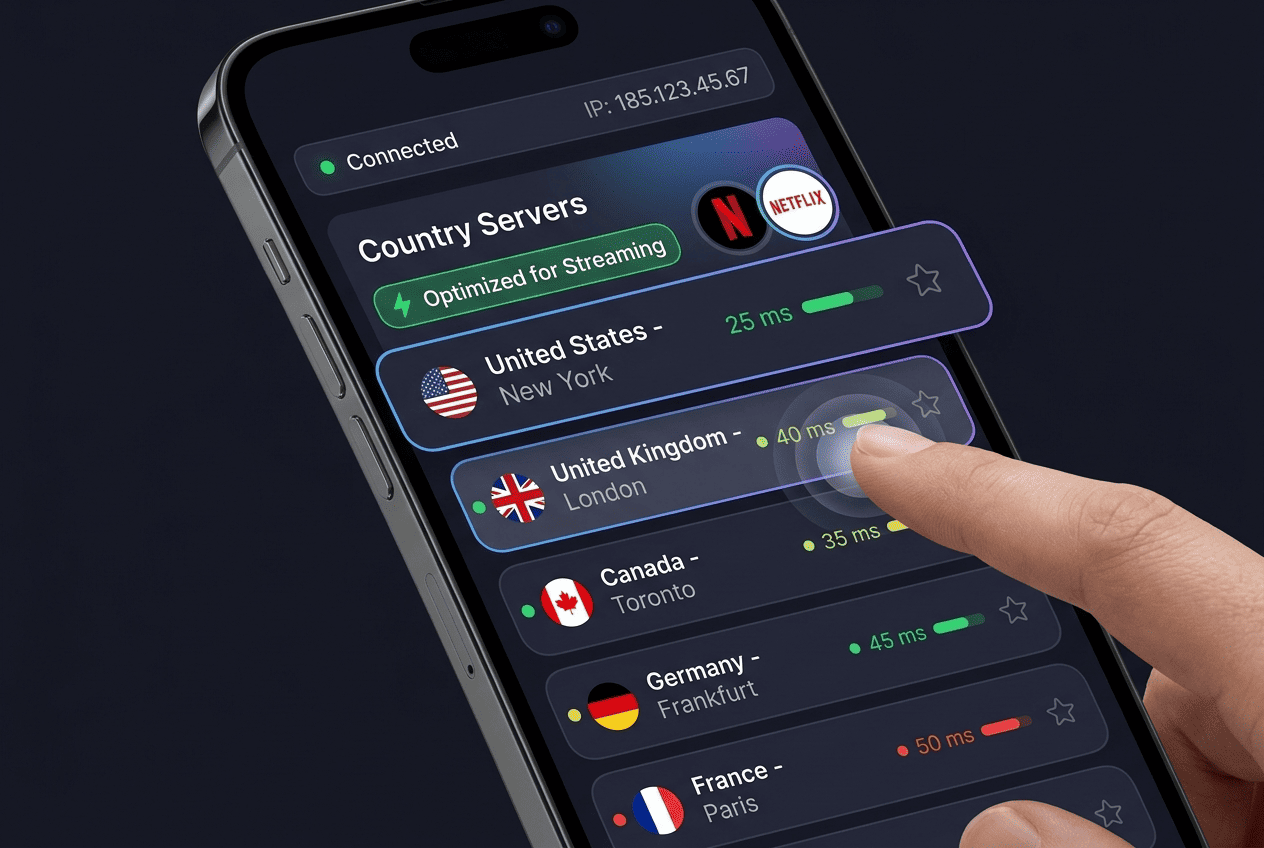
Once the VPN connection is active and the IP address changed, switch to a different server. Netflix often blocks VPNs at the server level rather than the account level, so one exit node may fail while another in the same region works normally. This is especially common with heavily used streaming locations.
Start with another VPN server in the same country if you want to access Netflix libraries there. When that fails, try nearby countries or another Netflix region that carries the content you want. Some users get stuck retrying the same crowded node again and again, which is like rattling the same locked door and expecting a new result.
Avoid specialty servers unless your VPN provider specifically recommends them for streaming services. A standard, well-maintained server works reliably for watch Netflix sessions. After each switch, refresh the Netflix website or reopen the app and test a title.
Step 3: Clear cookies, cache, and browser data
Clear cookies and cache before you assume the VPN service is the problem. Netflix and your browser can retain old location data, session tokens, and account signals that conflict with your current server. That stale data can make the website think you are still in a previous region, even after the connection changed.
In a browser, remove cookies and cache for Netflix, then close every open tab. Reopen the browser, sign in again, and retry the stream. For the Netflix app: sign out, force close it, reopen it, and sign back in. This resets the session and often clears a false proxy error tied to older login data.
This step matters most if you were recently switching countries, testing several platforms, or opening Netflix both with and without a VPN. Those mixed signals create exactly the kind of mismatch that leads to an error message about using an unblocker. Stored browser data is often the culprit.
Step 4: Check for proxy error and unblocker warnings
Read the exact error message instead of treating every Netflix failure as the same problem. If Netflix says you seem to be using an unblocker or proxy, that usually points to traffic filtering, shared server detection, or a flagged IP address. In plain terms, Netflix believes the current location does not look like a normal residential connection.
A proxy error differs from an account issue, a payment issue, or a broken app. If the website loads but a title will not play, look for language about a proxy error, unblocker or proxy use, or regional restrictions. If the app crashes entirely, the reason may sit with the device rather than the VPN.
Match the wording to the symptom. It makes the next fix much more accurate.
Step 5: Contact customer support if the issue persists
If you have tested multiple server options, cleared cookies and cache, and still cannot access Netflix, contact customer support through live chat or email. Be specific. Send the exact error message, the country or region you tried, your device type, whether you used a browser or app, and the server name if your VPN provider shows it.
That information helps support narrow the problem quickly. Instead of giving you generic how to fix advice, they may recommend a working server, confirm a temporary block, or point out app-specific issues on certain platforms. Good customer support teams can save a lot of trial and error.
Ask directly whether they have a server currently working with Netflix in your target region. Also mention if the same VPN service works on another device or browser, since that can reveal whether the problem is tied to the network, stored data, or a single app session. Clear details get better answers.
Why Netflix Blocks VPNs and Proxies
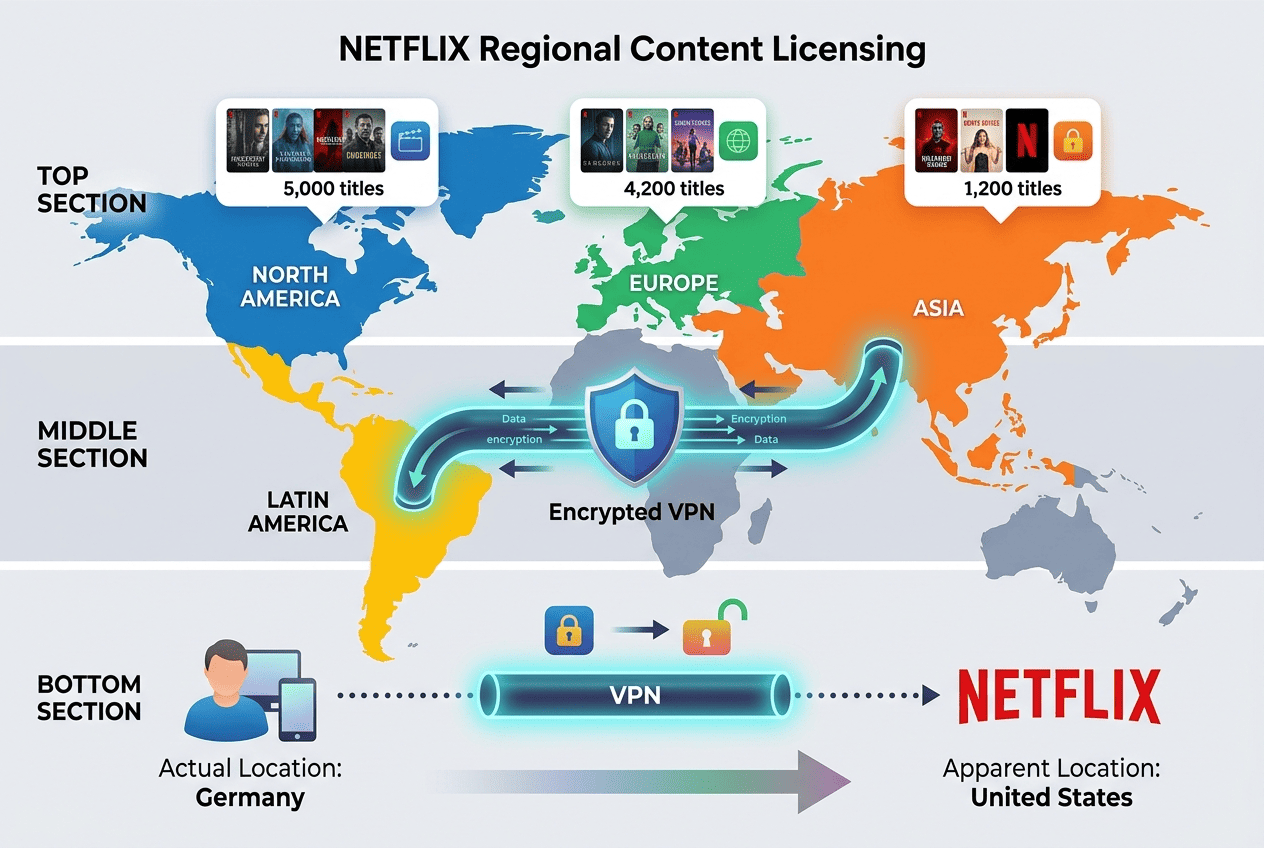
The platform operates under licensing rules that vary by country, and that means the content available in one region may not match what viewers see in another. A VPN changes apparent location, so it sits right in the middle of that system. Blocking is a structural consequence of how rights are sold, not a punitive measure against users.
For readers trying to watch Netflix while traveling or to access Netflix libraries in other countries, that can feel arbitrary. Netflix’s position is to reconcile subscriber access, licensing boundaries, and platform stability across millions of users — and that tension is the reason the block exists.
Regional licensing and content rules
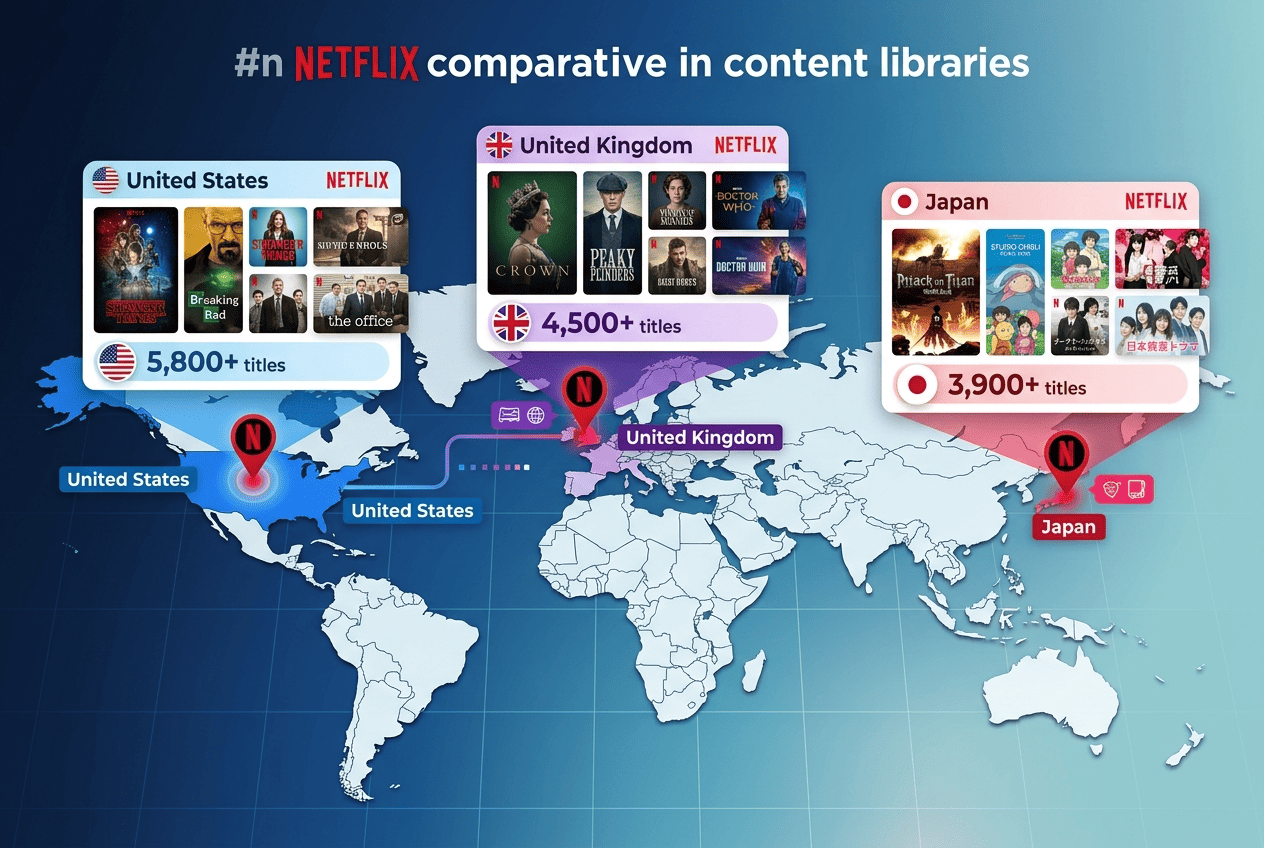
A big reason Netflix filters VPN and proxy traffic is regional licensing. Studios and distributors often sell rights by country or group of countries, not as one global package. As a result, the same streaming service may carry different content in the US, the UK, Japan, or other region markets.
Users who access Netflix from a different location may see a changed catalog: one show can be available in one region and missing in another, even under the same account. The platform is not simply organizing titles differently; it is responding to legal distribution rules tied to content rights.
When a VPN lets a device appear elsewhere, it can interfere with those agreements. That is the basic reason regional blocks exist.
How Netflix protects the viewing catalog
To enforce those rules, Netflix uses automated systems that detect traffic patterns associated with VPN service infrastructure and proxy tools. The goal is to protect the viewing catalog assigned to each location and to keep users from slipping between regions in ways the licensing model does not allow.
This is why the streaming service often blocks VPNs broadly rather than reviewing each connection one by one. Shared IP pools, unusual login patterns, and datacenter-style server traffic can all trigger a block. Once a server is identified as a frequent source of cross-region access, Netflix may start filtering it automatically.
There is also a service-quality angle here. Large-scale traffic from a small set of addresses can distort normal viewing patterns and add pressure to detection systems across platforms.
Why some users trigger blocking sooner
Not every user runs into the same Netflix VPN problem at the same pace. Users connecting through heavily shared server locations — ones many others are also using to watch Netflix — tend to trigger blocking sooner. A popular IP address can attract attention fast.
Repeated logins across several countries in a short period can also raise flags, especially when the browser, app, and device still expose conflicting location signals. Netflix may see one address, older cookies, and another network trail, then decide the session does not look trustworthy.
False positives happen too. A normal user can be blocked because a server was previously abused, because the provider rotates addresses slowly, or because stale data creates a mismatch. The block is not always a sign that you did something unusual — sometimes the system is simply cautious.
How Netflix Detects VPNs and Proxies
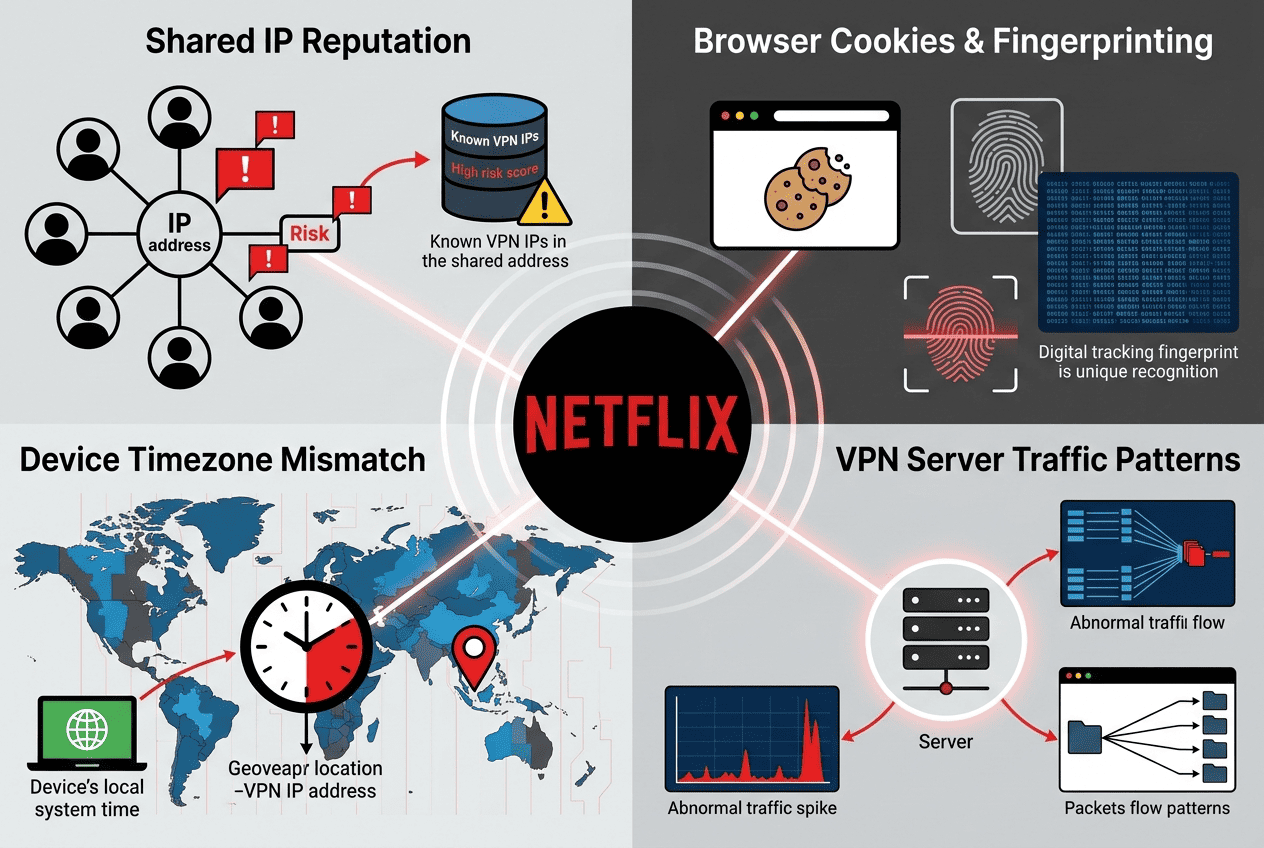
If you want a faster diagnosis, it helps to know what Netflix is probably looking at. The platform does not need to inspect every detail of your setup to spot a VPN service. Often, a few signals are enough: a shared IP address, suspicious server history, mismatched location data, or a browser cache trail that does not line up with the current network path.
Think of Netflix proxy detection as pattern matching rather than mind reading. It checks whether your connection resembles normal household streaming or traffic coming from a known server pool. That distinction is not perfect, which is why some tests fail even when your setup appears correct.
IP reputation and shared server fingerprints
The first clue is usually the IP address itself. If a server address has already been associated with a VPN provider, heavy streaming traffic, or repeated region switching, it may carry a poor reputation. The address is not necessarily malicious; Netflix may simply classify it as non-residential and more likely to trigger a proxy error.
Shared server fingerprints matter too. Hundreds or thousands of users appearing from the same address can make that location stand out. For a streaming website, that pattern is hard to ignore: a single household is normal, while a datacenter-style server feeding many simultaneous sessions is not.
Reputation is local, not universal — which is why one server can fail while another works.
Browser, app, and device signals
Netflix can also compare what your browser, app, and device suggest about your location. Cookies, sign-in history, timezone clues, or app-side data may not match the server region your VPN service now presents. When those signals conflict, the connection can look synthetic rather than organic.
Browser cache plays a role here. Old session files can preserve location data from a previous test, while the current network points elsewhere. On mobile and TV platforms, app telemetry and device settings can create the same mismatch if they were not refreshed after switching servers.
This is why a connection that fails in one browser may work in another. The website is seeing different stored traces.
Why false positives happen during streaming tests
False positives often show up during repeated troubleshooting. You run one test, switch server, reload the website, retry, then repeat. If the browser cache still holds older location data or the network takes a moment to stabilize, Netflix may read the session as inconsistent and throw a proxy error.
Temporary network shifts can cause similar issues. A VPN tunnel reconnecting in the background, an app resuming from sleep, or a DNS path lagging behind the new server can make the first streaming test fail even though the setup becomes usable seconds later.
Confirm the address, reset the session, and test again under stable conditions before treating one failed test as final proof.
Common Causes of False VPN or Proxy Detection
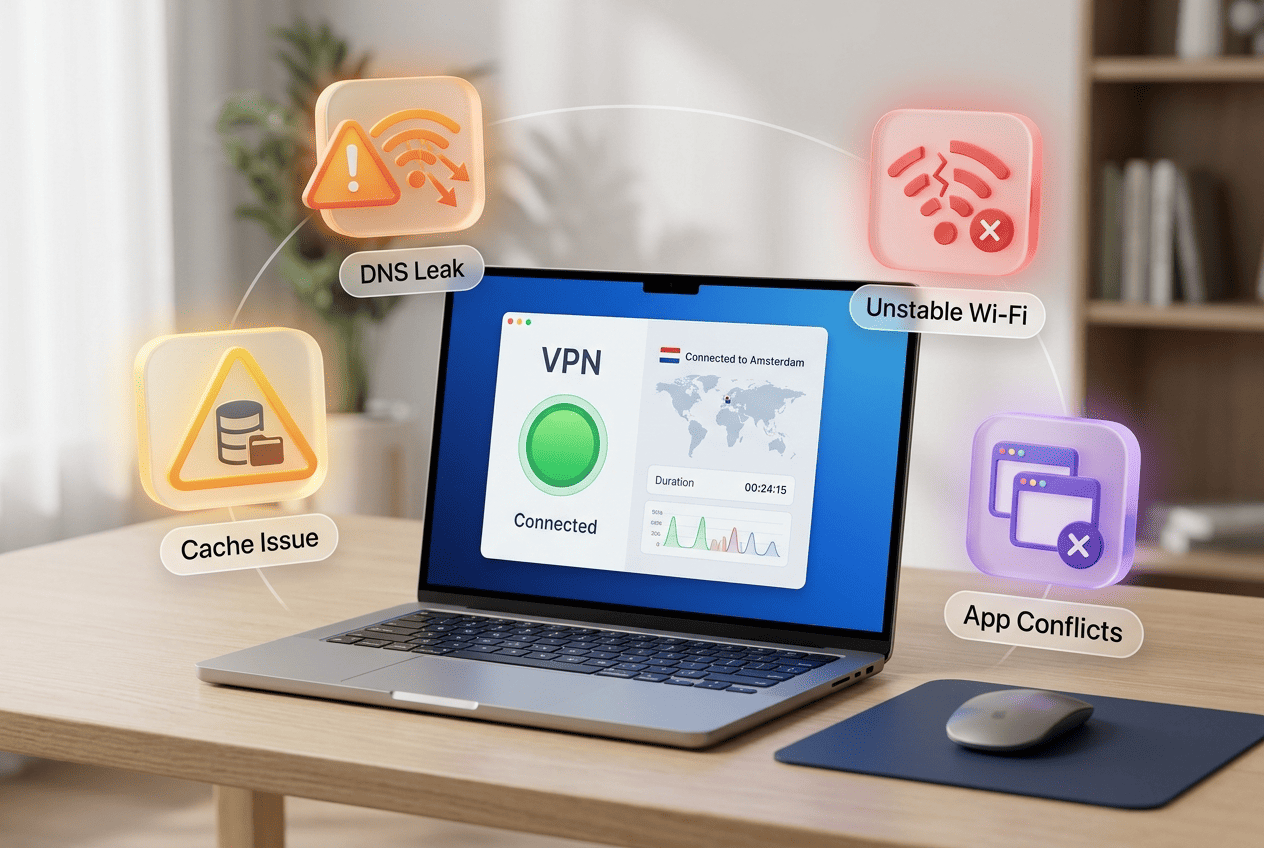
A Netflix error is not always caused by a hard block. In many cases, the system is reacting to leftover browser cache, unstable connection issues, or conflicting device settings that make a normal VPN session look suspicious. Careful diagnosis matters more than random retries.
The aim is to narrow the reason down before you burn time cycling through every server in the app. Most false detection cases fall into three buckets: old session data, network leaks or instability, and local device conflicts. Each one has a different fix.
Old cookies and cached location data
Old cookies and cache files are one of the most common reasons Netflix shows an error message even after you connect to a different server. Your browser cache may still contain location data, session tokens, or earlier region identifiers tied to a previous connection. From Netflix’s point of view, those signals do not match the current address.
Clearing cookies and cache resets that trail. It removes older website data and forces Netflix to create a fresh session based on the active VPN connection. This is especially important if you switched countries recently or tested Netflix both on and off the VPN in the same browser.
When the stream works after a clean reload, you were dealing with stale local data rather than a full block.
Network leaks and unstable connections
Some connection issues come from the network rather than the server reputation. If DNS requests, IPv6 traffic, or split-tunneling settings leak outside the VPN tunnel, Netflix may see mixed location signals — producing a proxy warning even when the main IP address appears correct.
An unstable internet path can also trigger false detection. When the VPN reconnects repeatedly, the website may catch one part of the session through the VPN and another through the regular network. That inconsistency is enough to cause an error.
Run a leak test, check whether your VPN service has DNS and IPv6 protection enabled, and disable split tunneling for Netflix if you use it. Clean paths matter.
Device conflicts and app-side glitches
Sometimes the problem lives on the device itself. An outdated Netflix app, a stale VPN app build, aggressive browser extensions, or conflicting permissions can break an otherwise valid connection. TV platforms are especially prone to this because apps often resume from an older state instead of starting fresh.
Browser add-ons that alter location, filter scripts, or block cookies can also interfere with how Netflix reads the session. The result can look like a VPN problem when the cause is an app-side glitch. Restarting the device, updating both apps, and disabling unnecessary extensions is often enough to remove the conflict.
If one device fails but another works on the same network and server, that is a strong clue the issue is local.
Best VPNs for Accessing Netflix
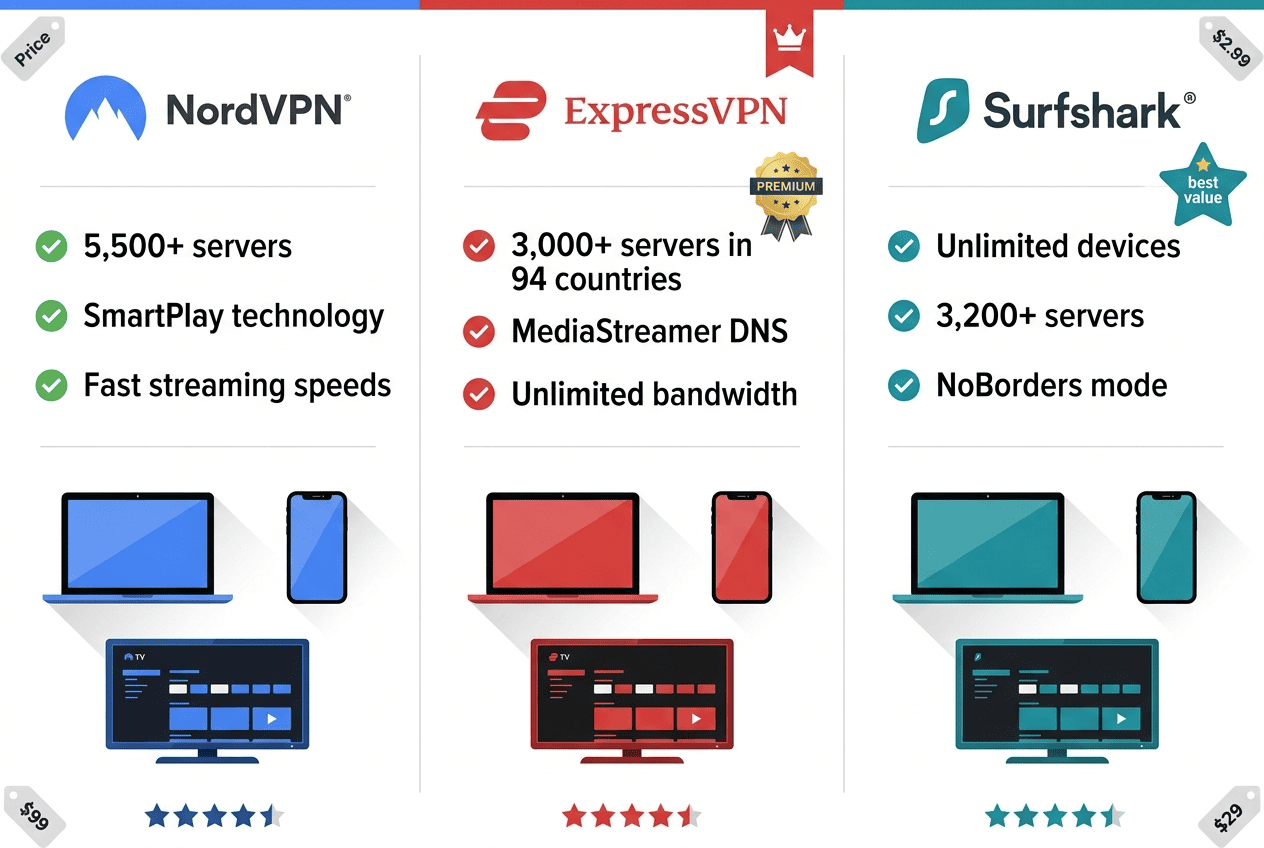
We focused on VPN providers that consistently worked with Netflix during repeated region checks, switched servers quickly, and offered useful customer support when a location failed. Reliability matters more than headline claims here. A service that works once is interesting; one that recovers cleanly after a block is far more useful.
We also looked at how easy each VPN service makes it to access Netflix across common platforms, including desktop browser sessions, mobile apps, and TV devices. Speed matters, but support matters too. If a VPN provider cannot point users to a working server when the default option fails, the experience falls apart fast.
How We Ranked the Providers
We ranked these as some of the best VPNs for Netflix by running access Netflix checks across multiple regions, verifying whether each VPN server could load titles reliably, and comparing recovery speed after an error. We also weighed app simplicity, streaming services consistency, and customer support quality, including live chat responsiveness. For readers who want a VPN provider working with Netflix instead of just advertising it, those factors matter most.
Netflix FAQ
Why does Netflix say I’m using an unblocker or proxy?
What should I do first when Netflix stops working with my VPN?
Can a browser cause Netflix VPN issues?
Will changing servers always fix the error?
When should I contact customer support?